Flex Real Estate Pro
  • Introduction
  • briefcaseHelp and Support
  • Template Installation
  • Flex Importer
    • STEP 1: LICENSE ACTIVATION
    • STEP 2:REQUIRED PLUGINS
    • STEP 3: IMPORT CONTENT
  • Theme Implementation
    • Setup Header Section
    • Setup Slider Section
    • Setup Property Amenities Section
    • Setup Cards Section
    • Setup About Us Section
    • Our Feature Properties Section
    • Setup Inquries​ Section
    • Setup Discover Our Properties Section
    • Setup Destination Section
    • Setup Estate Section
    • Setup Testimonial Section
    • Setup Our Agents Section
    • Setup Blog Section
    • Setup Footer Section
  • Support

Flex Real Estate Pro

System Requirement :

To ensure optimal performance of the Flex Real Estate Pro theme, we recommend your web server meets the following minimum requirements:

WordPress Version: 6.4 or higher

PHP Version: 7.4 or higher

Database: MySQL 5.6+ or MariaDB 10.0+

PHP Time Limit:(Recommended: 5000)

PHP Memory Limit:(Recommended: 9512M or more)

Max Input Vars:(Recommended: 6000)

Max Upload Size:(Recommended: 200MB or more)

Note: Contact your hosting provider to increase these values if needed for successful demo content import.

Introduction

We feel honoured that you purchased our WordPress theme. This documentation has many sections that demonstrate the entire process of configuring and managing a WordPress website from scratch.

What is the WordPress content management system? (CMS)

WordPress is an open-source program for creating websites that uses MySQL and PHP. To put it briefly, it is a blogging tool and open-source content management system (CMS) that anyone may use. You may create powerful online applications and webpages using the CMS. To handle it, you don't need any technical knowledge or abilities. WordPress's ease of use and versatility have made it the most widely used website construction platform. Learn More

A Wordpress template: What is it?

WordPress-powered webpages are skinned using WordPress templates. It is easy to put up a WordPress design. You may easily alter the look of your WordPress website by installing a new template. You can expand and alter the WordPress template to meet your needs. It comes with all the necessary source files.

We Are Here For Help and Support

Click the button for support:
Theme File Structure

You downloaded a template file that has numerous folders in it. Let's examine each subdirectory's contents in more detail:

  • Screenshot: - Examples of templates are provided. Not to be utilised in production.

  • Theme : "-includes WordPress theme assets

  • flex-real-estate-pro: -All of the files needed for the theme are in this folder.

  • license.txt :-includes licence information

  • readme.txt : This file includes information about the font, use script, and pictures used in the theme.

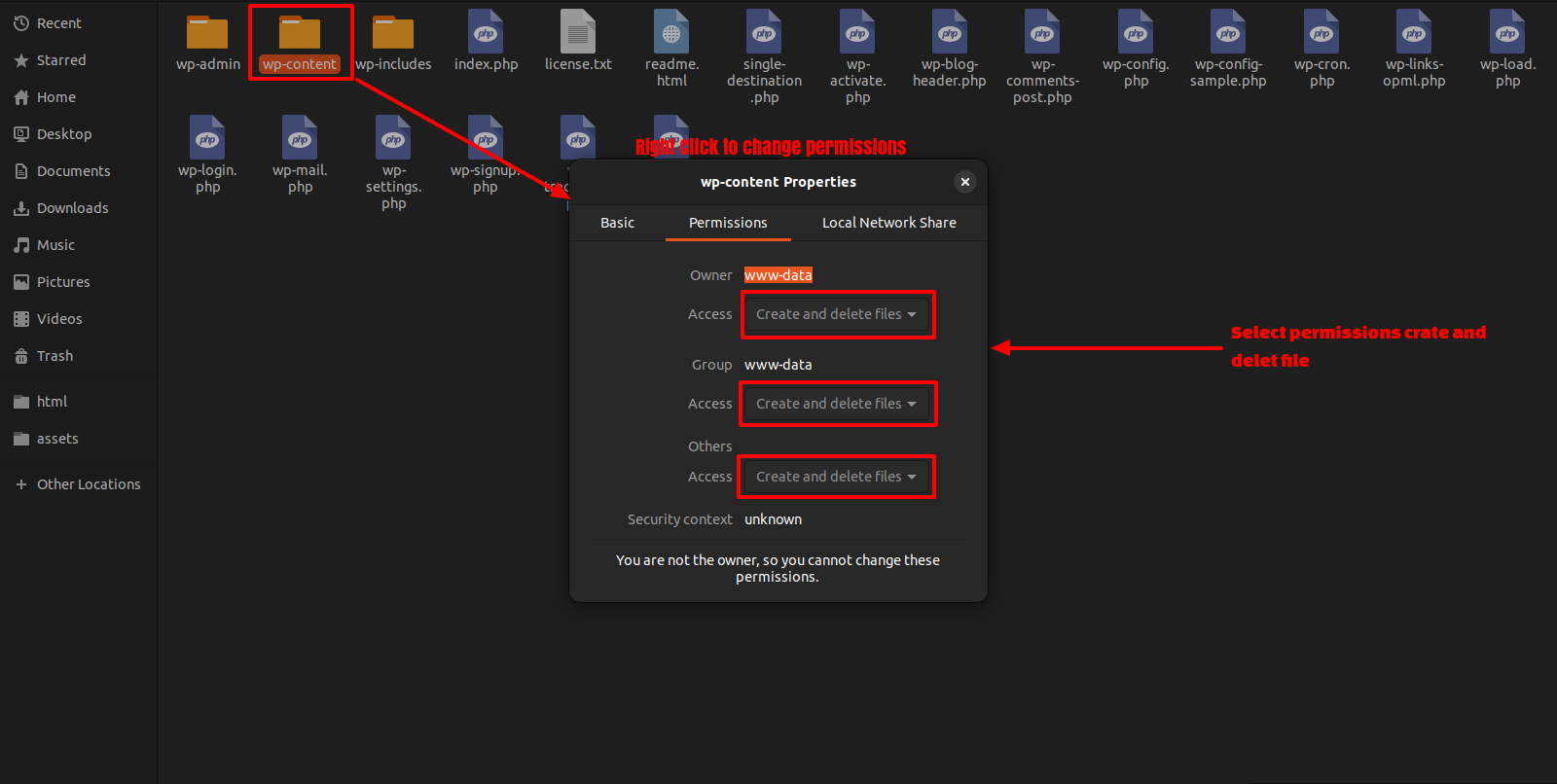
My website used to function properly. How were the permissions on the files altered?

If file permissions are set wrong, WordPress might not be able to create directories, upload photos, or run scripts.

WordPress requires authorization to manage files and make folders on the server.

When you right-click on any folder within the main directory, the context menu will appear. Choose File Permissions from there.

  • wp-config

  • permissions dialog box

  • choose the checkbox read and write

  • To proceed, click the OK button.

For the wp-content subdirectory, use the same steps.

Template Installation

Installing a template is a straightforward process.
The WordPress interface can be used to complete the installation. Consequently, the procedure is quicker and more comfortable.
There are two available installation techniques.
1-Use WordPress admin to install a theme.

Go into the WordPress admin area to get started.

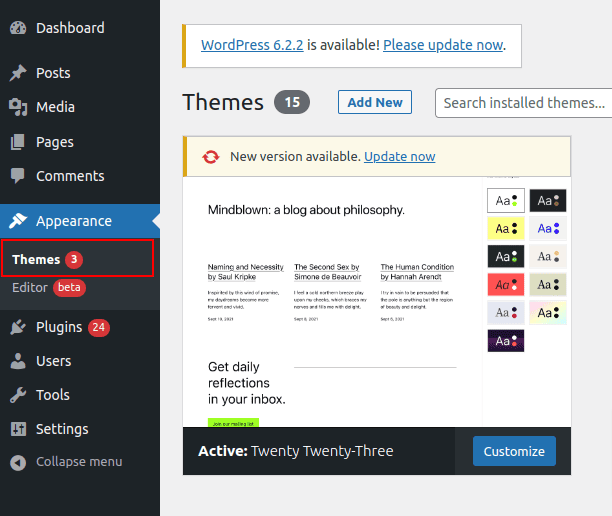
1. Click on Appearance >> Select Themes

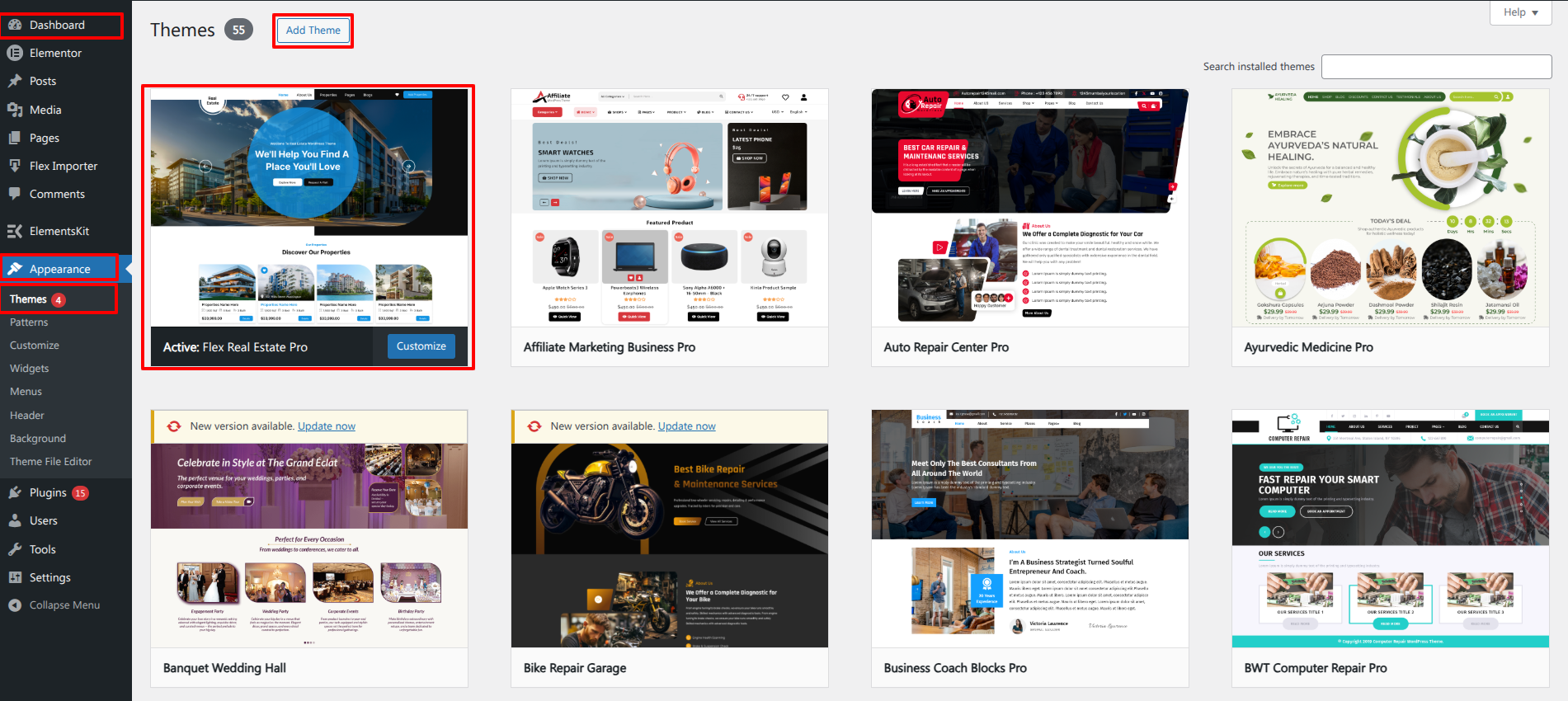
2.Click the Add New button located on the themes page.

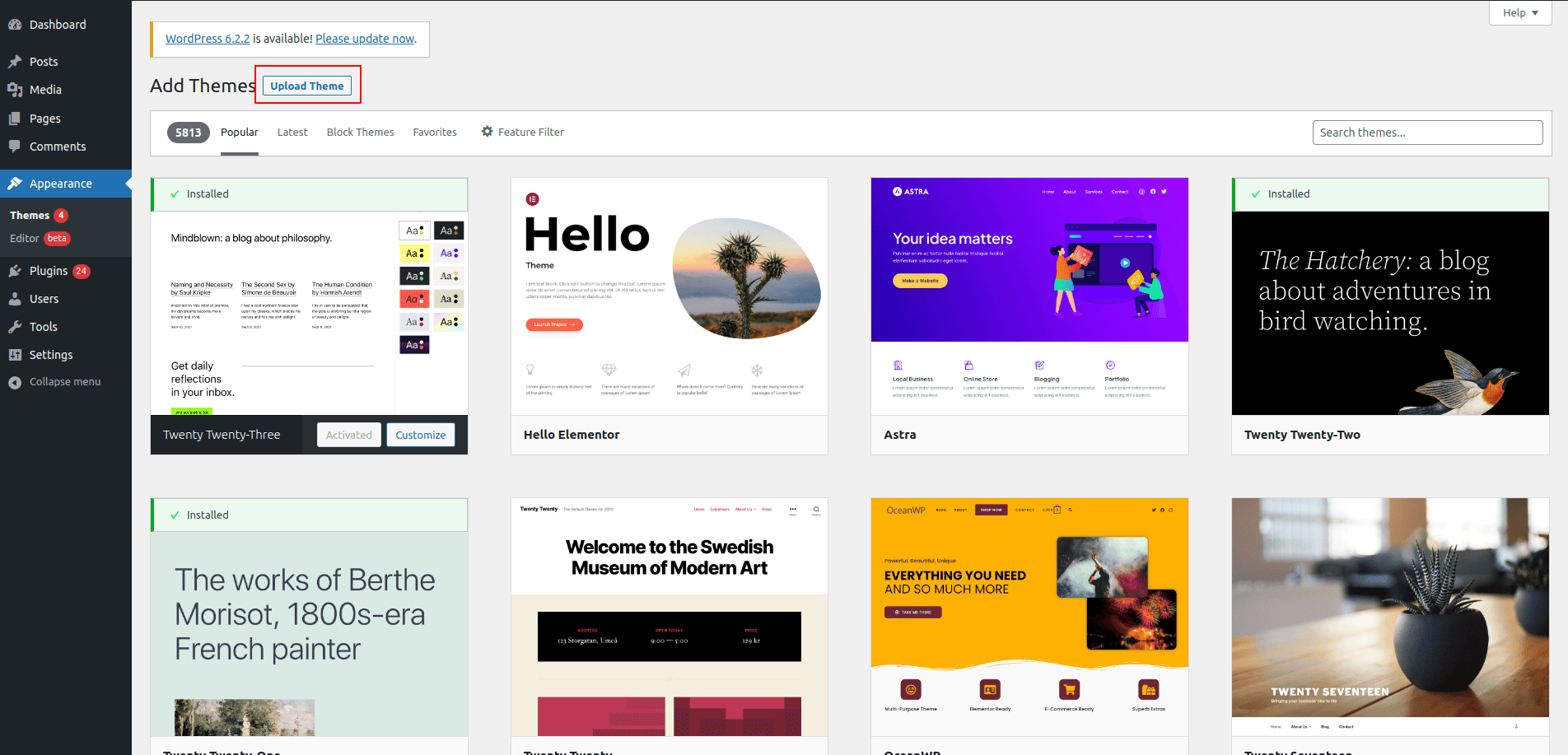
3.Click the upload button to add the theme.

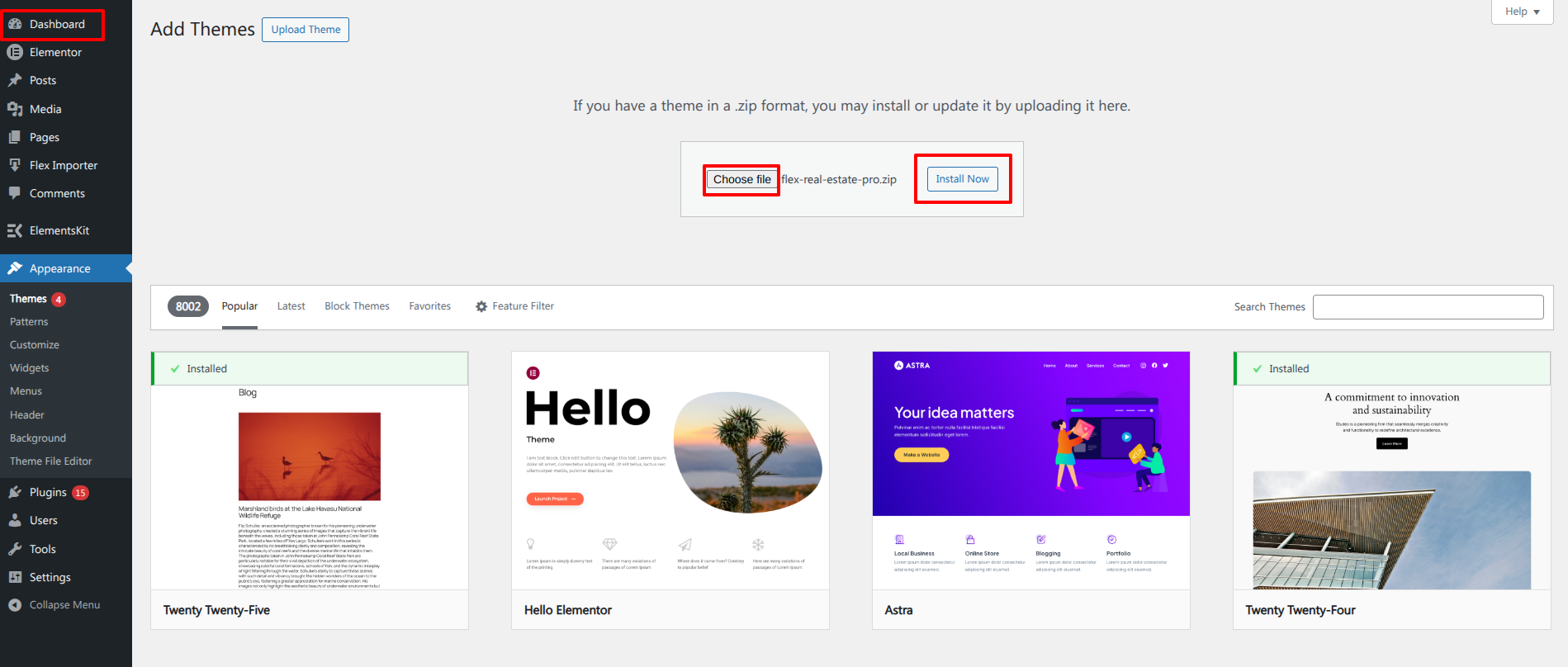
4. Select your flex-pro zip file and After selecting Browse, select Install immediately.


Flex Importer

Go to Settings after logging into your WordPress website. Appearance >> Themes .

1) Example Import Procedure Simply click the "Start Now" button to get started.

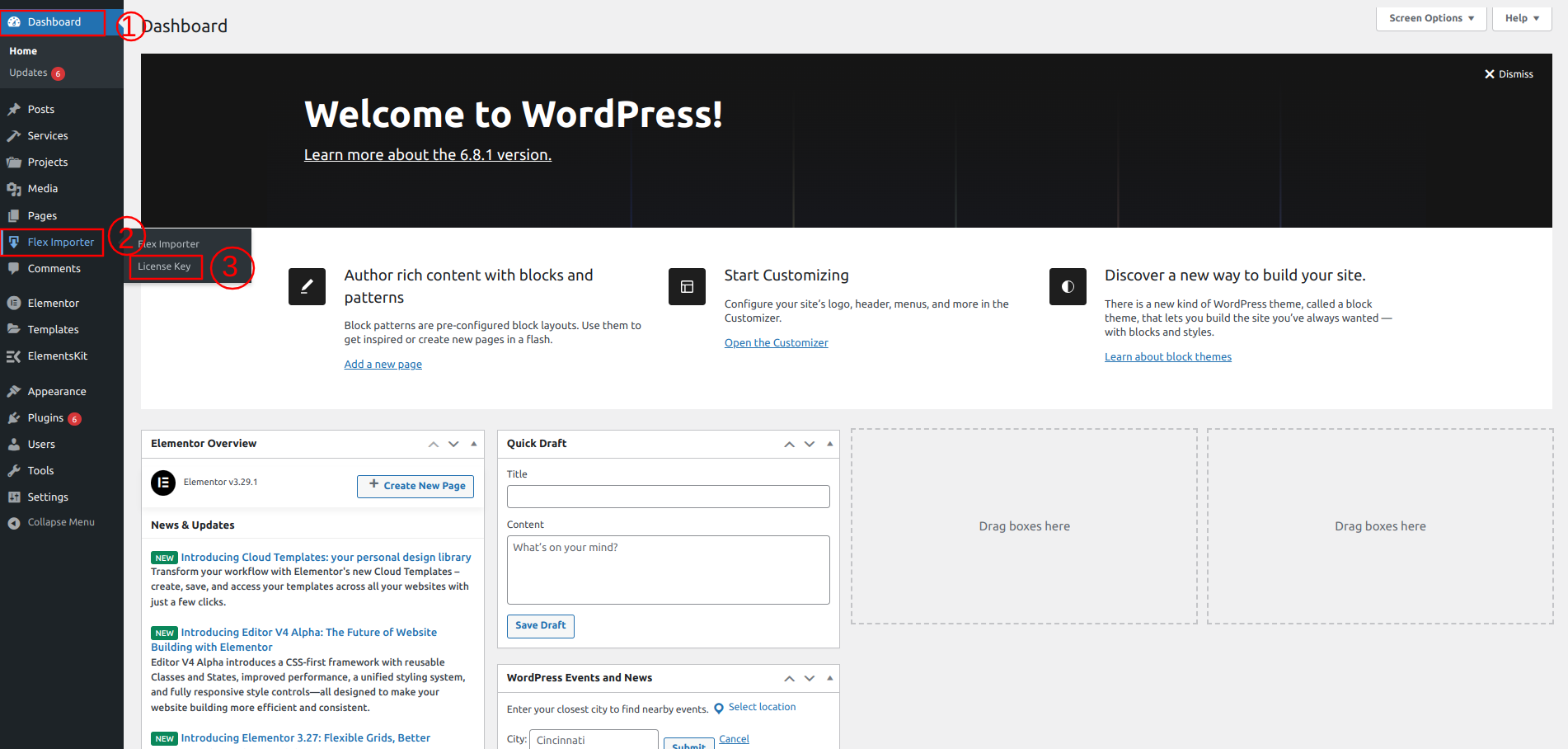
Go to the Dashboard Flex Importer. License Key


STEP 1: LICENSE ACTIVATION

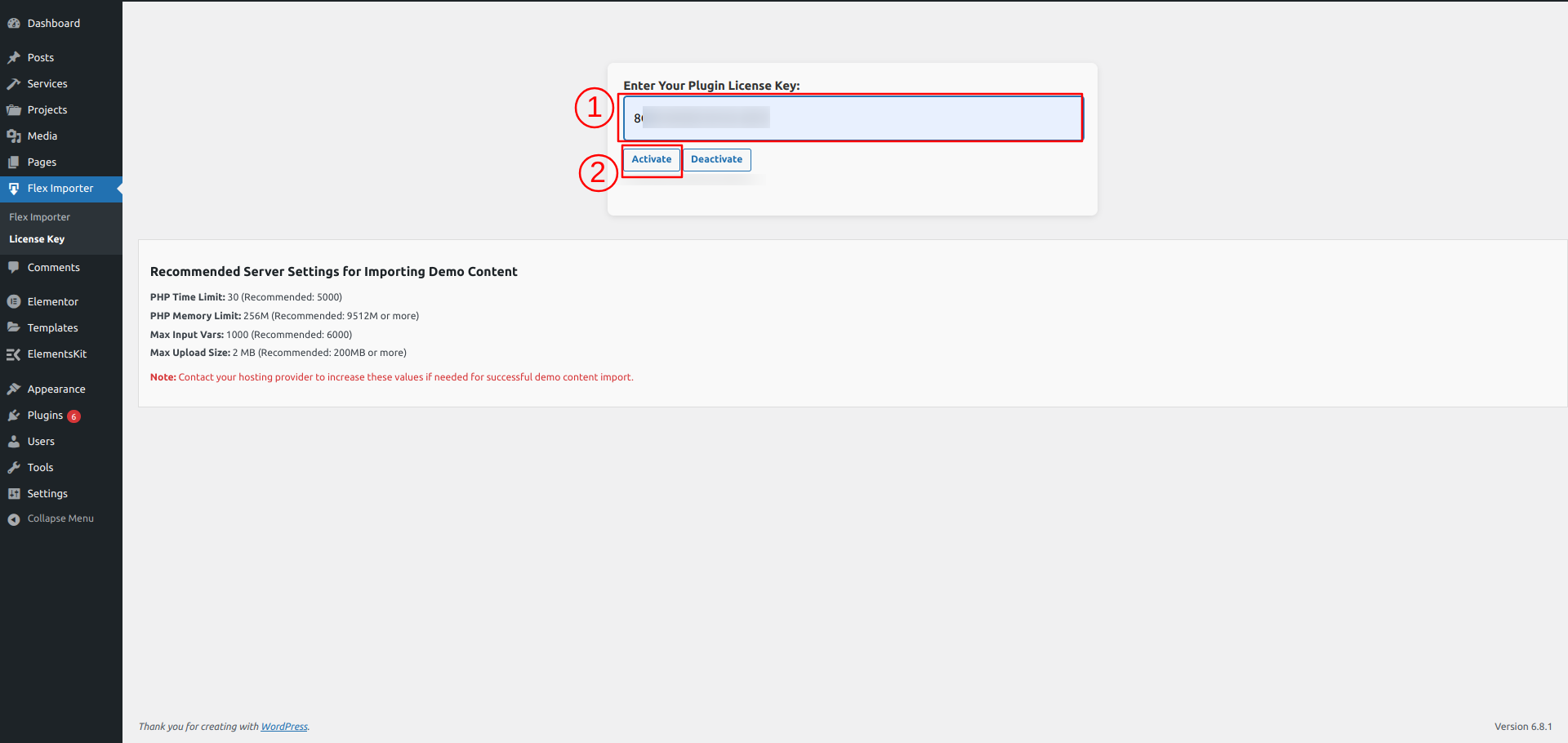
The steps for activating a License are as follows.

Use the Licence Key you will receive through Email, to Activate Your Licence.

Click the Activate button following the entry of the licence key


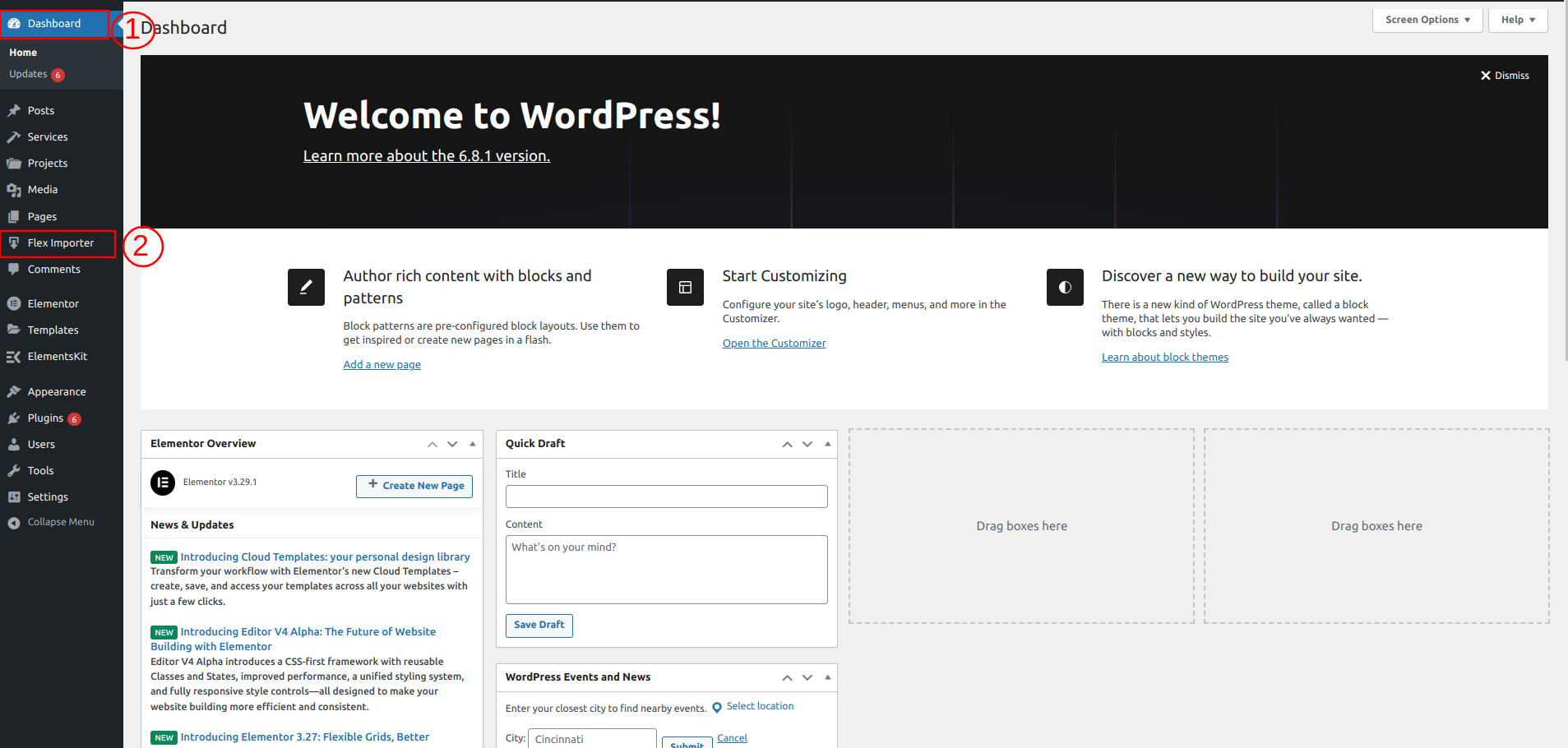
Click the Dashboard once the licence has been activated.

Go to the Dashboard Flex Importer.


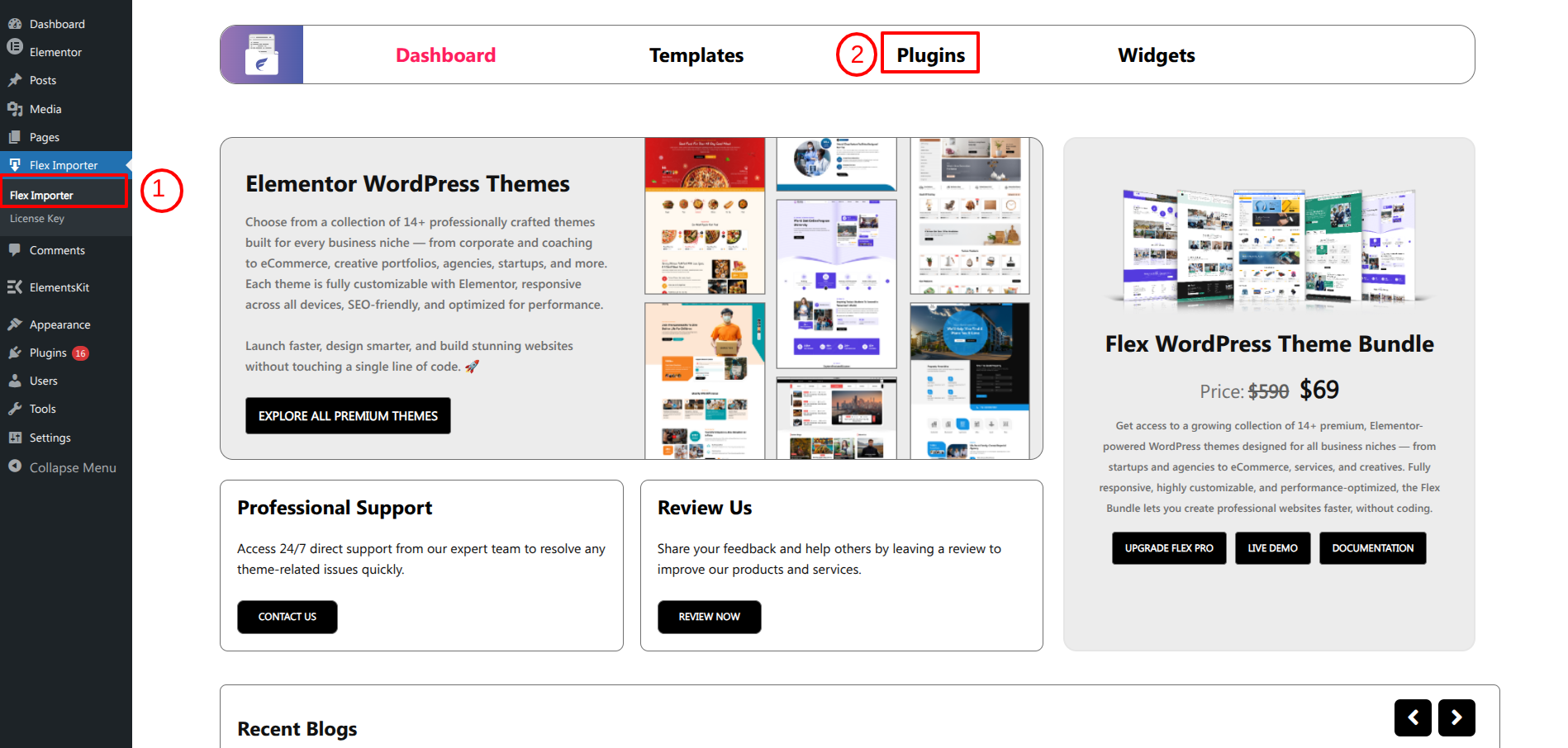
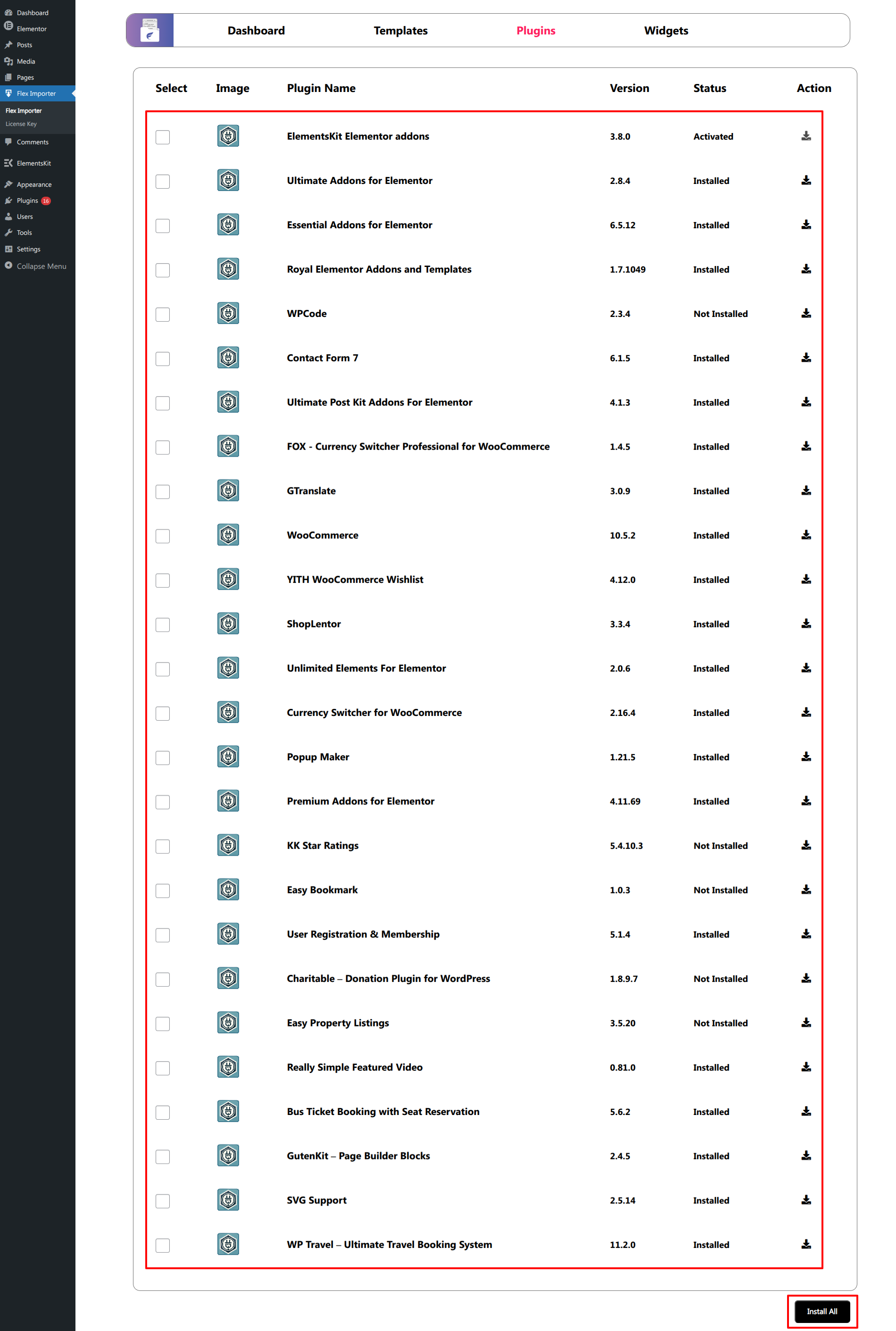
STEP 2:REQUIRED PLUGINS

Click on "Plugins" to begin the Plugin installation.


To install the necessary plugins, click the "Install Plugin" option.


STEP 3: IMPORT CONTENT

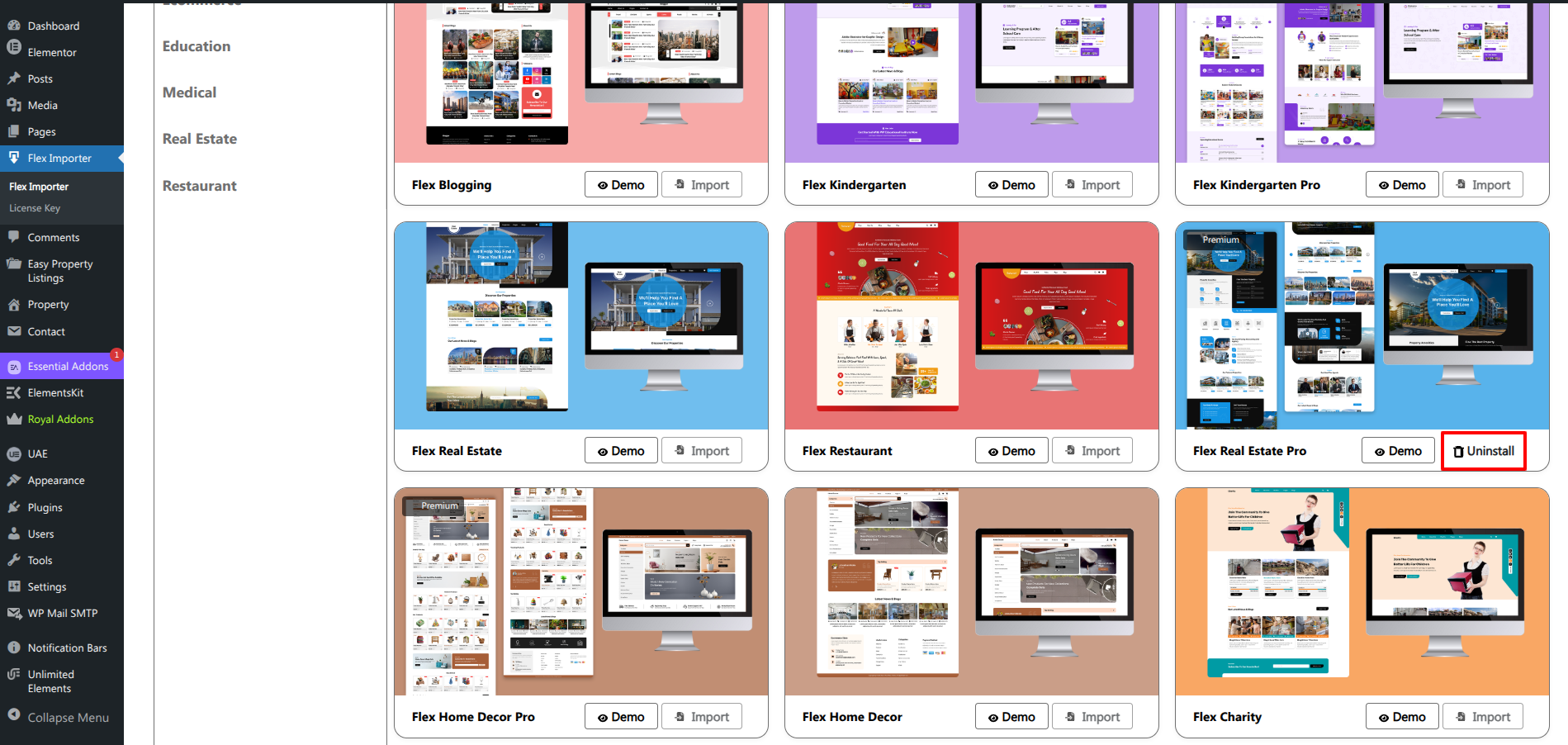
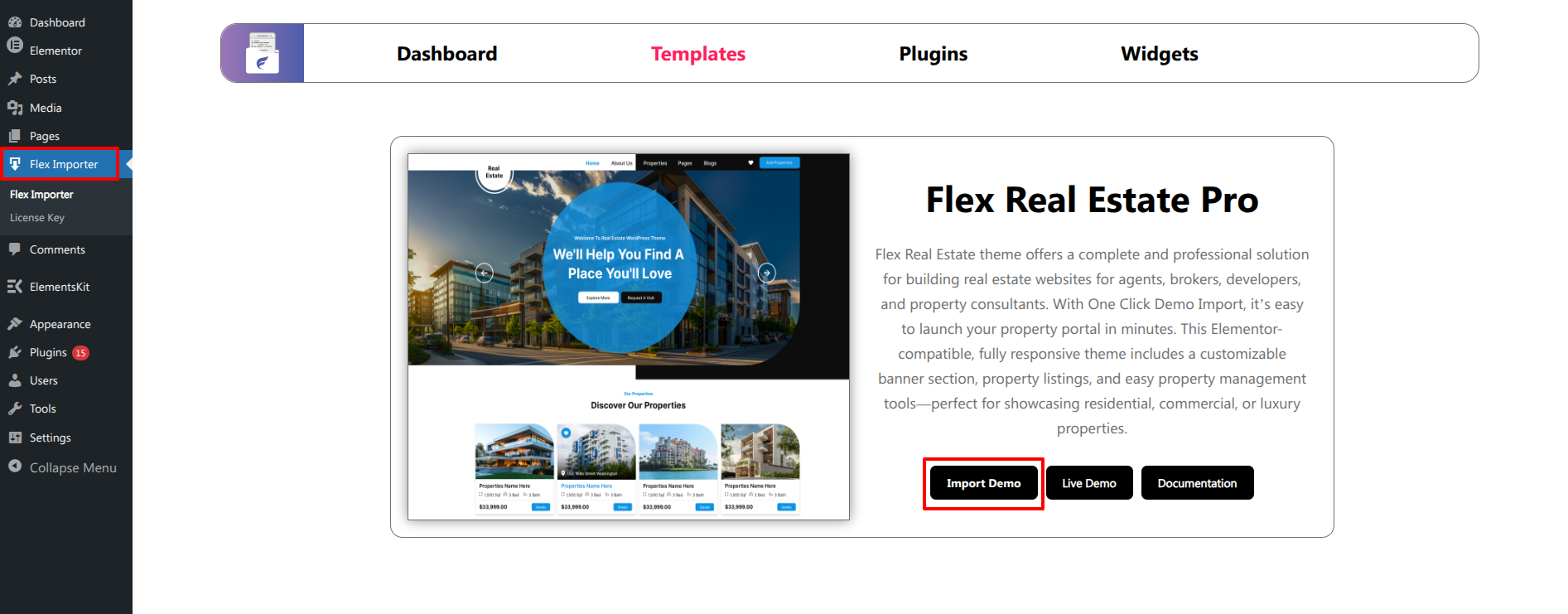
Once the plugin has been installed, click on "Templates" .


Then click on "Import" to start import.


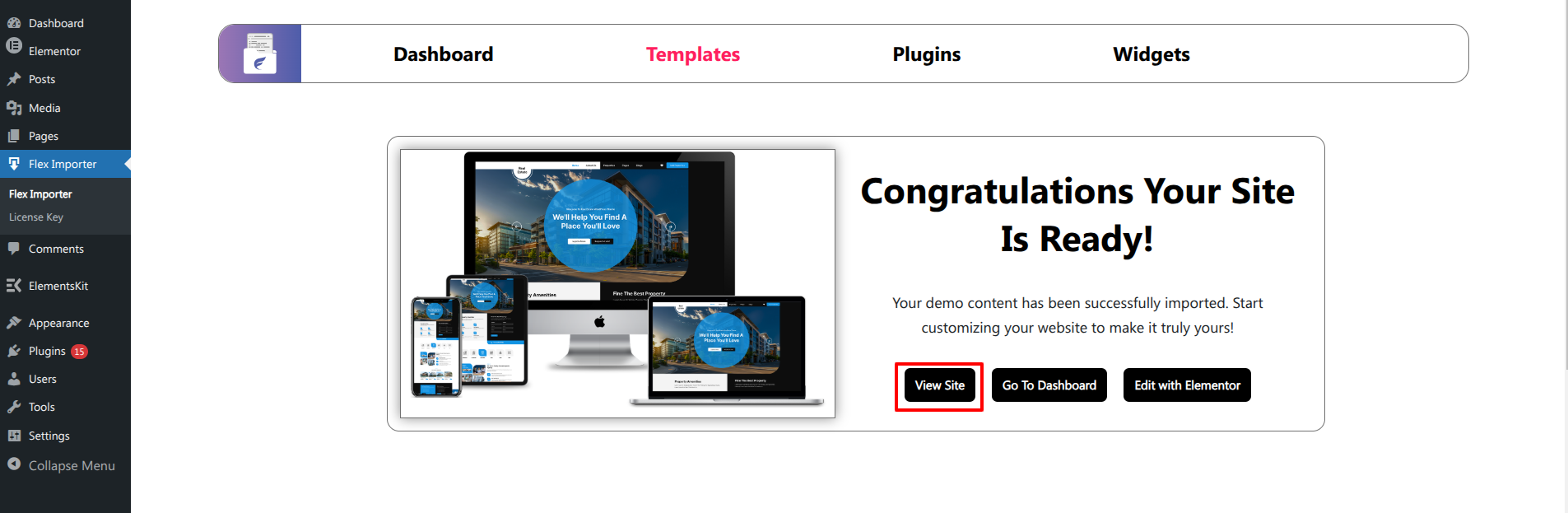
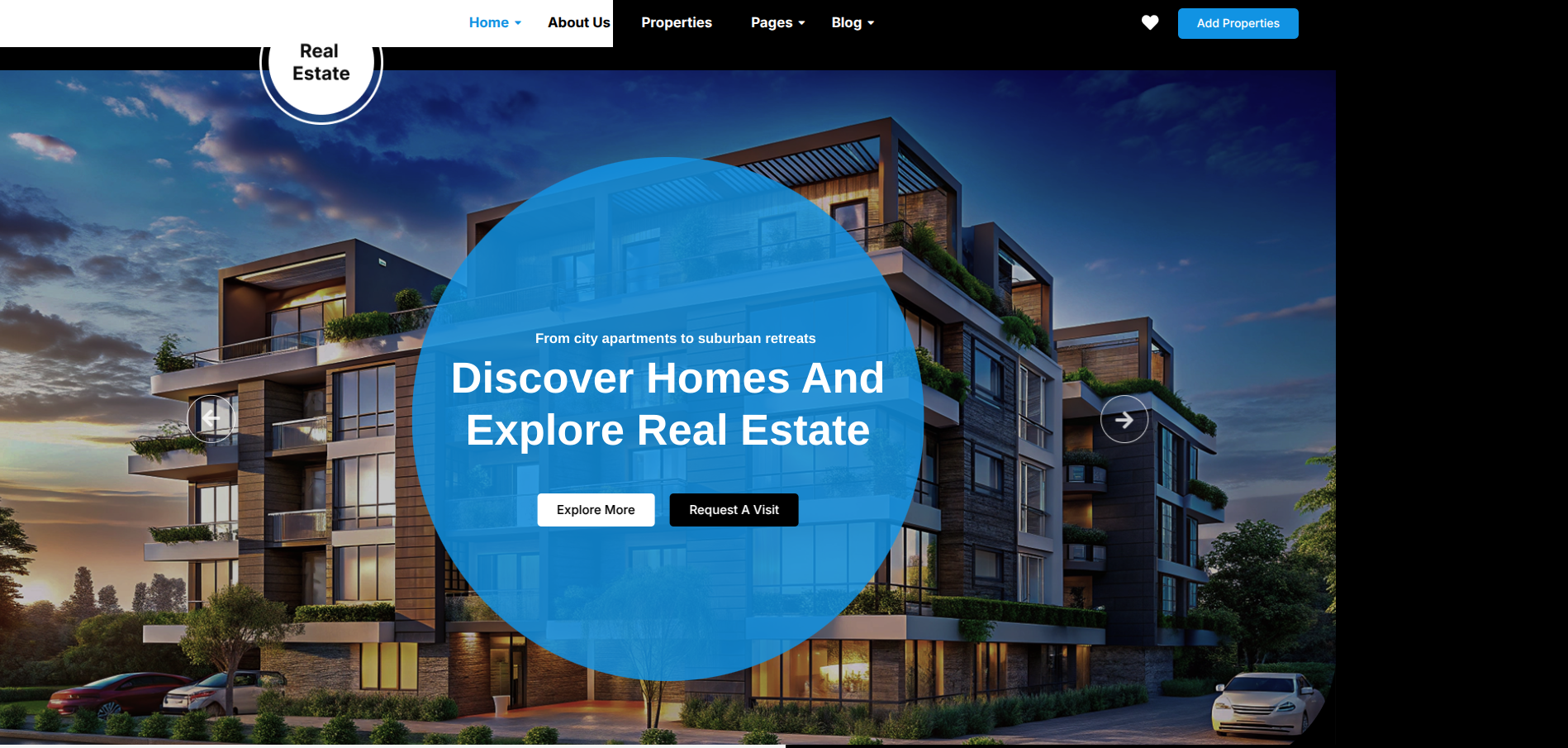
This Is Your Theme's Final View.


THEME IMPLEMENTATION

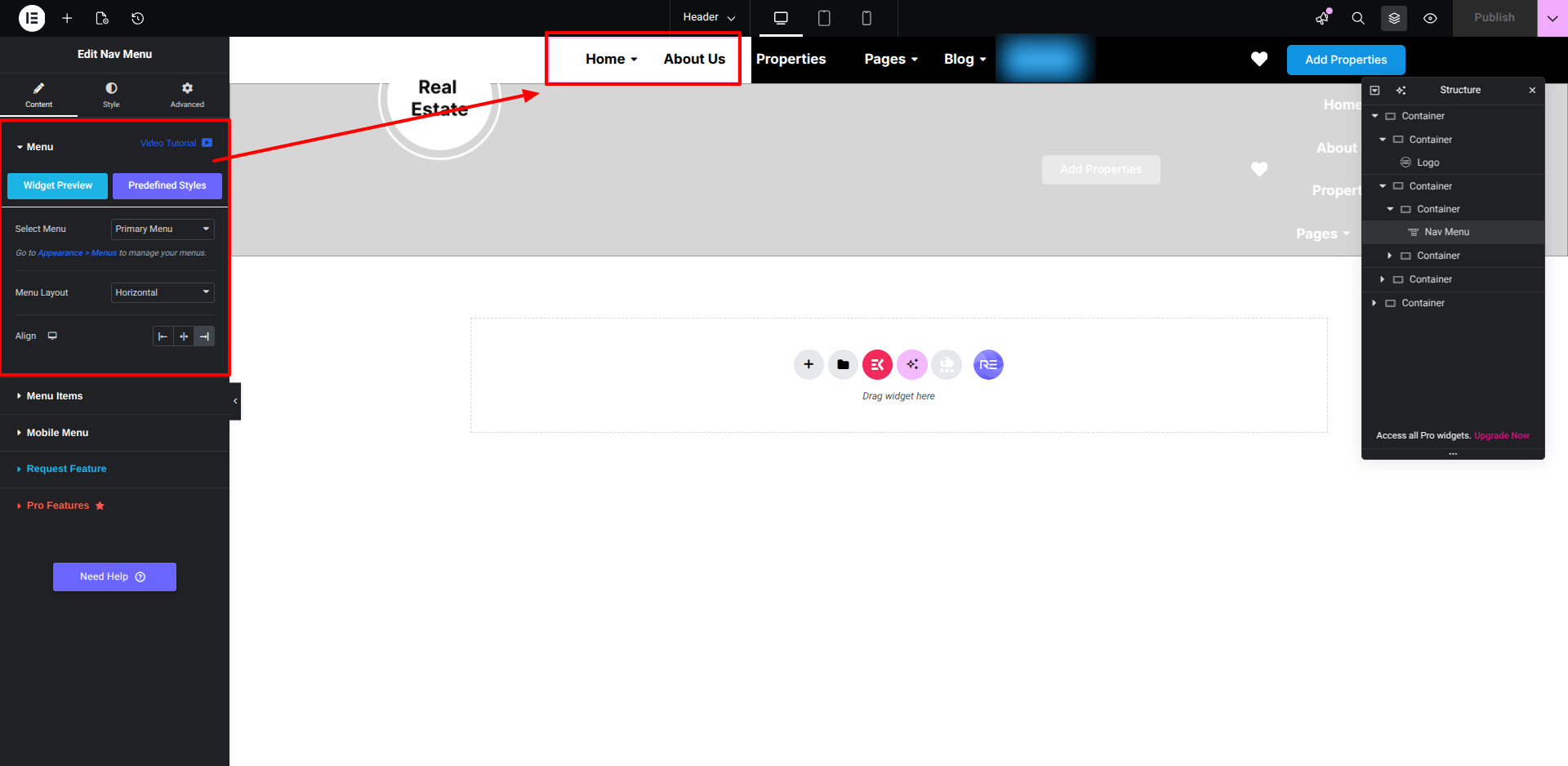
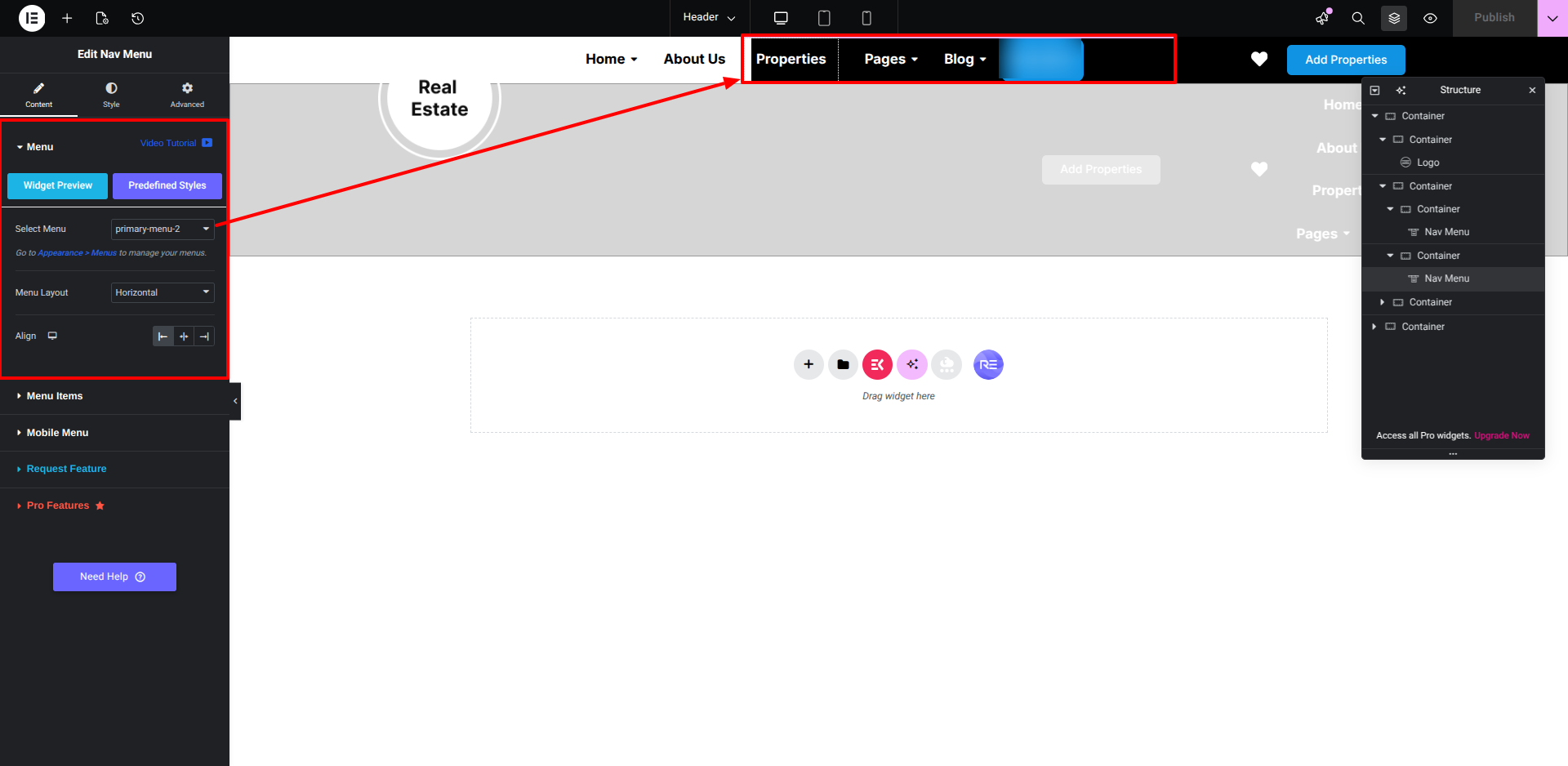
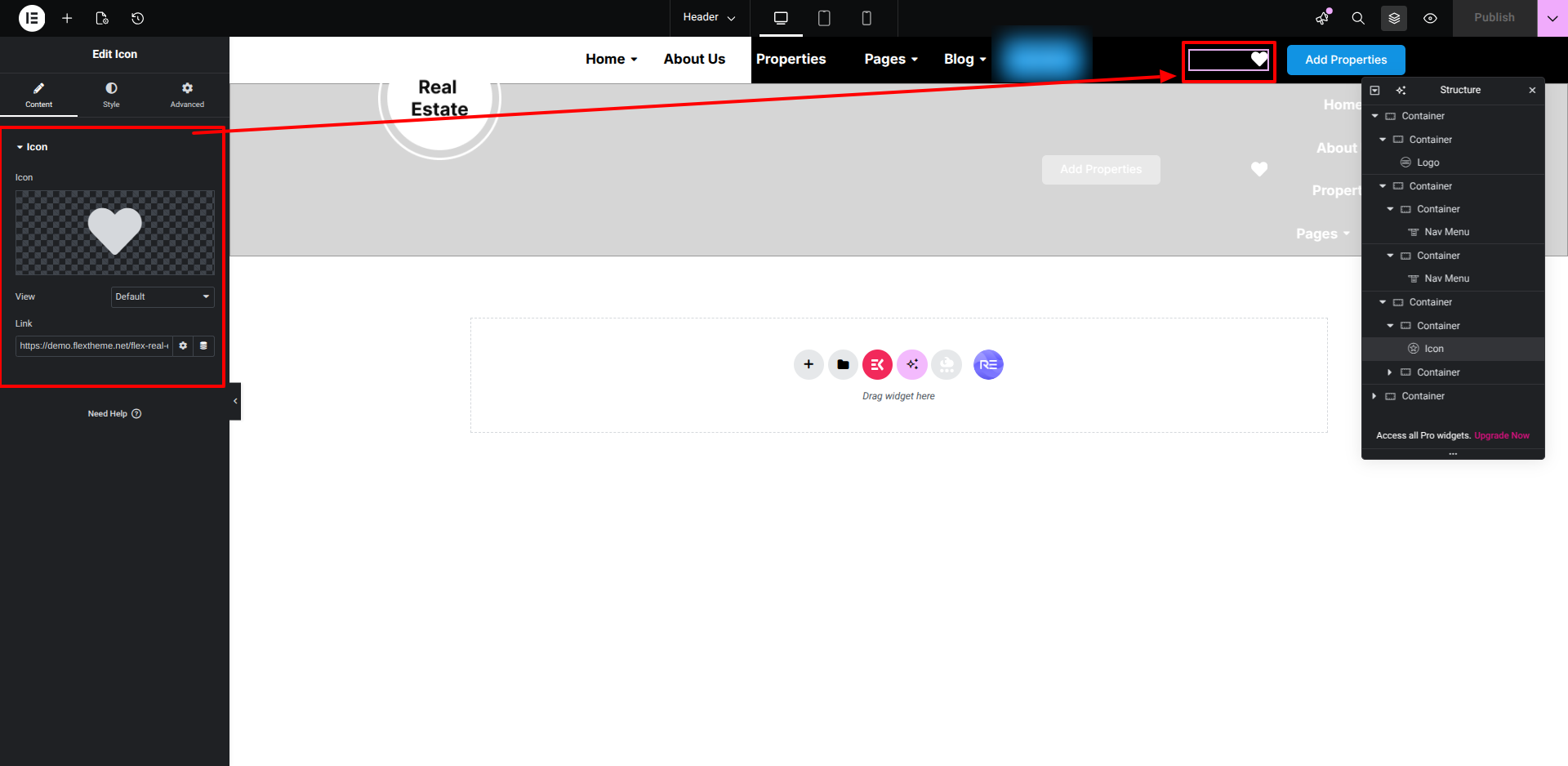
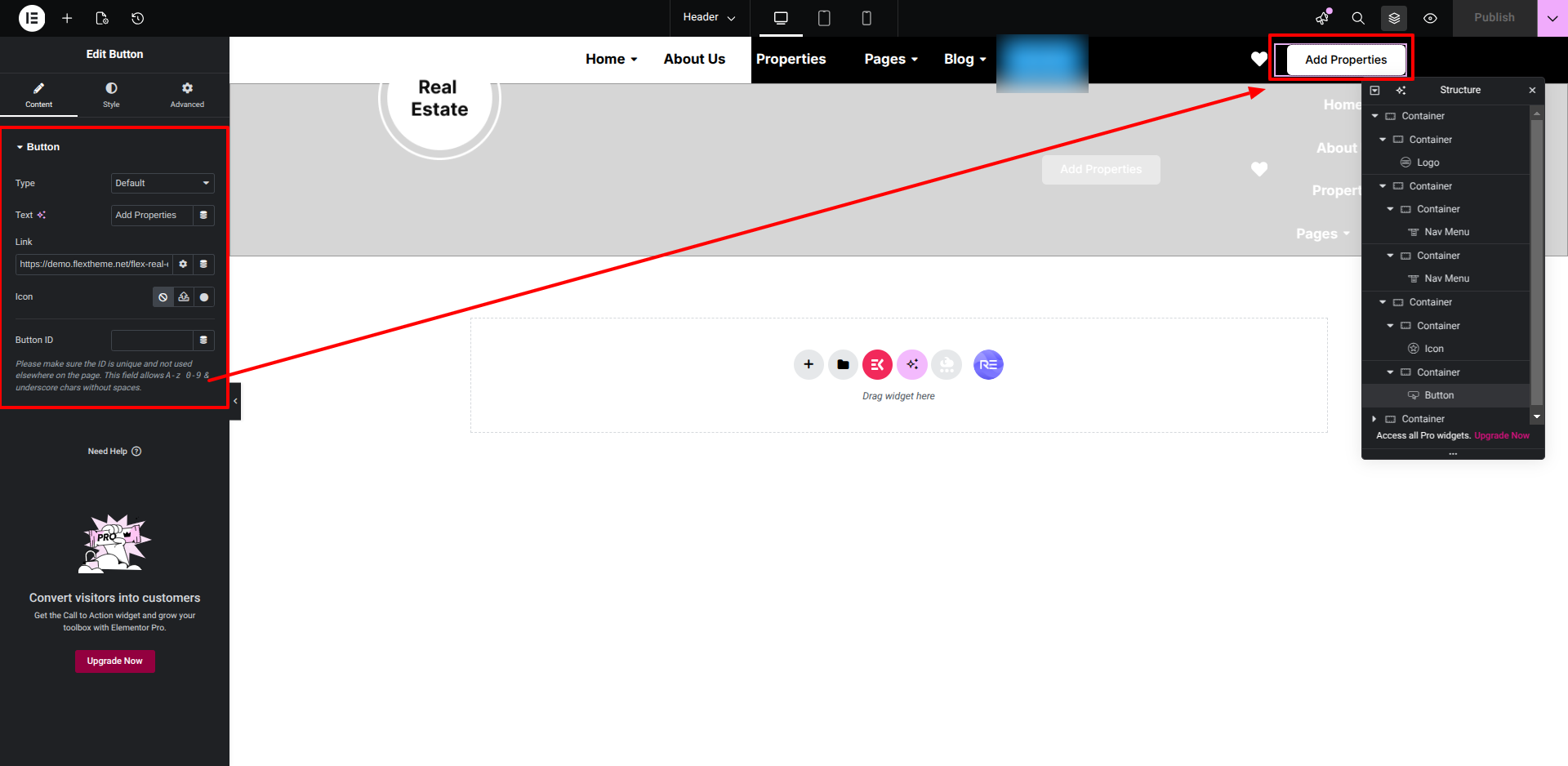
SETUP HEADER

for setting up the Header section. the instructions below.

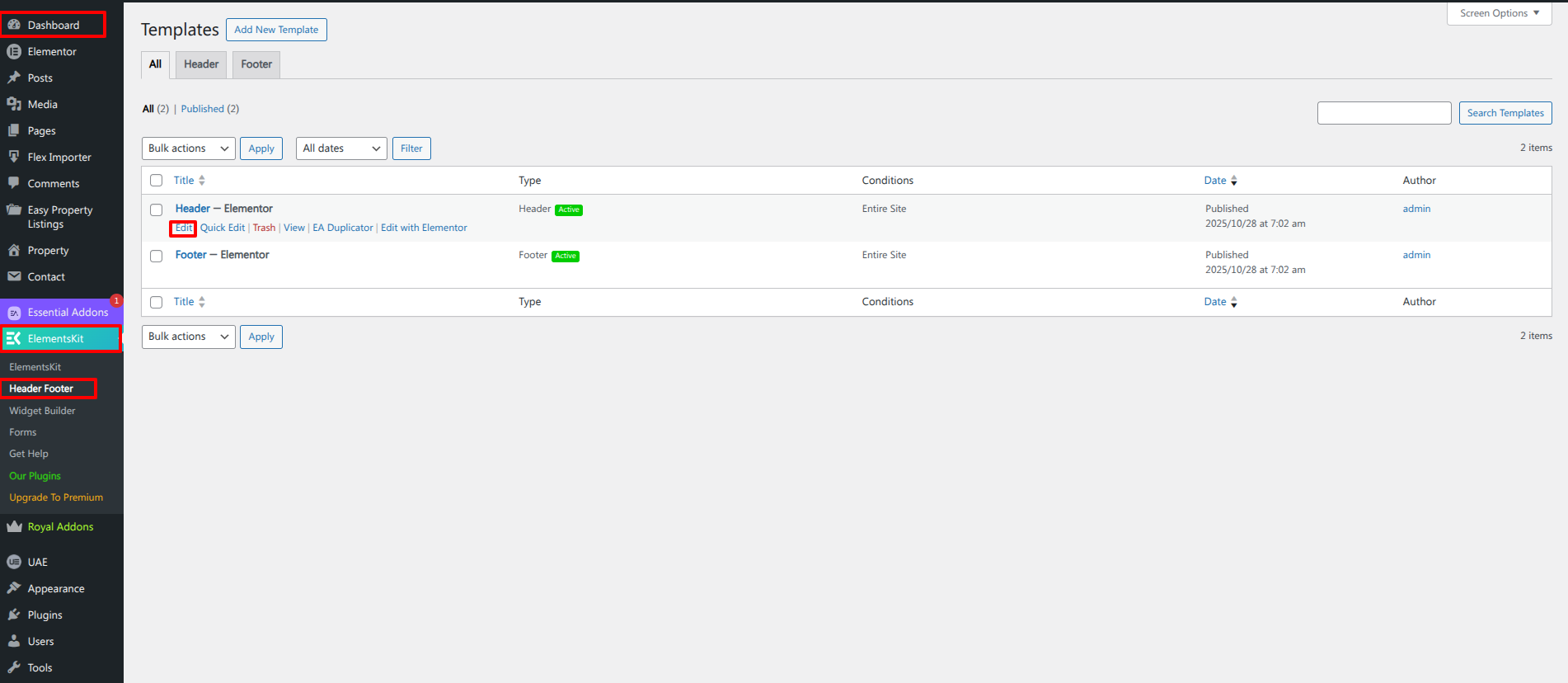
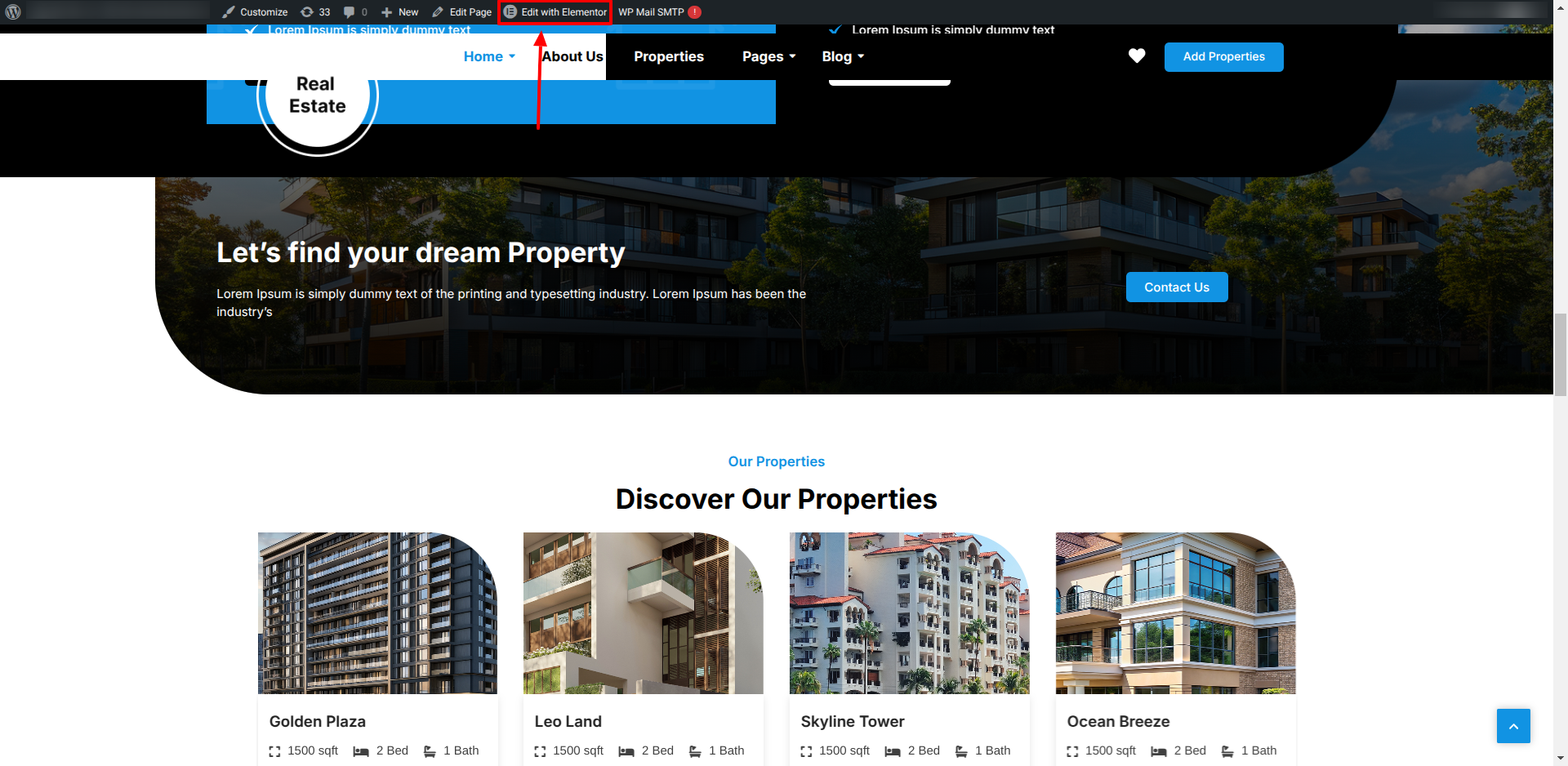
Go to Dashboard Elementskit Header Footer Edit.


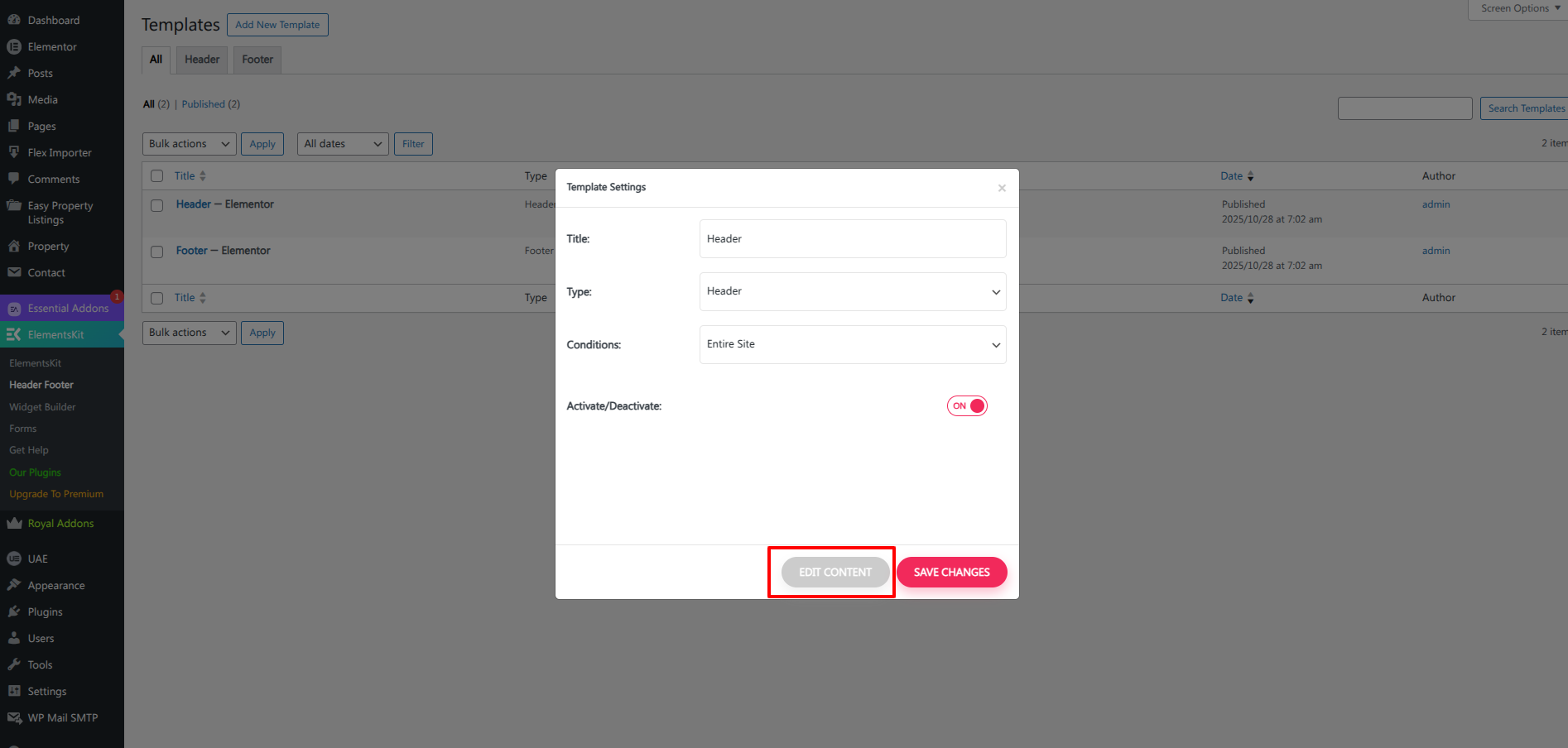
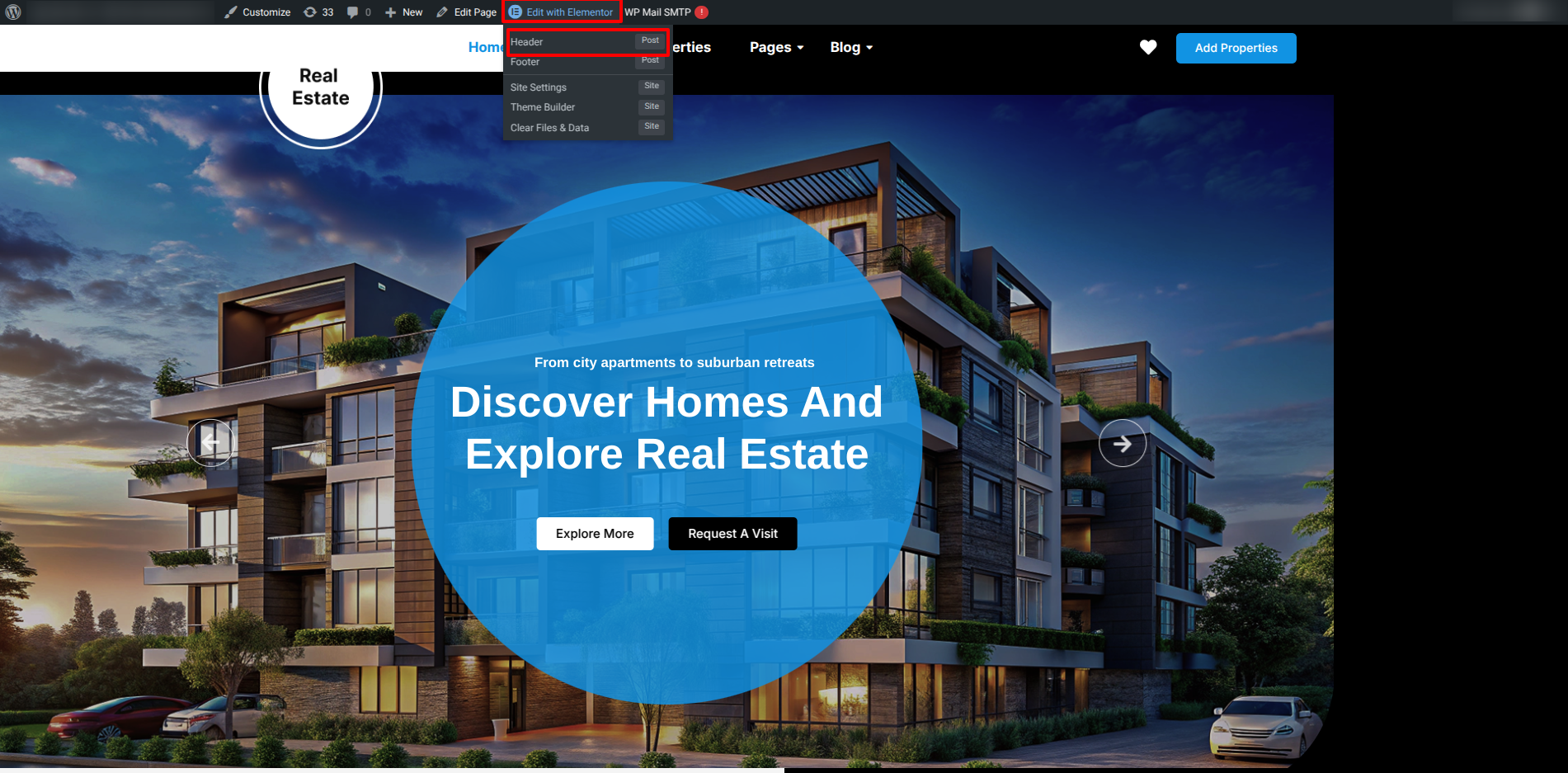
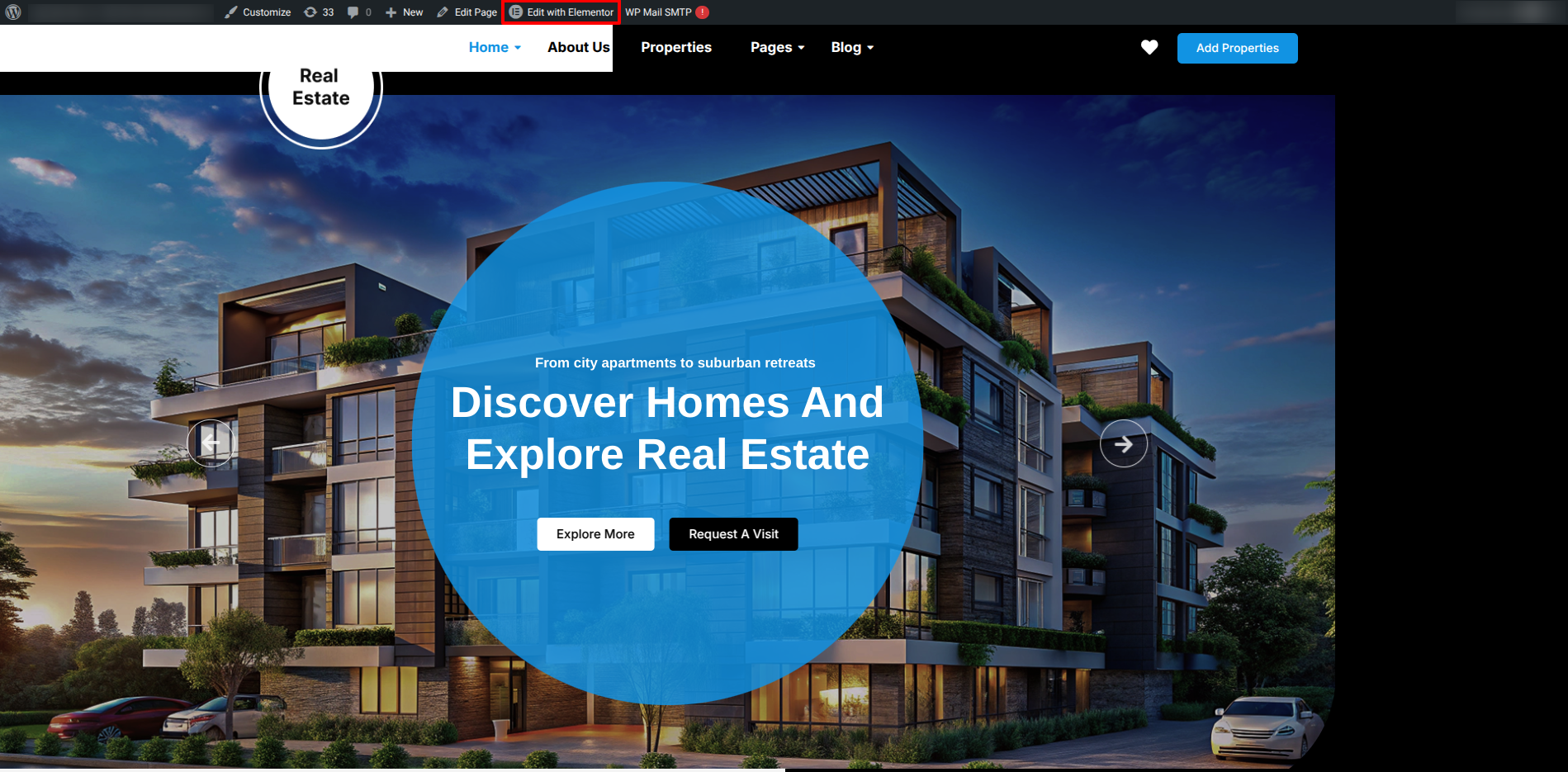
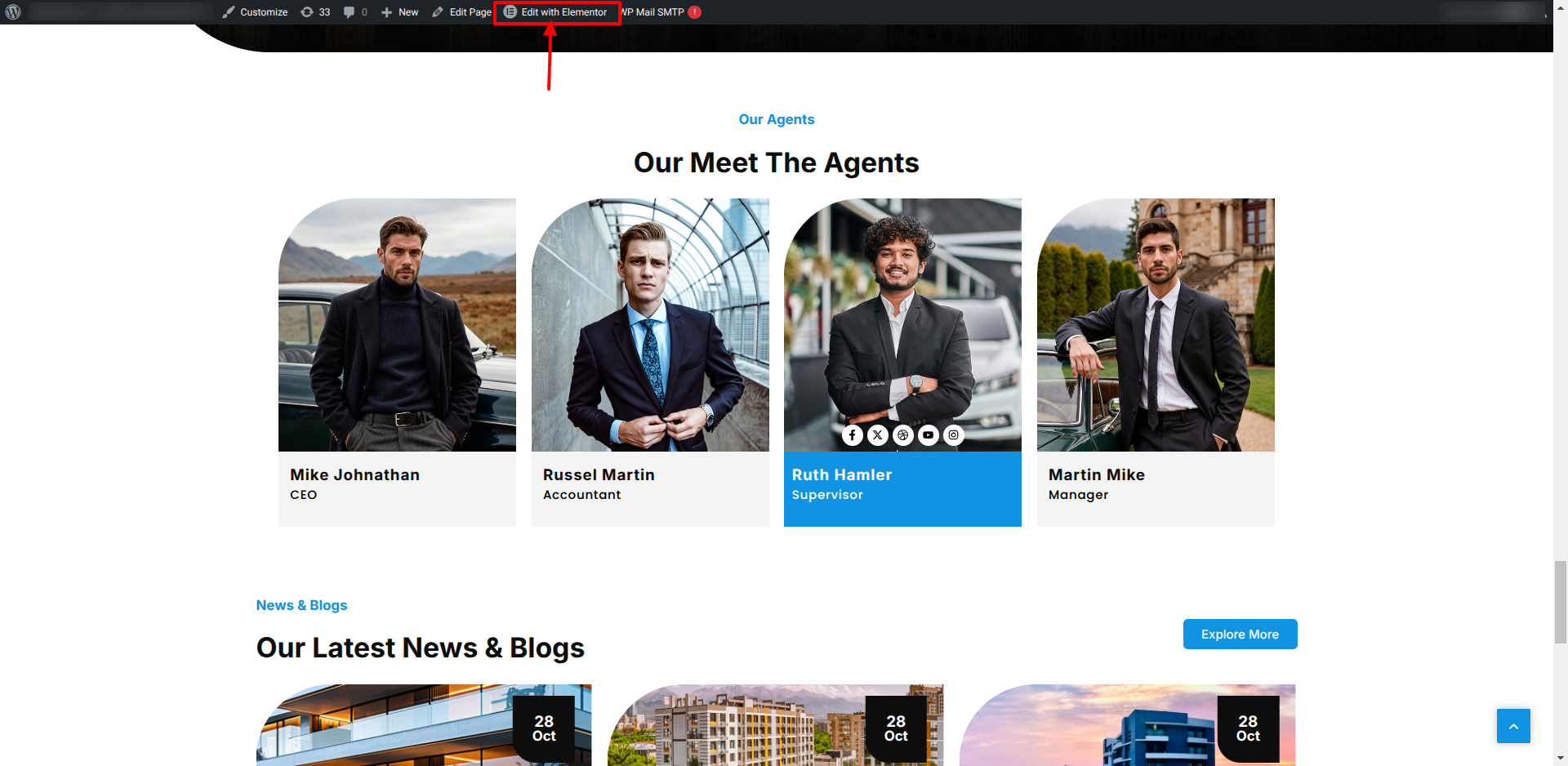
To Edit this Section, Click On the "Edit With Elementor" Button which will open the Elementor Widget editor.


This is how you may set up and add the Header section.


Setup Slider Section

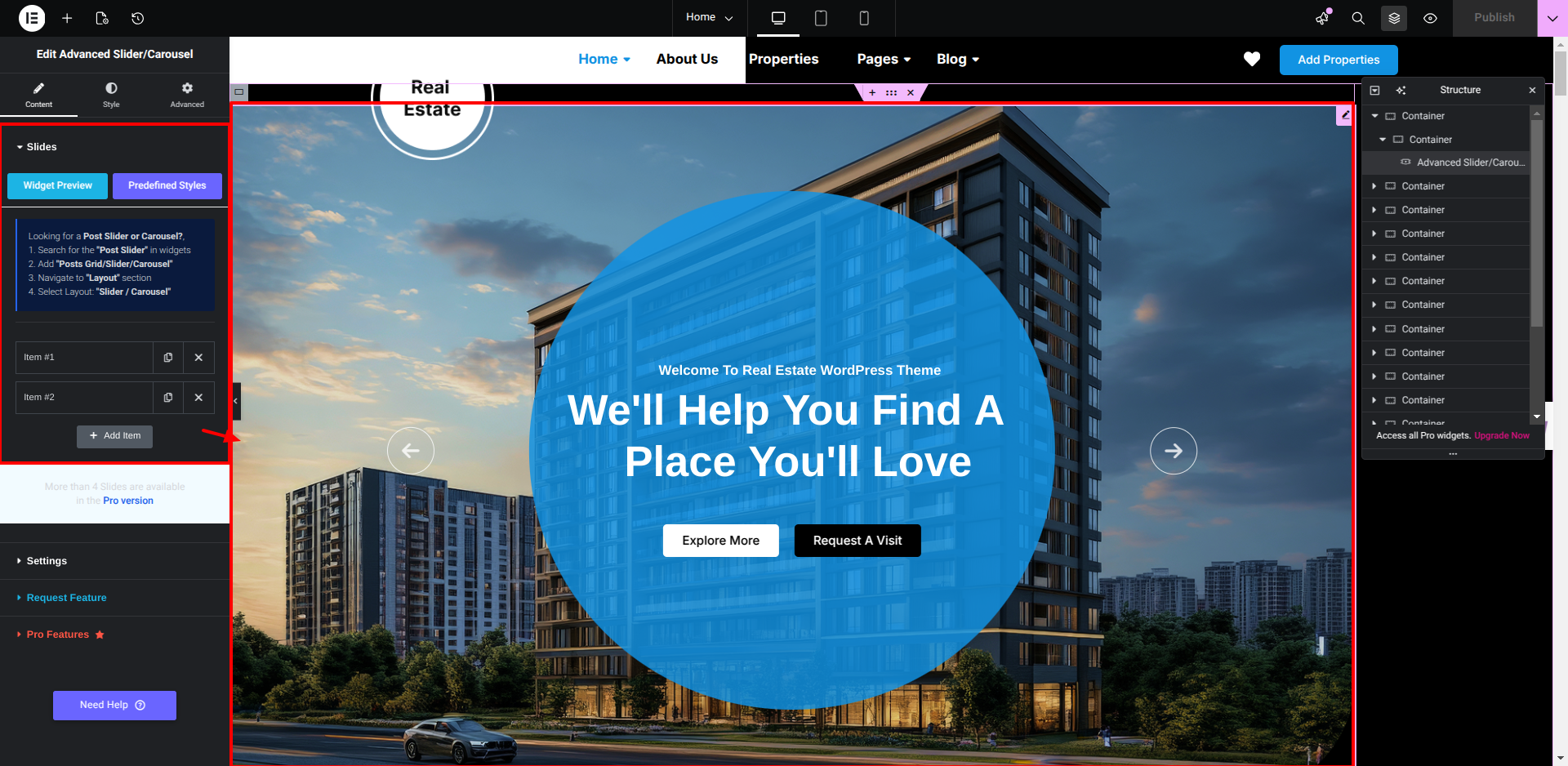
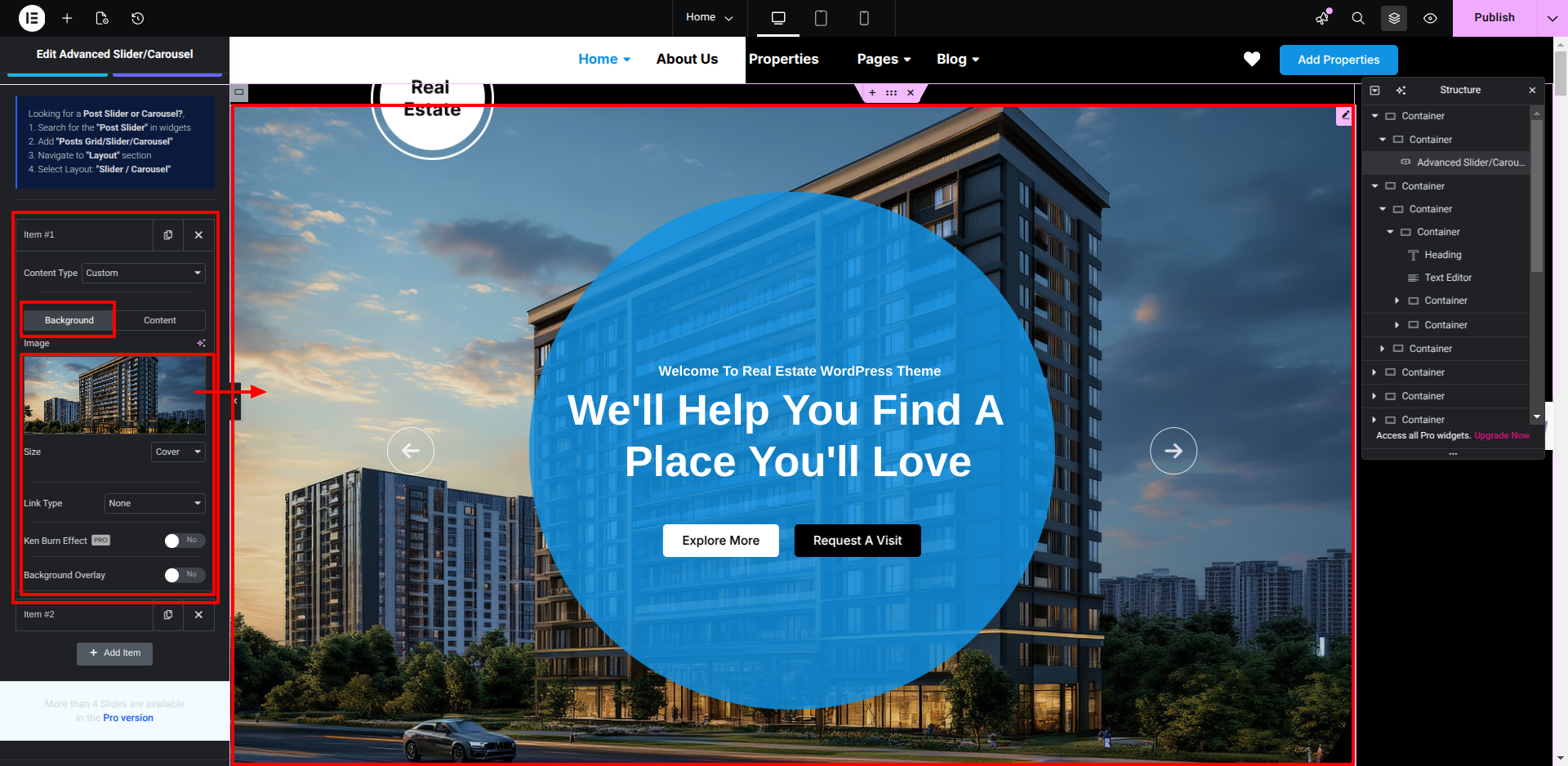
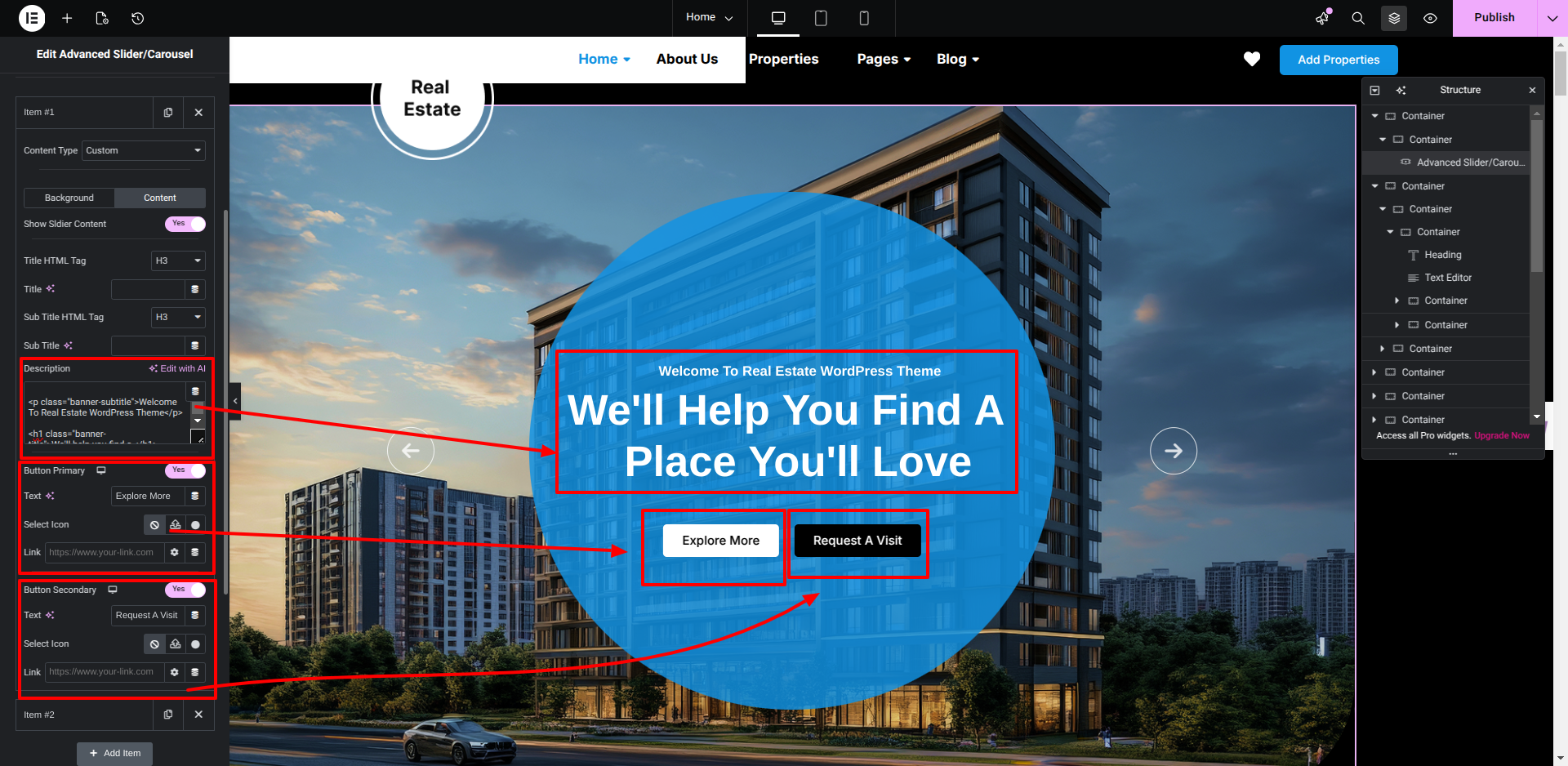
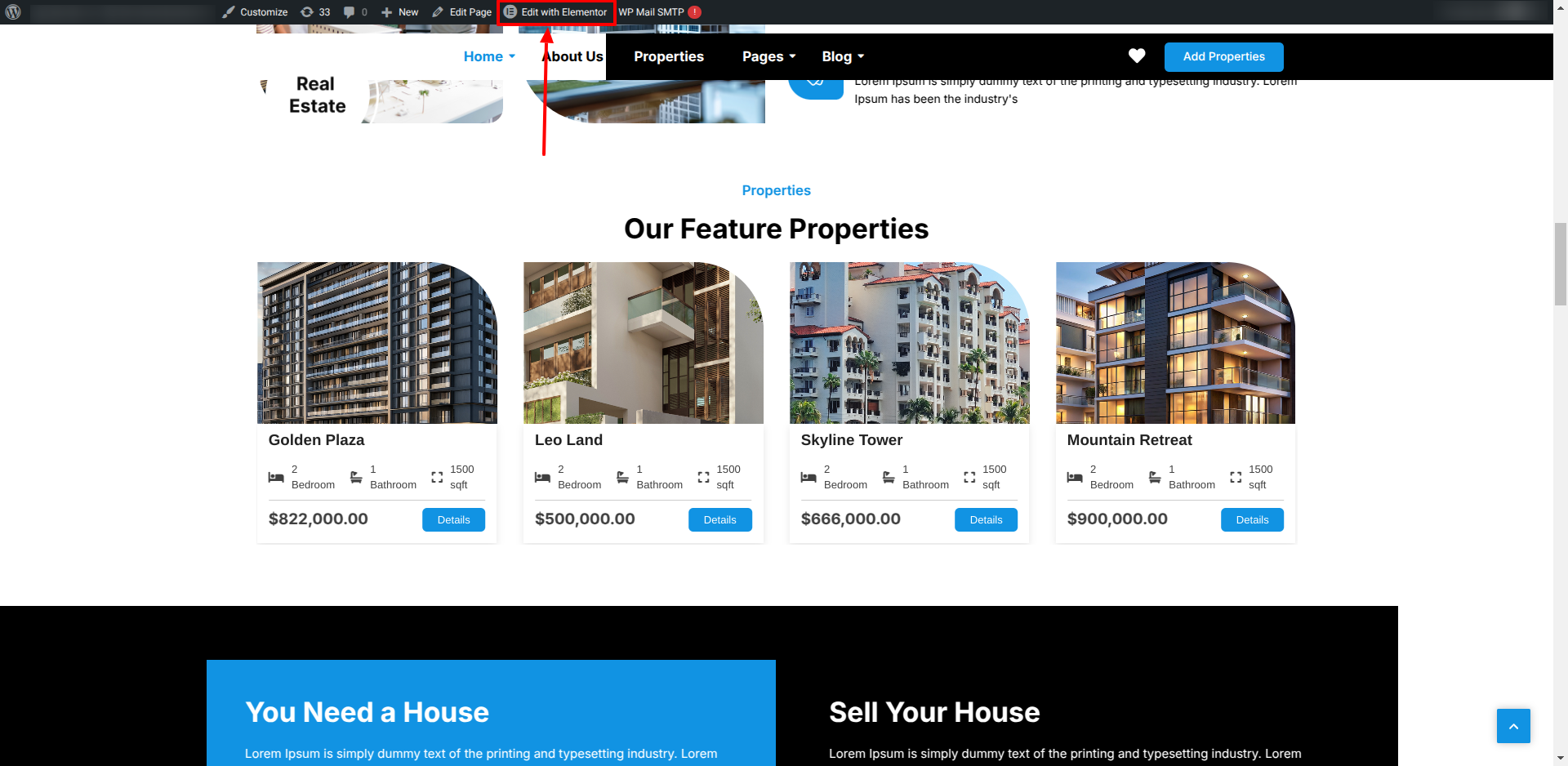
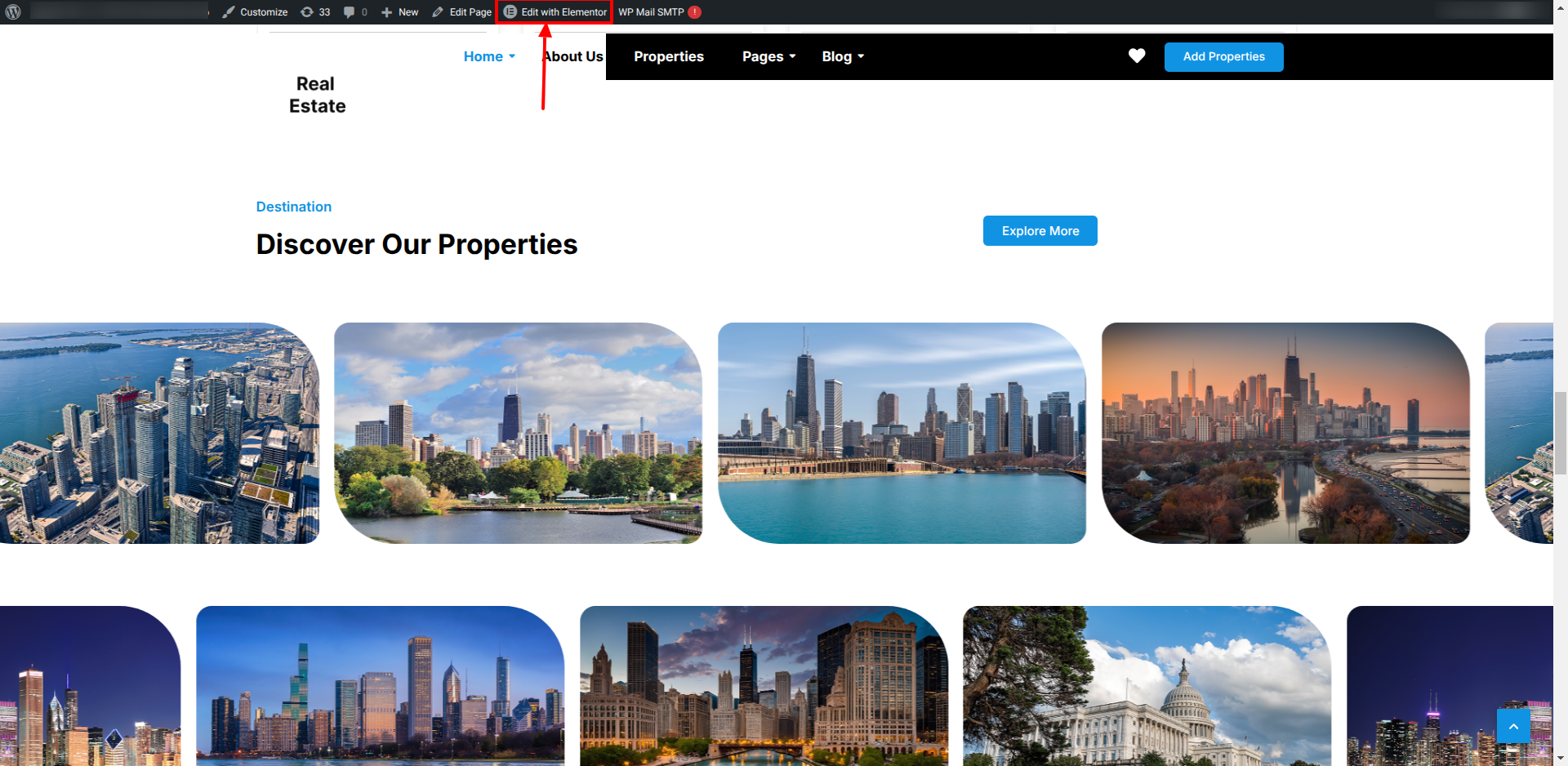
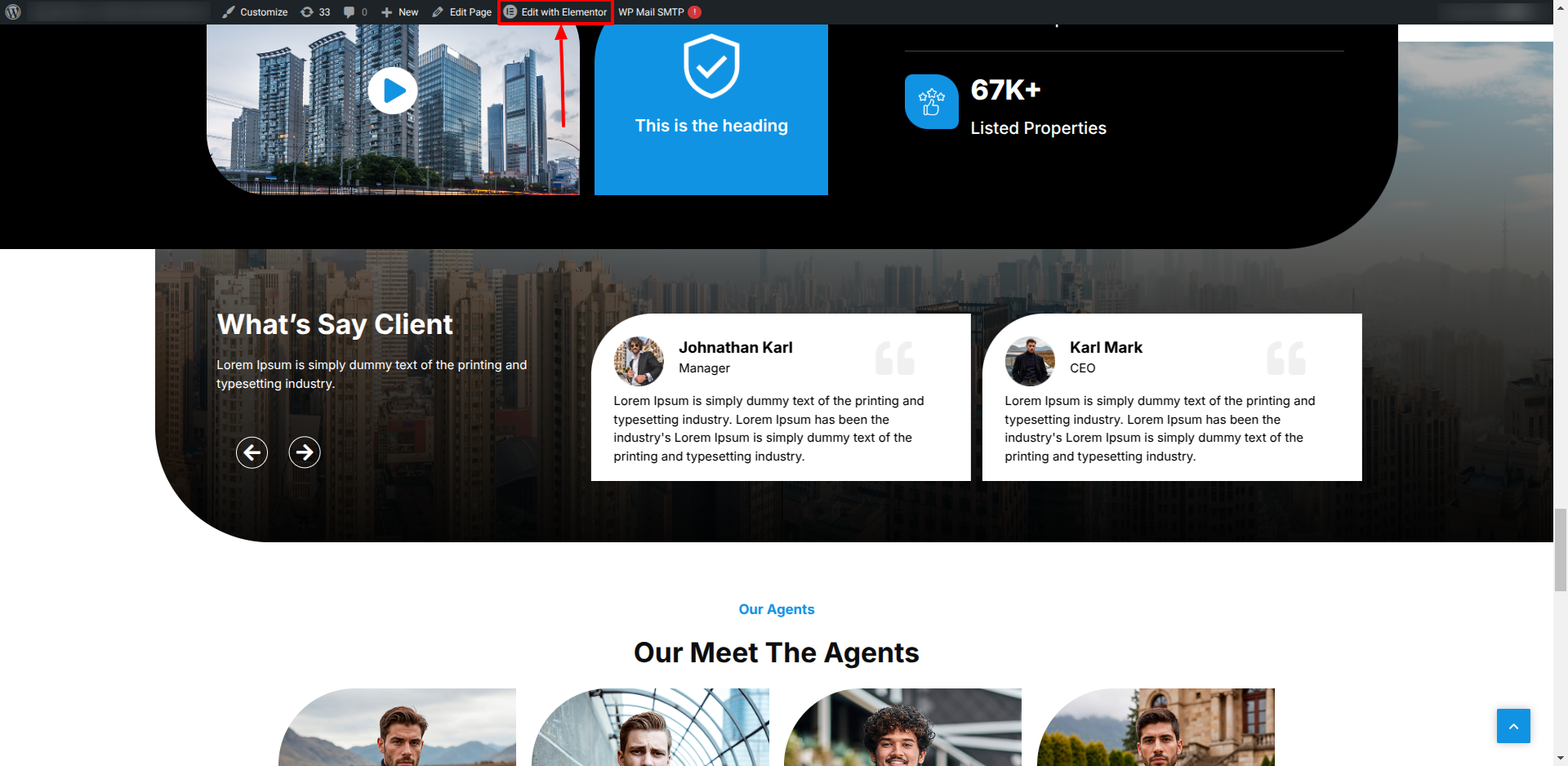
Edit this Section, Click On the "Edit With Elementor" Button which will open the Elementor Widget editor.


This is how you may set up and add the Slider Section.


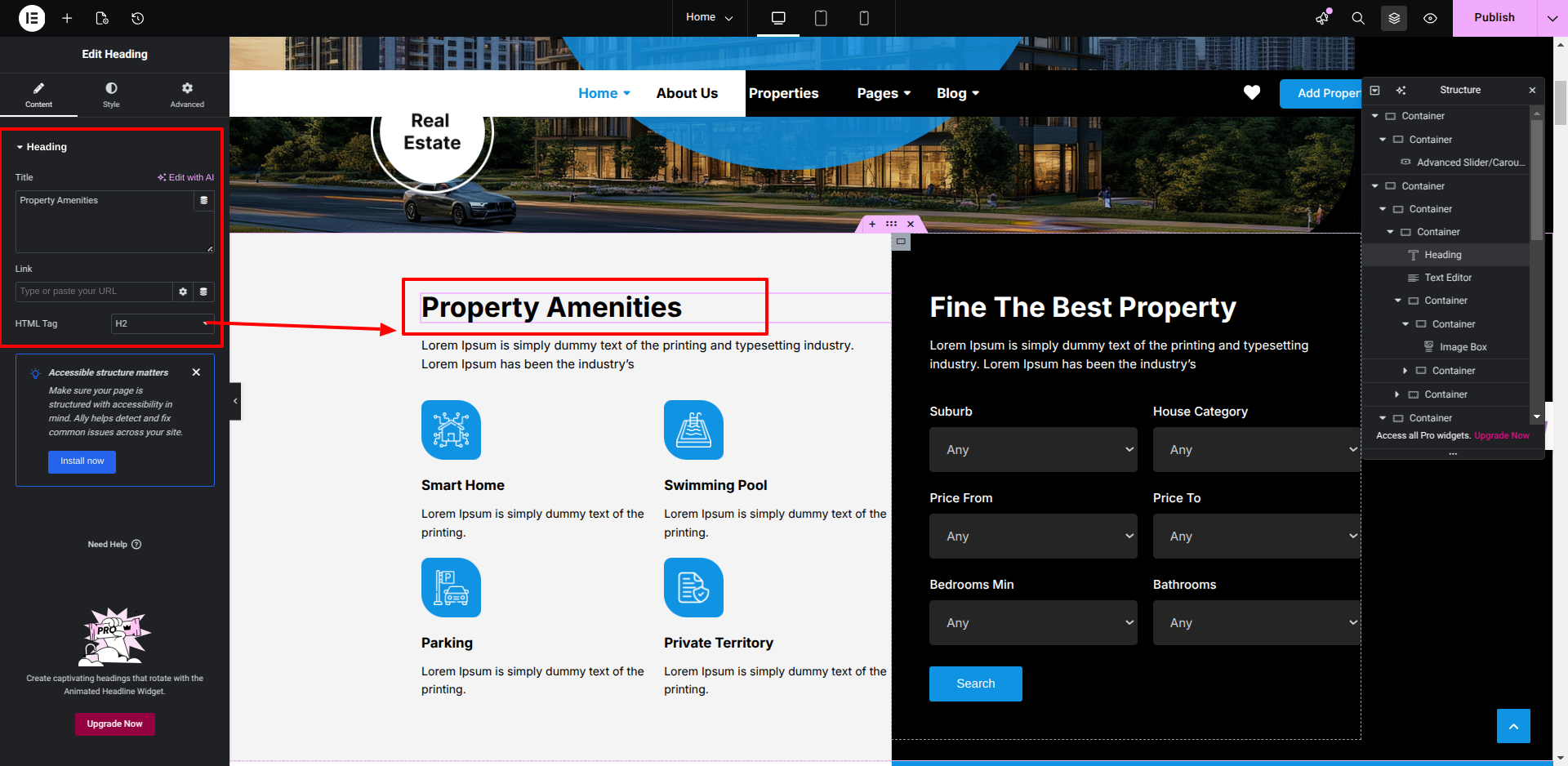
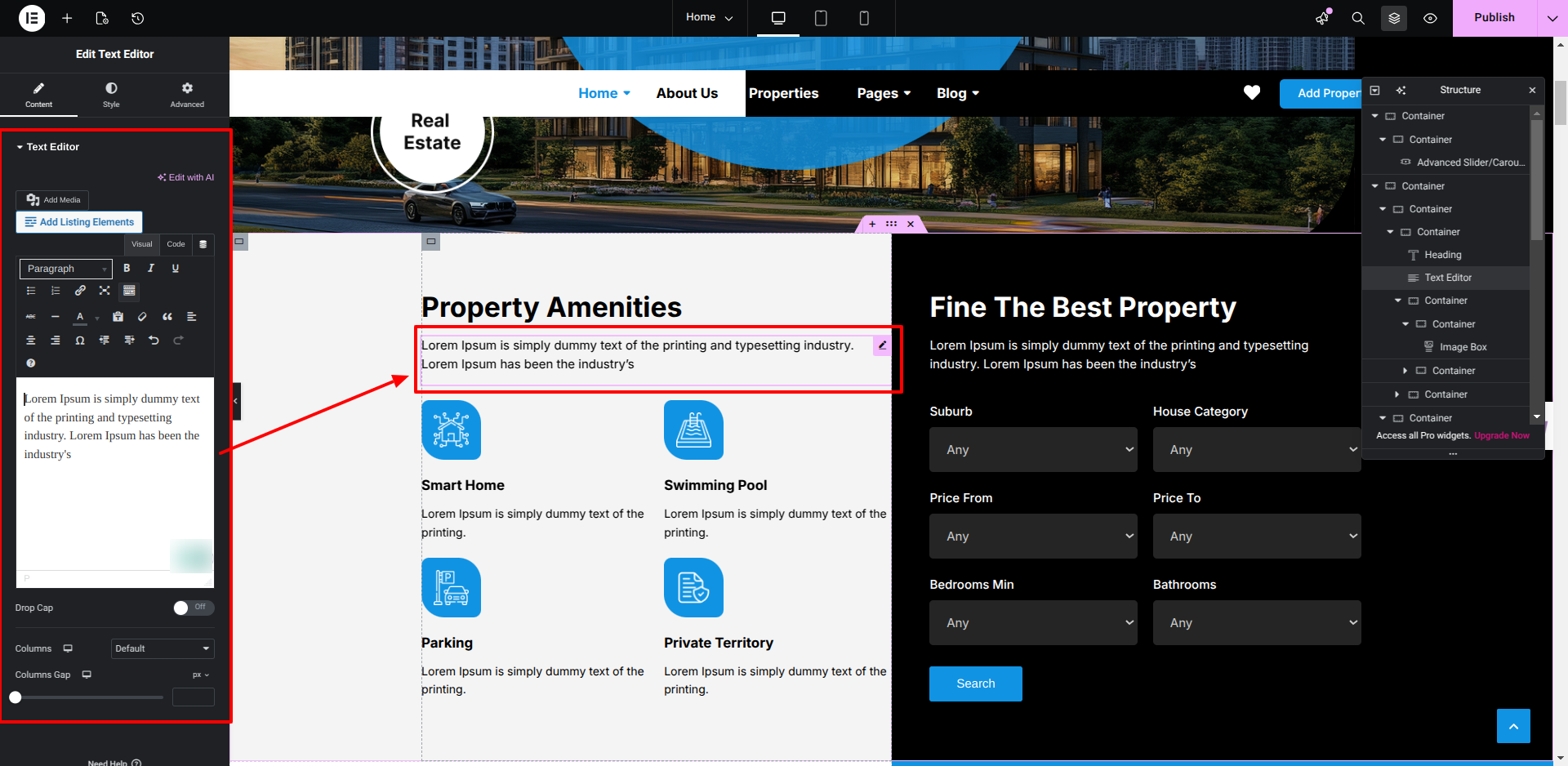
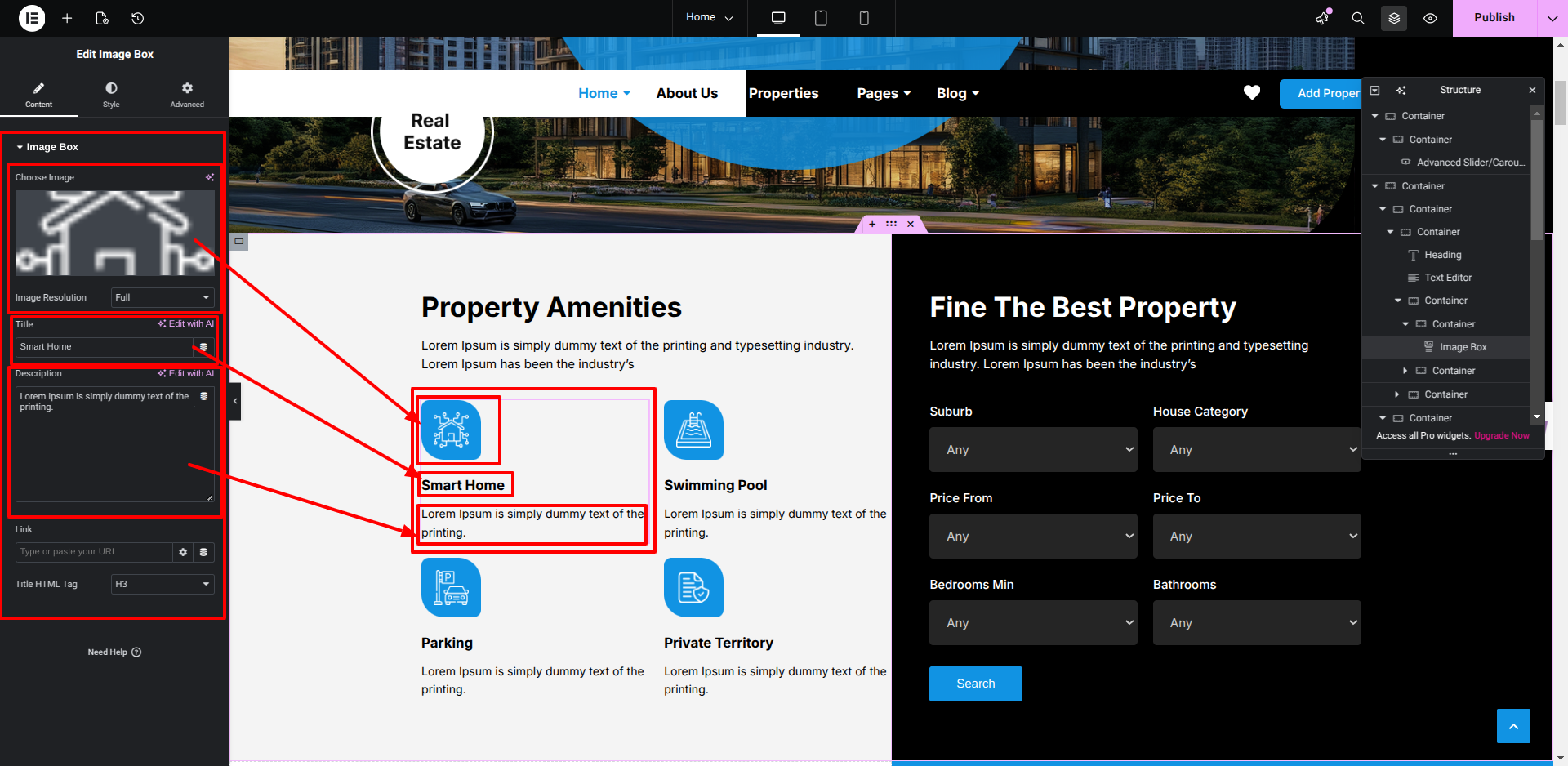
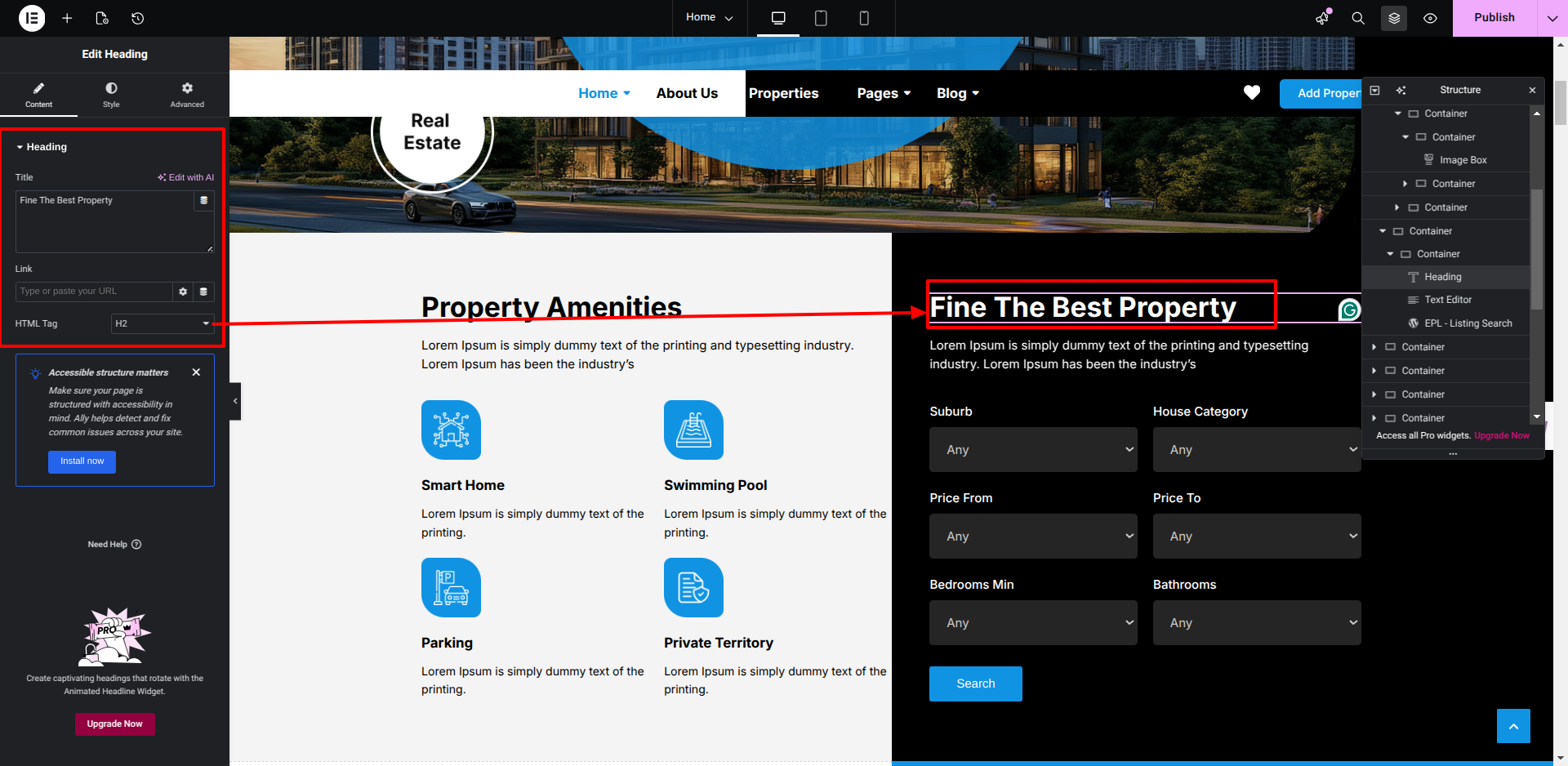
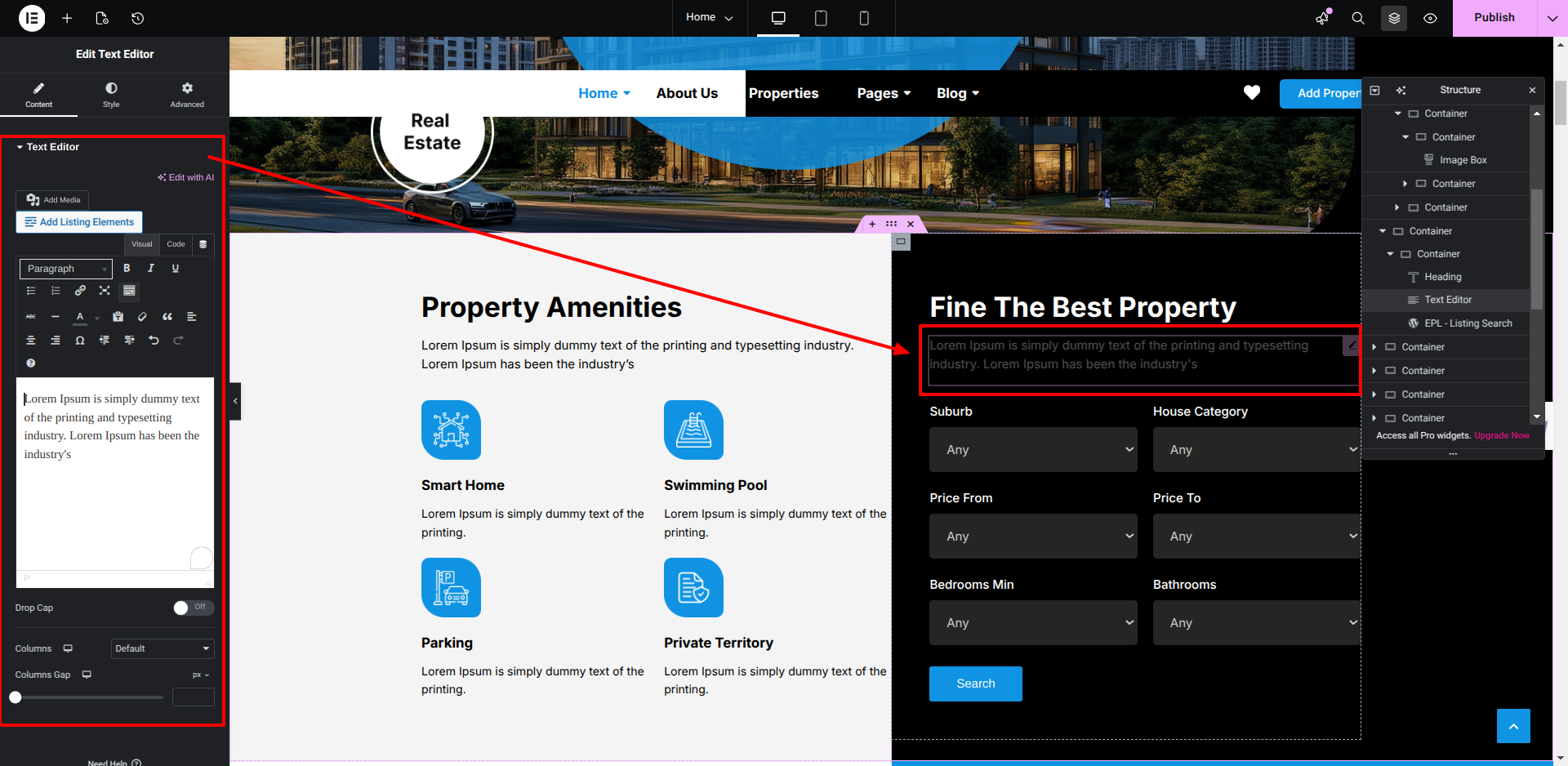
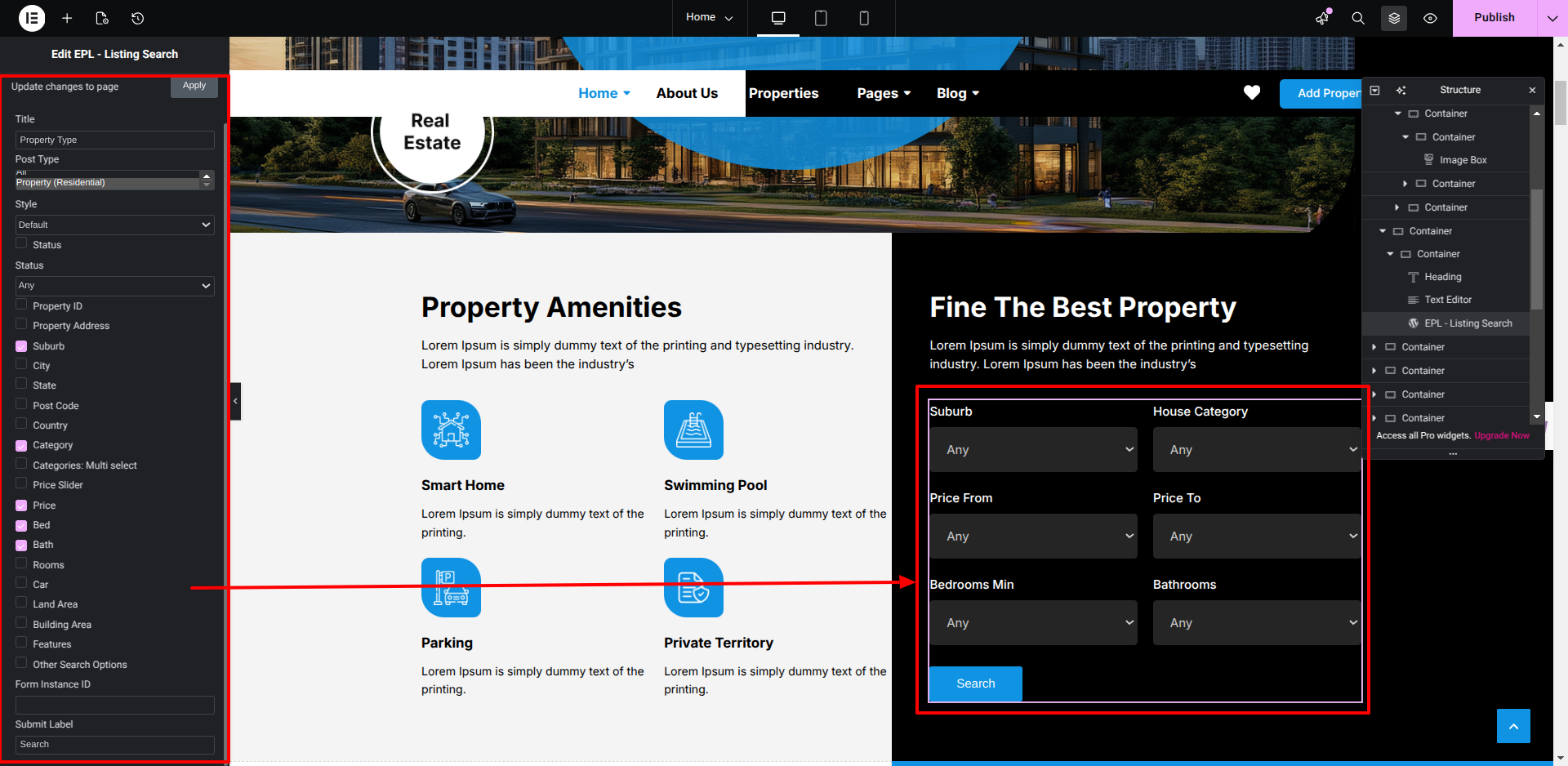
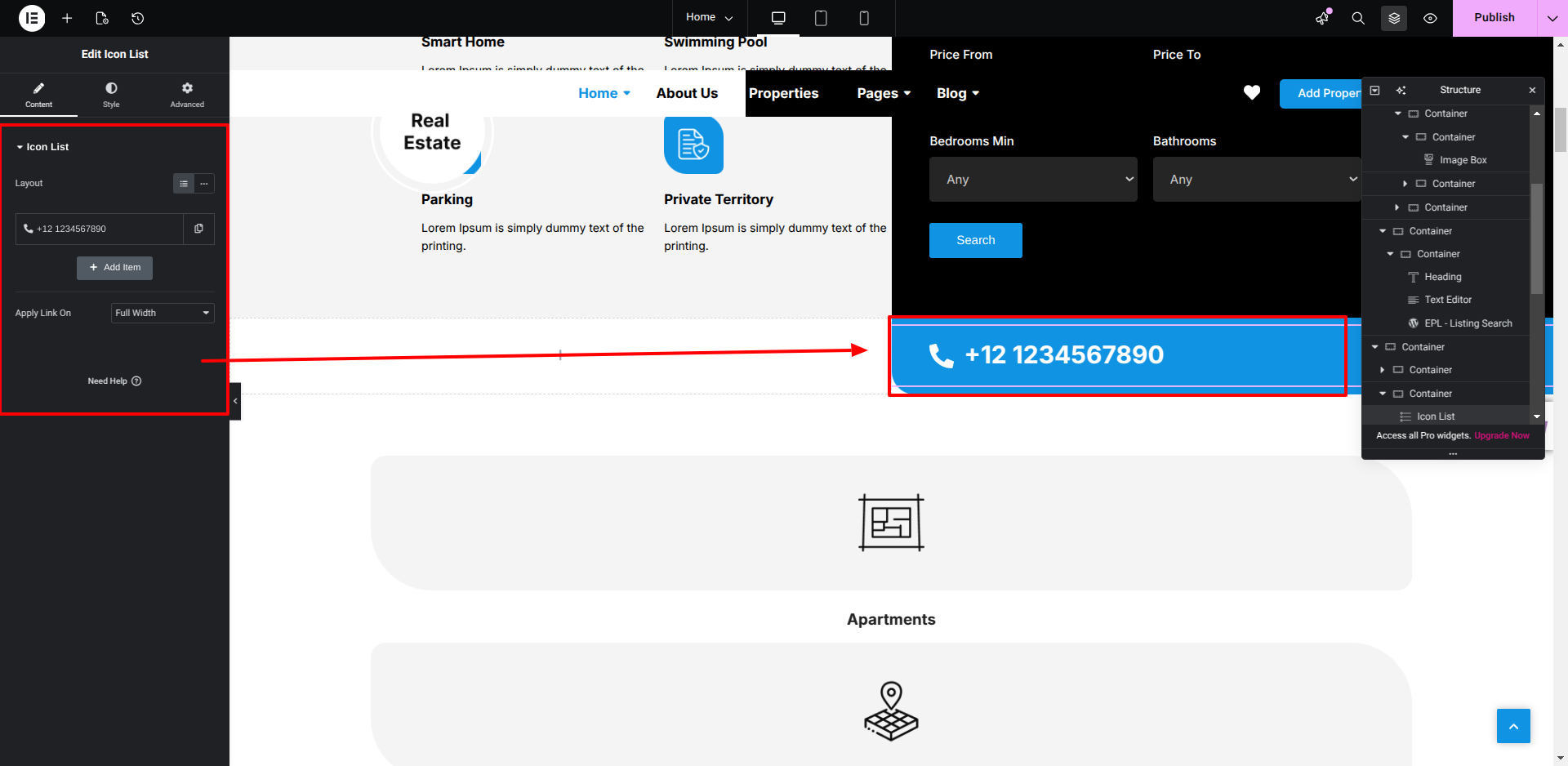
Setup Property Amenities Section

Set up the Property Amenities Section according to the instructions below.


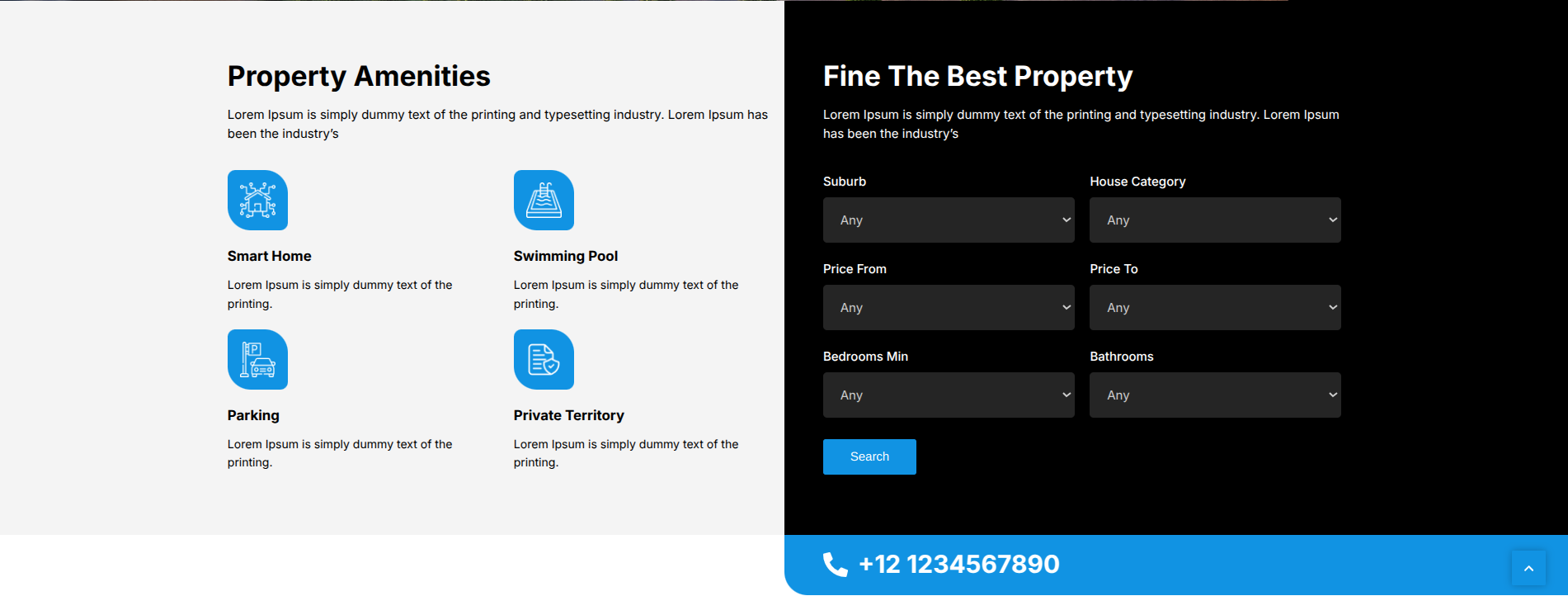
Then the Property Amenities Section would Look like This


Setup Cards Section

Set up the Cards​ Section according to the instructions below.


This is how you may set Cards​ Section.


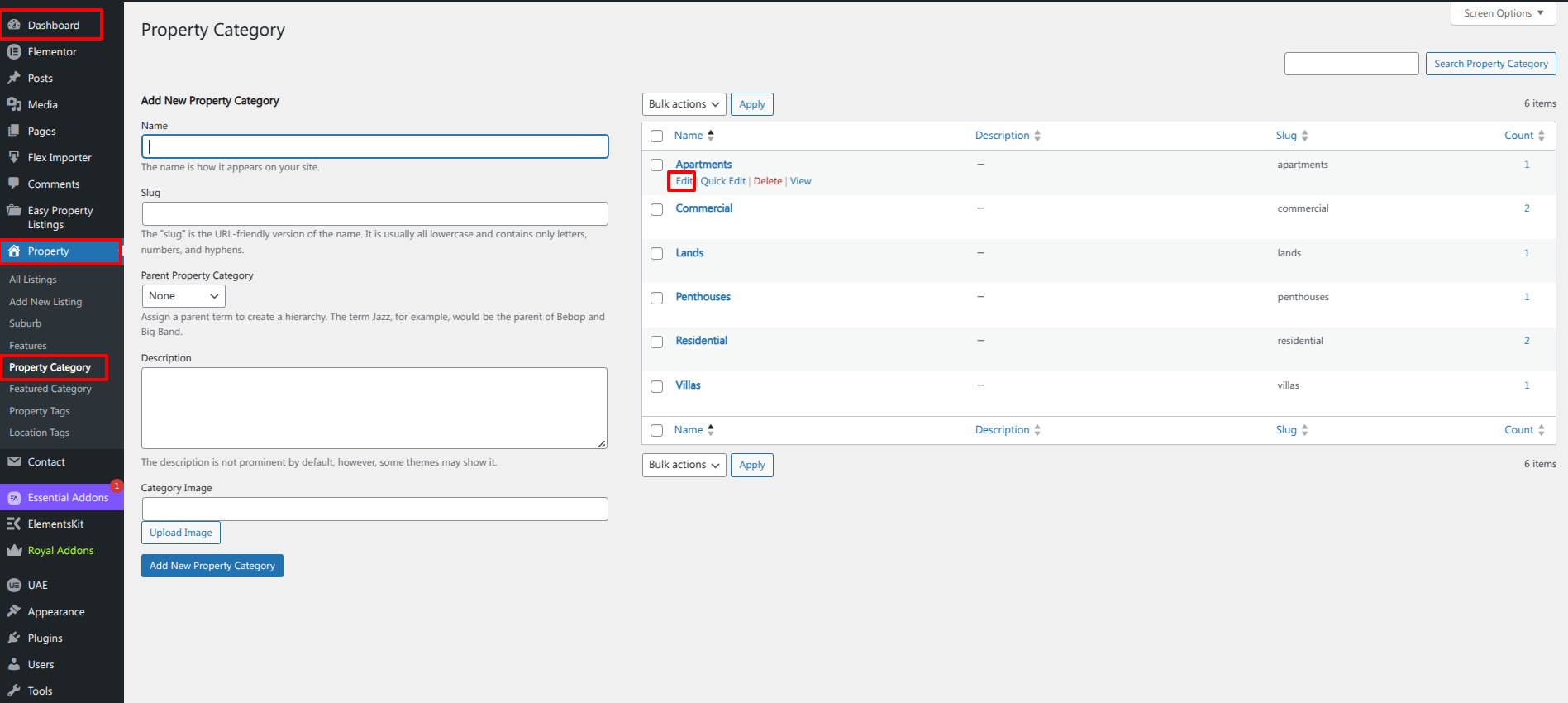
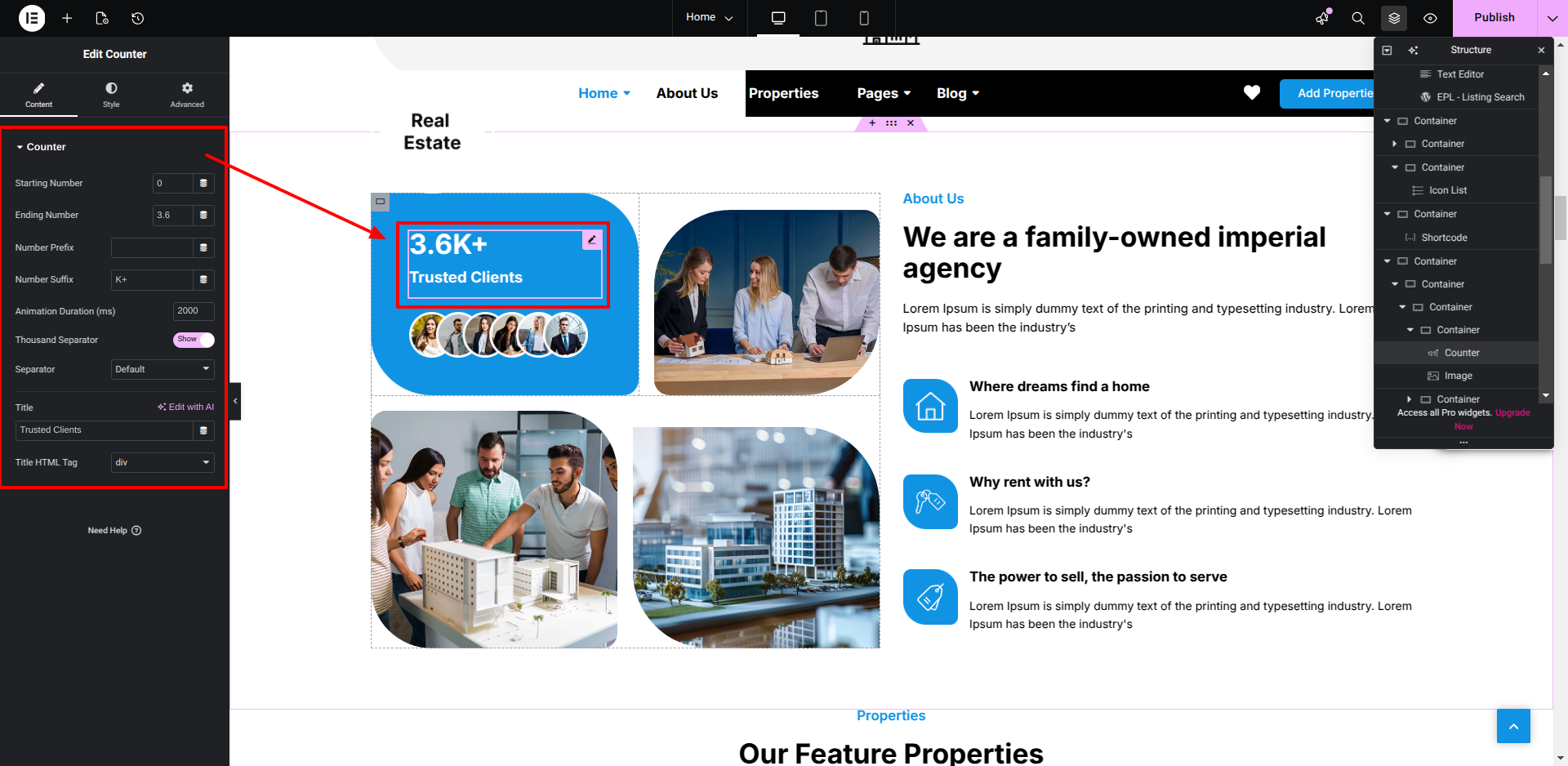
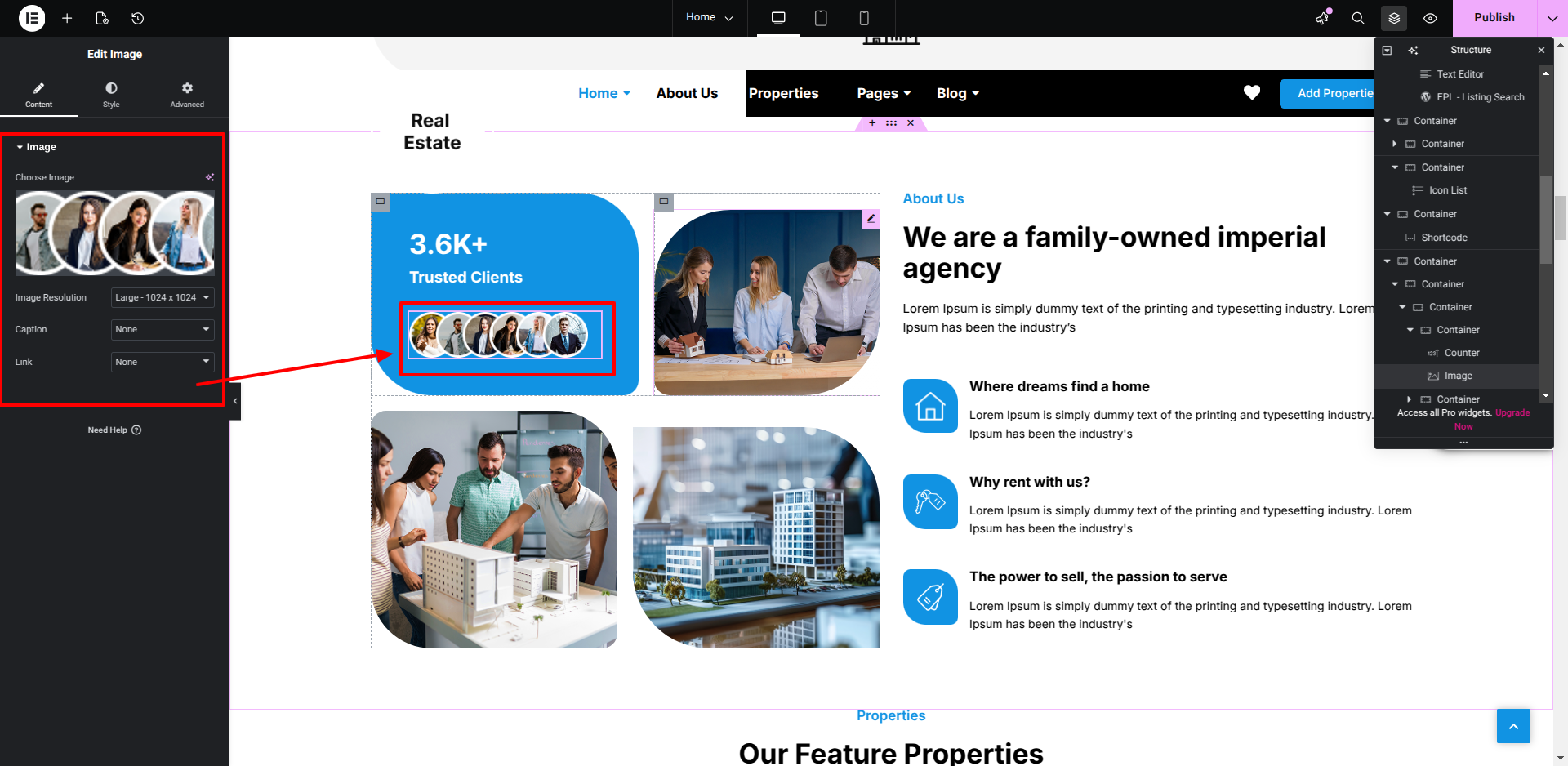
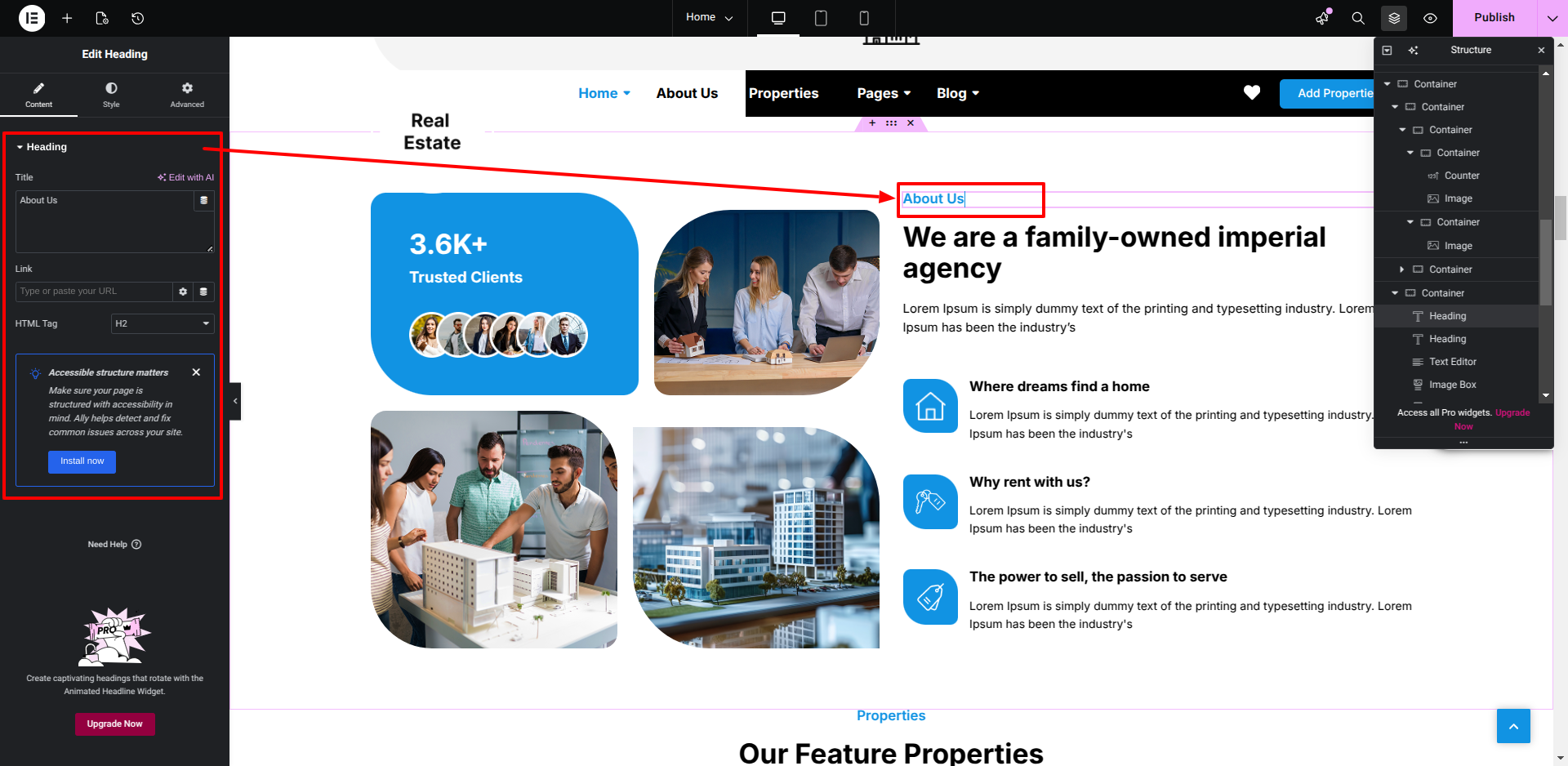
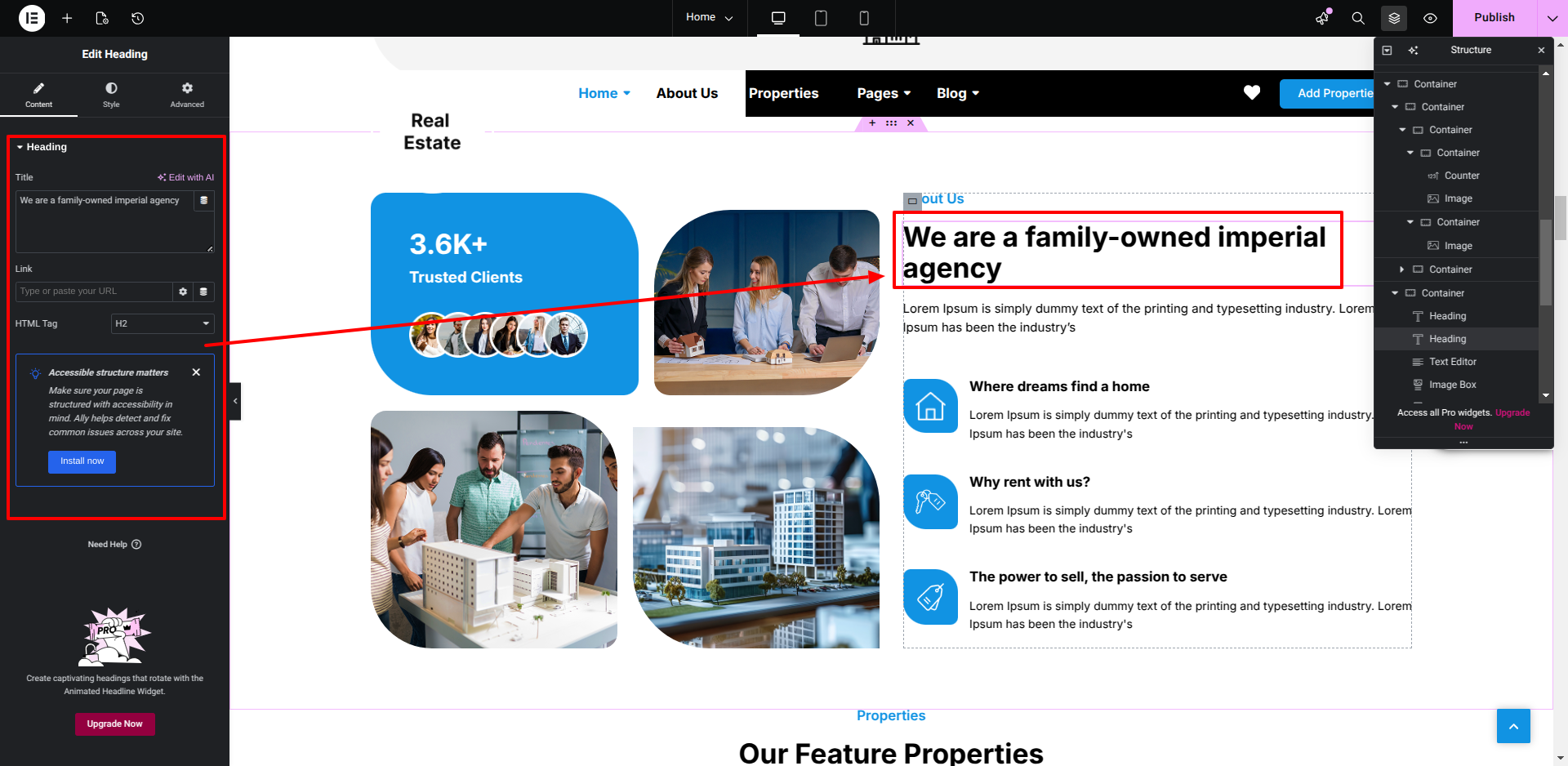
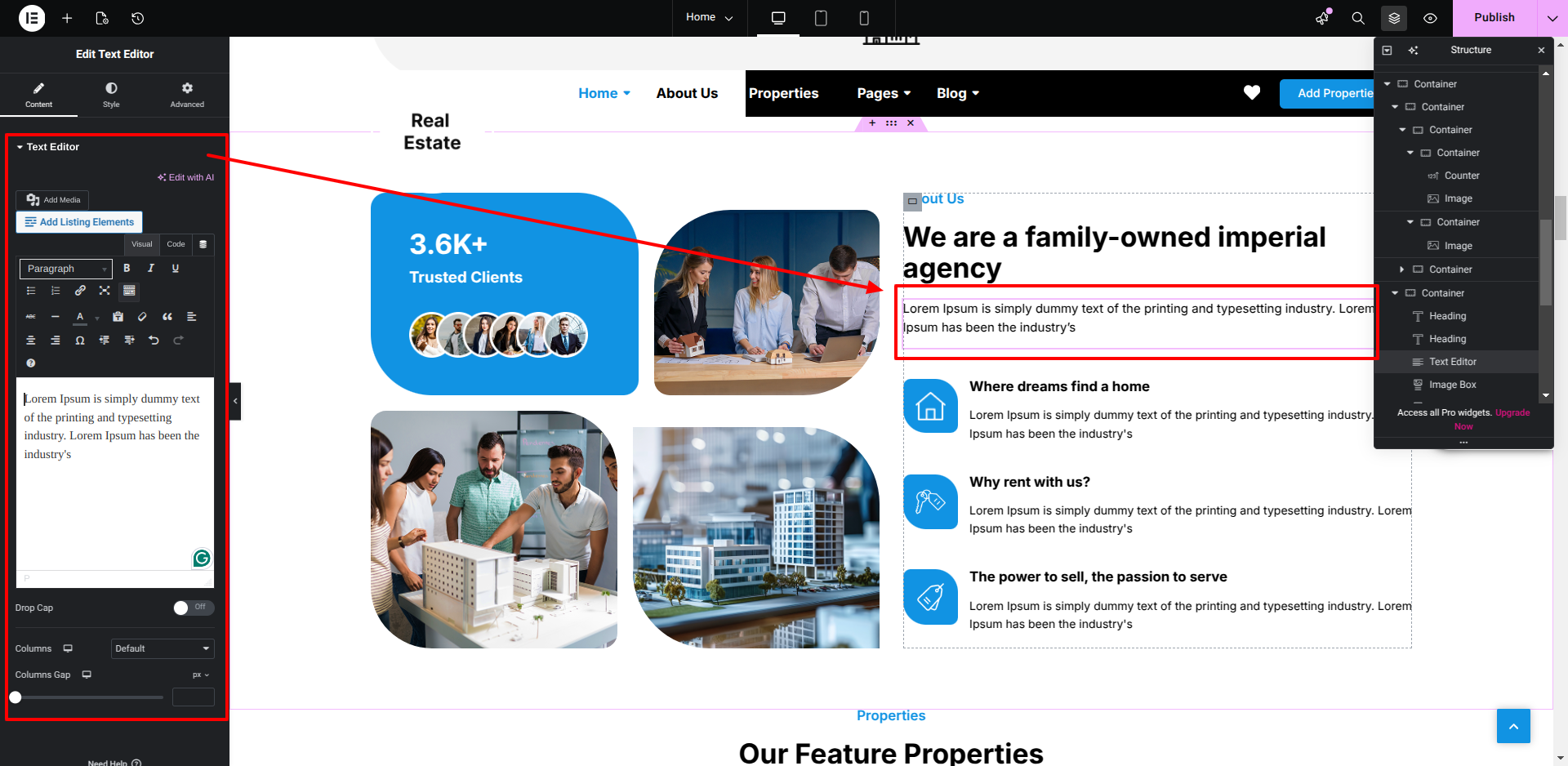
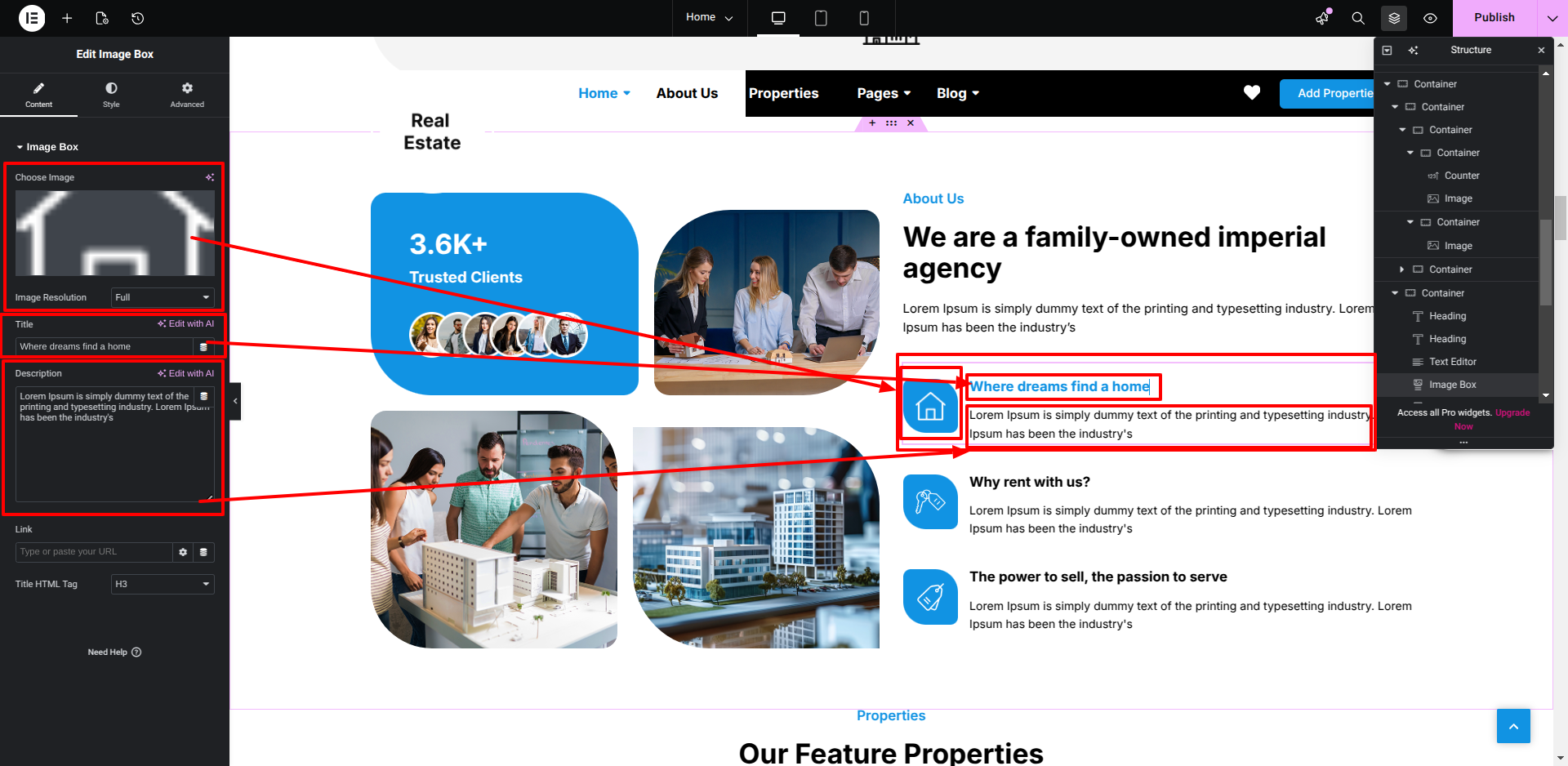
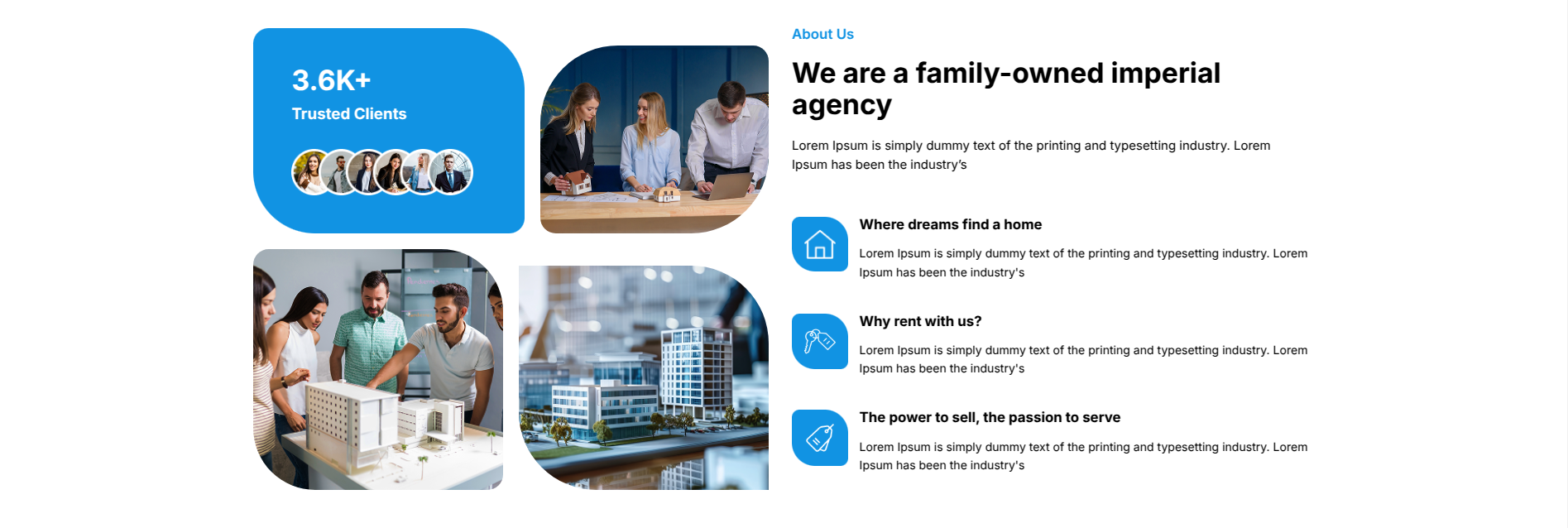
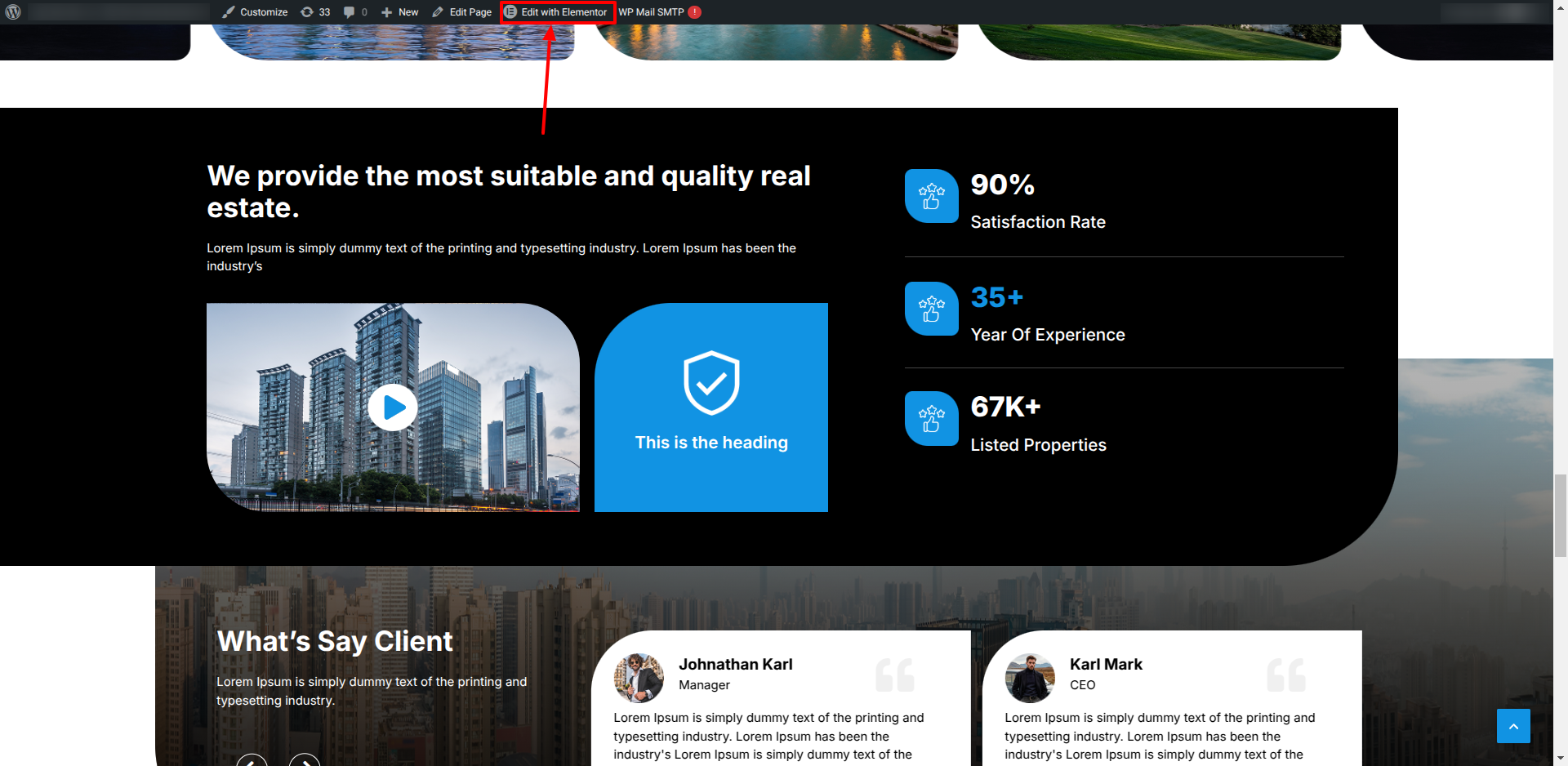
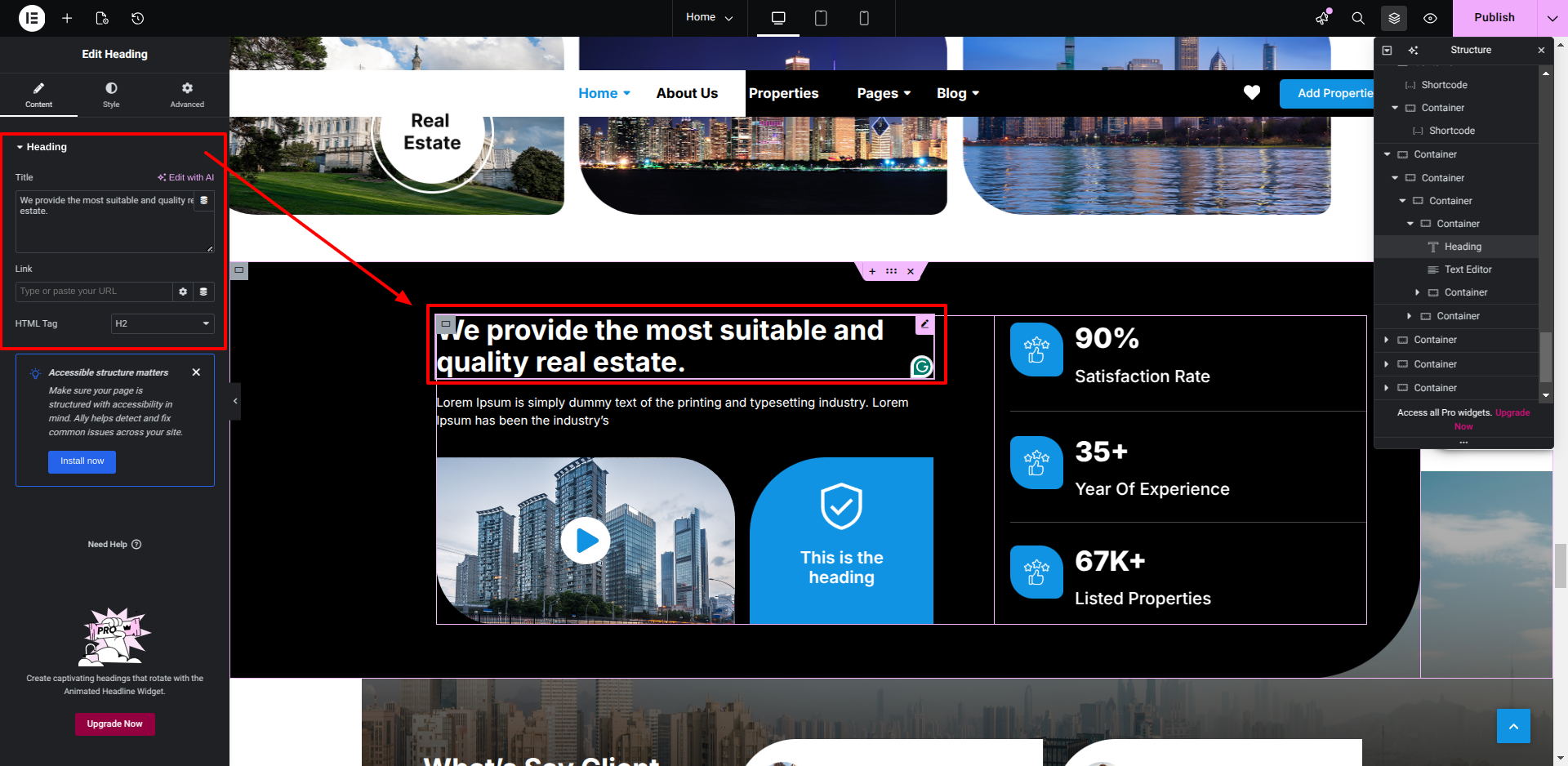
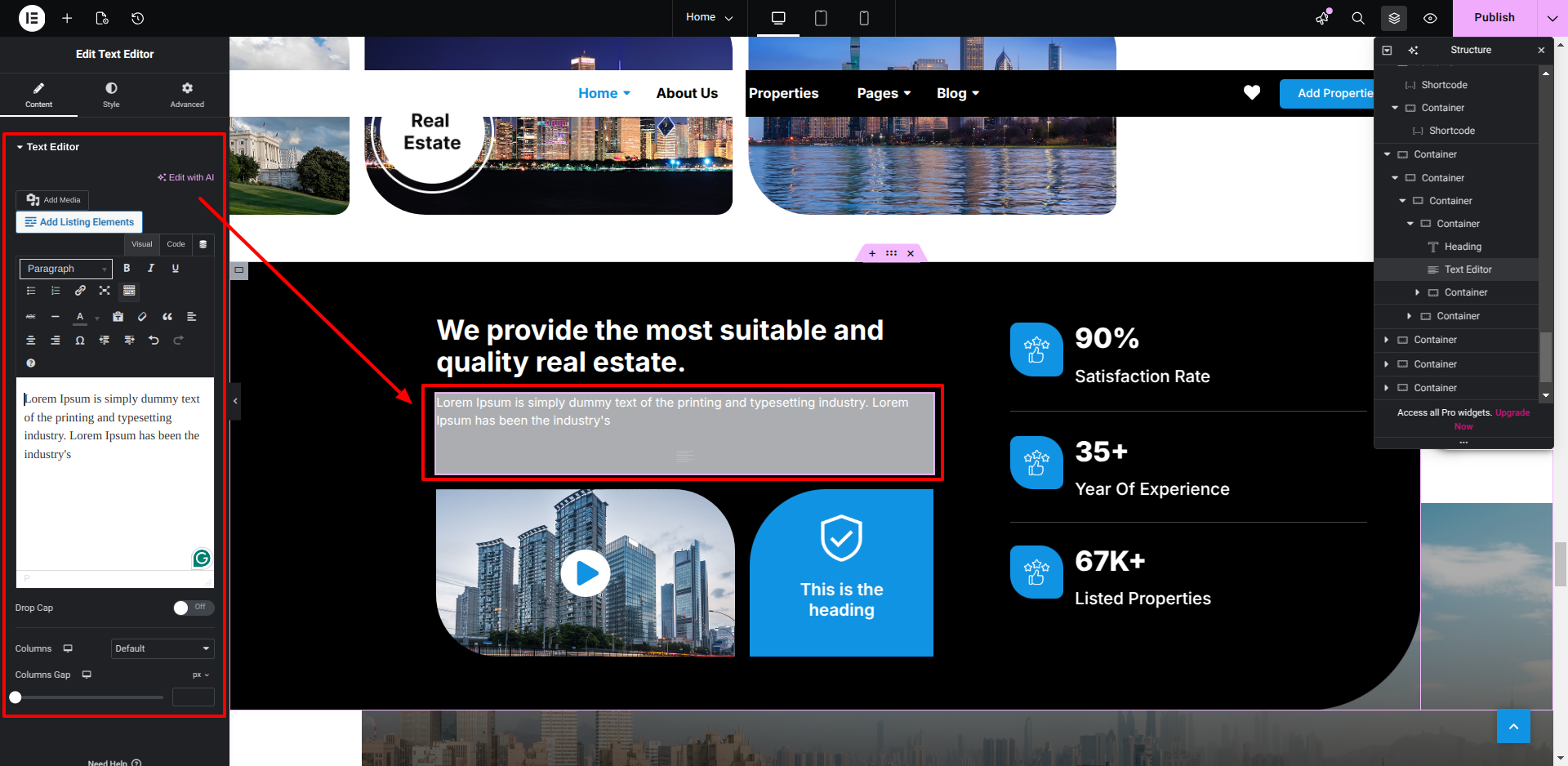
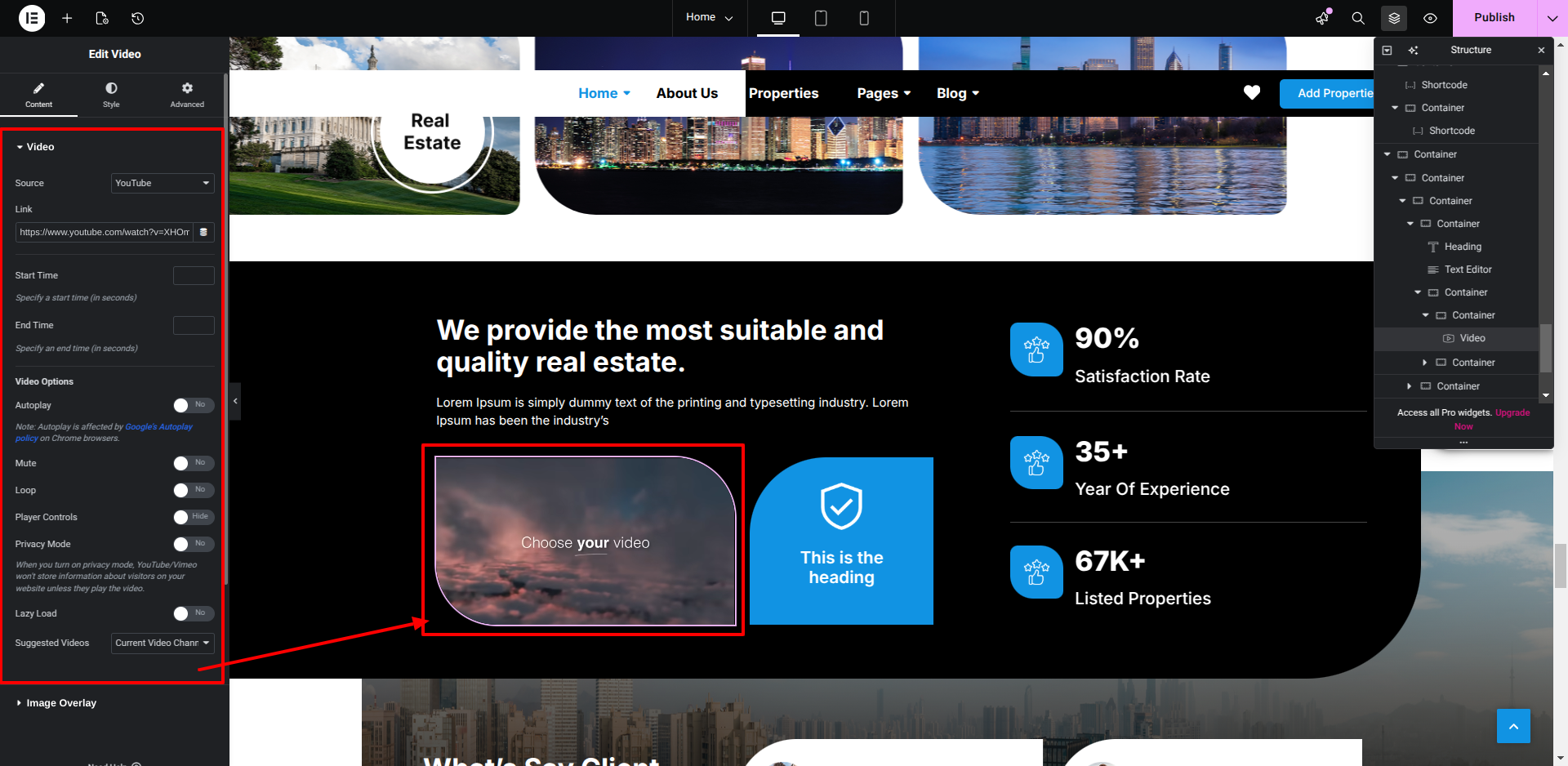
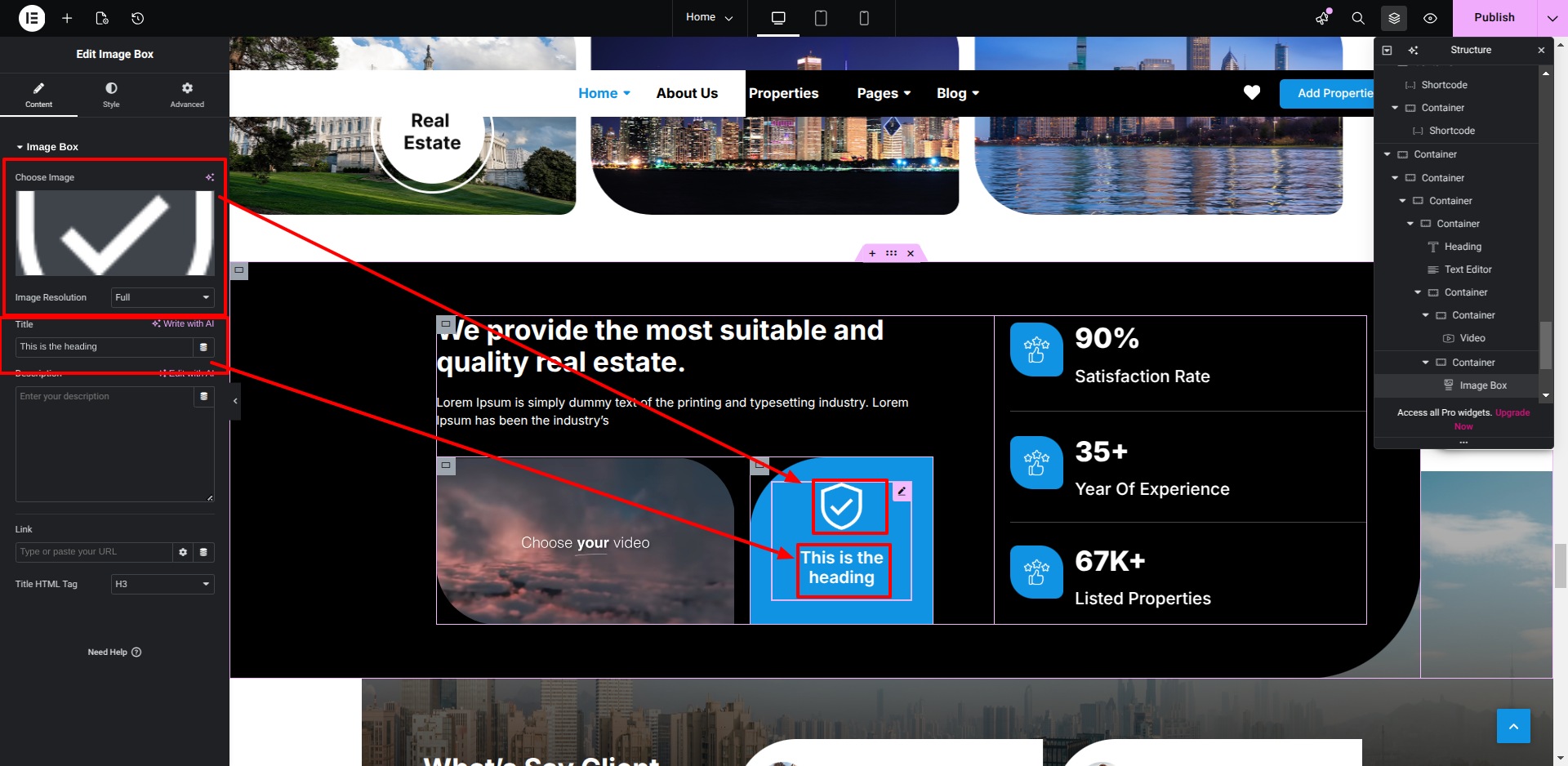
Setup About Us Section

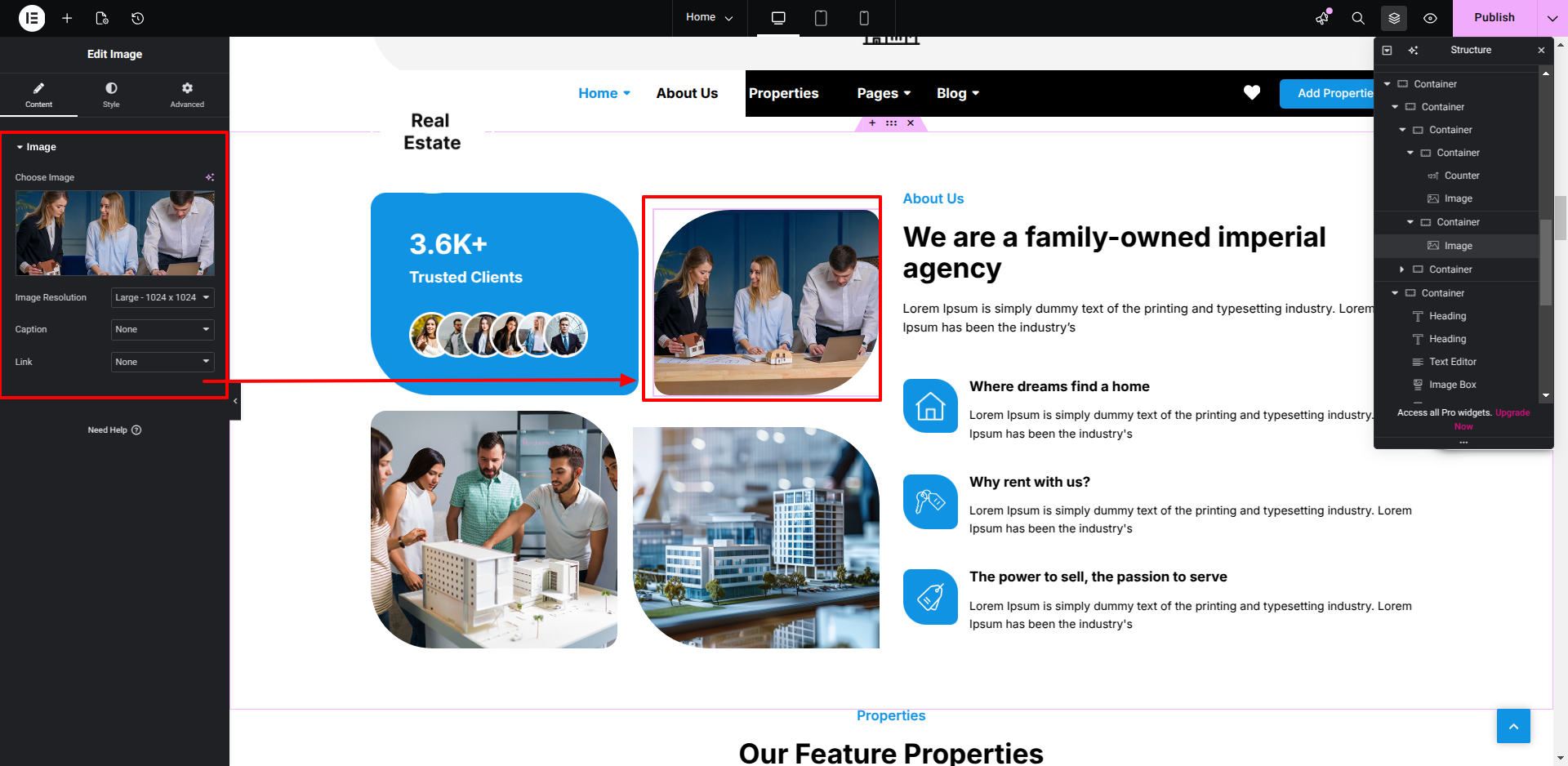
Setup About Us Section according to the instructions below.


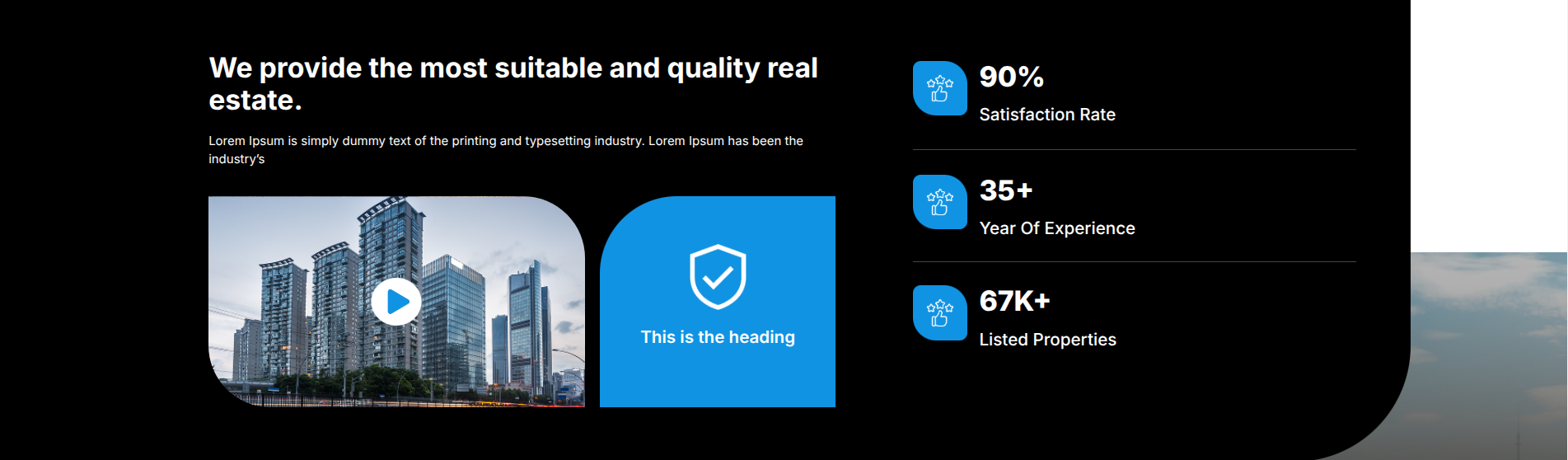
This is how you may set up About Us Section.


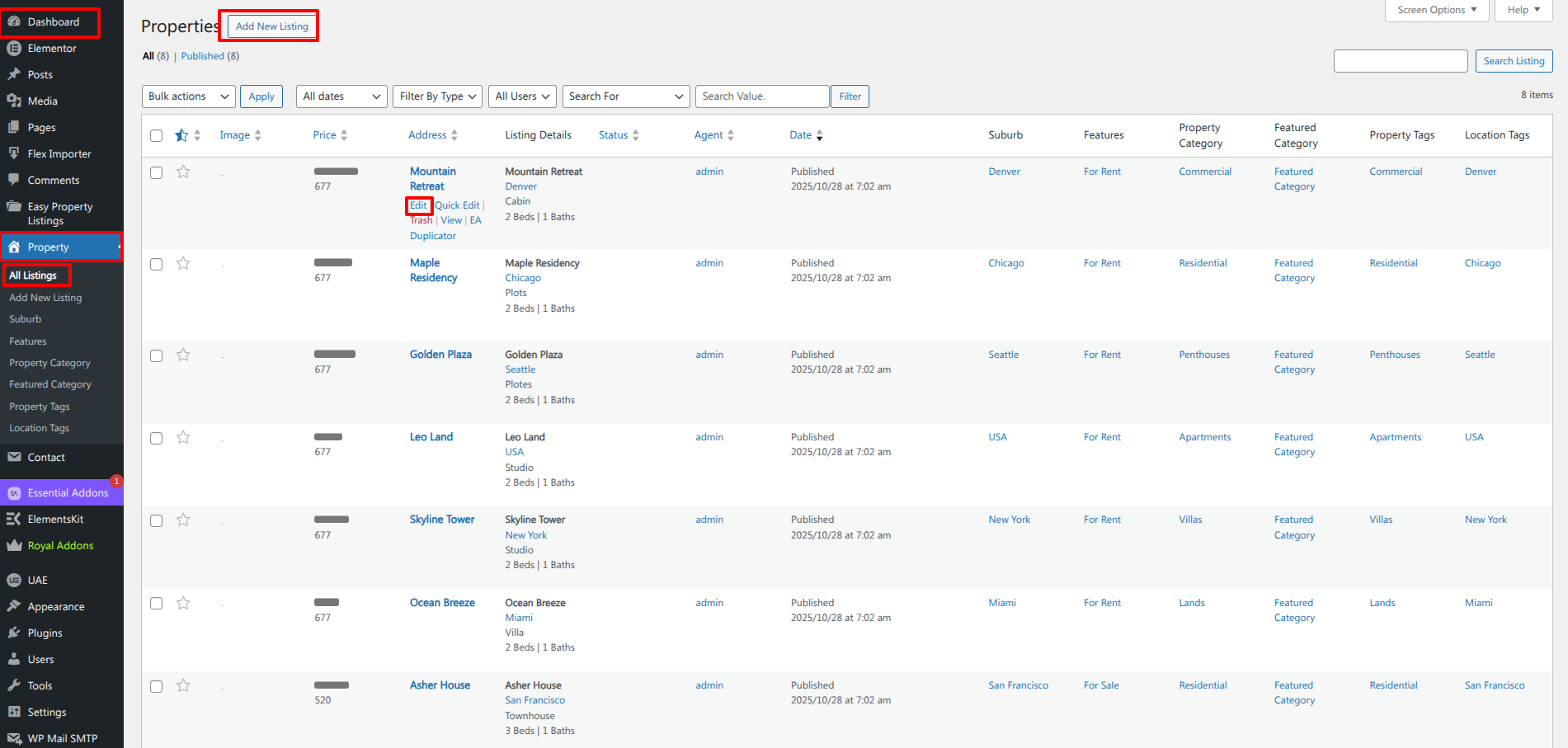
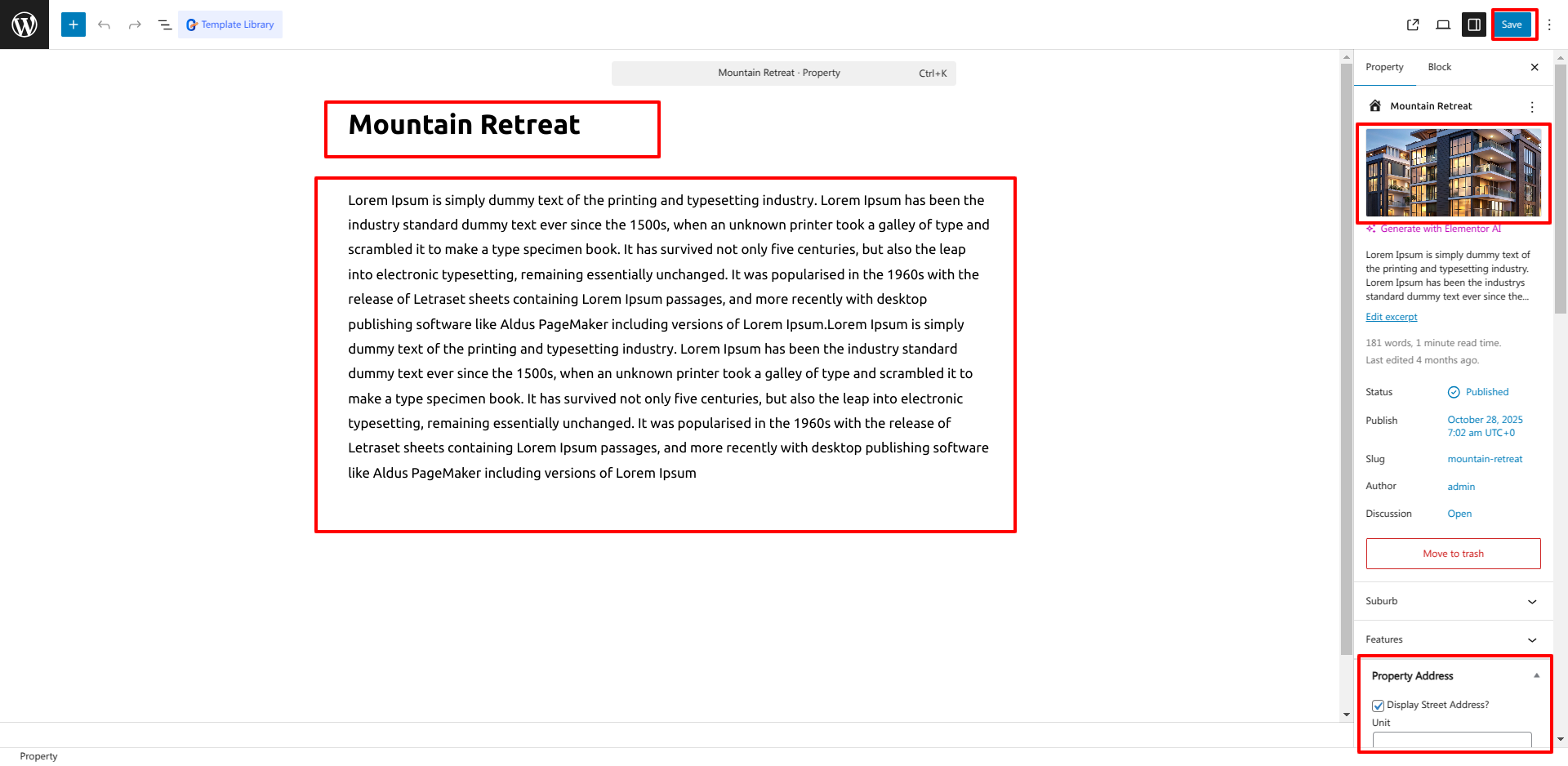
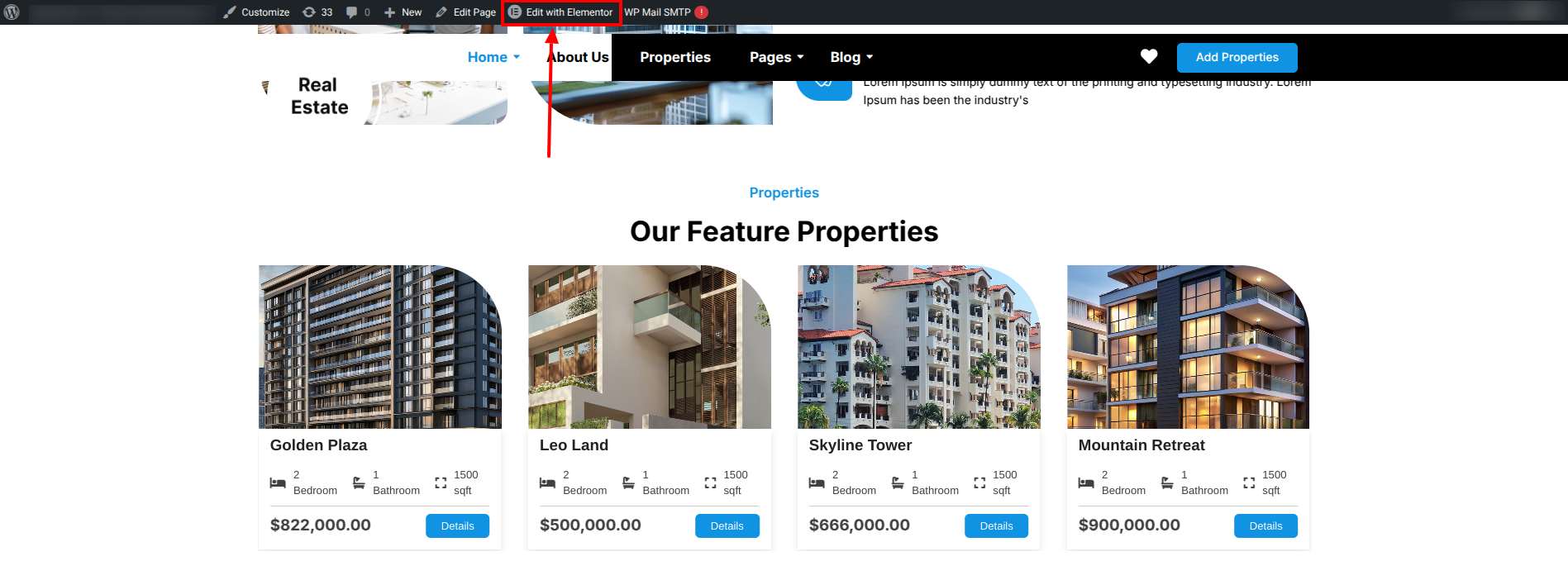
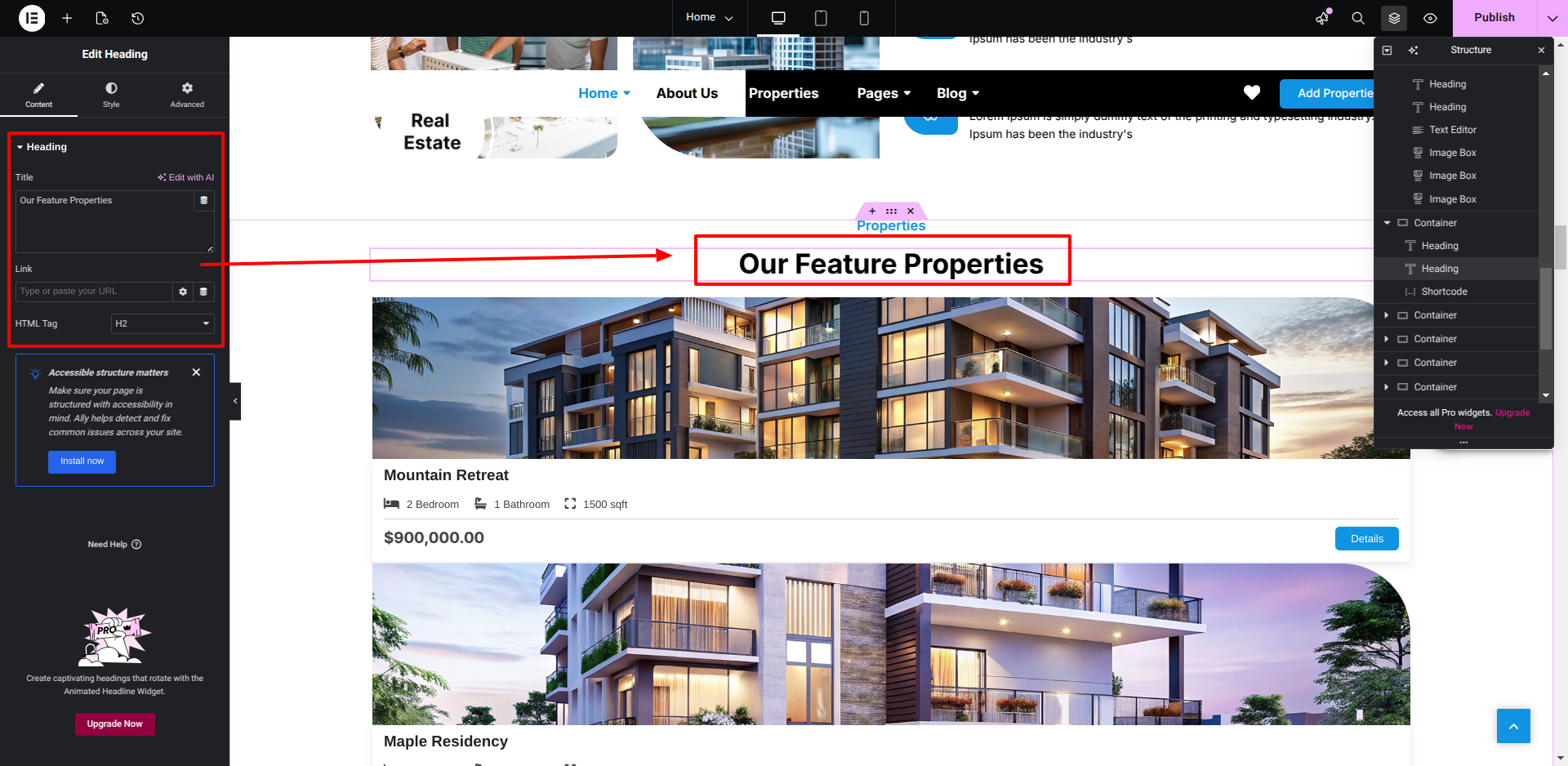
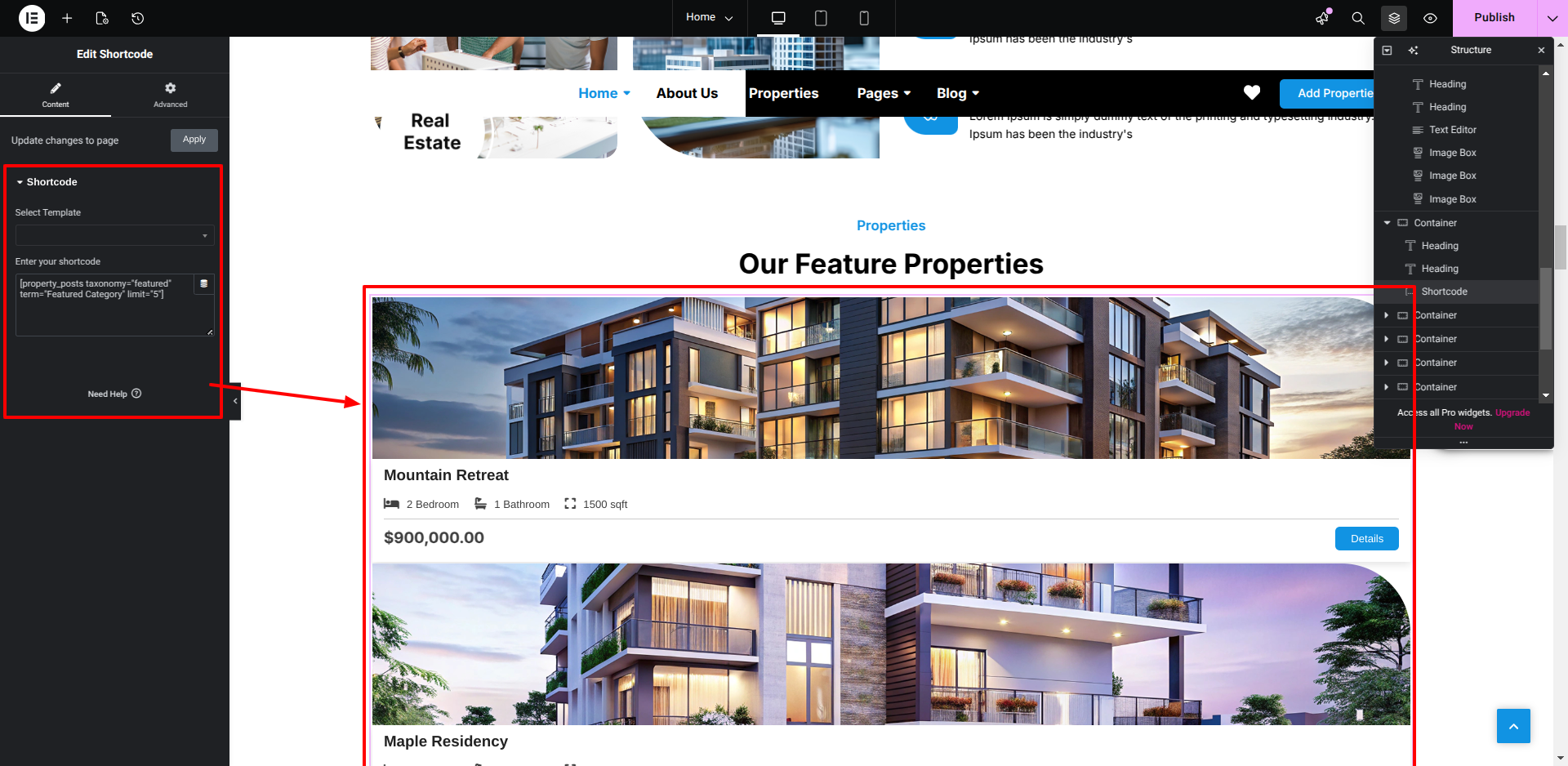
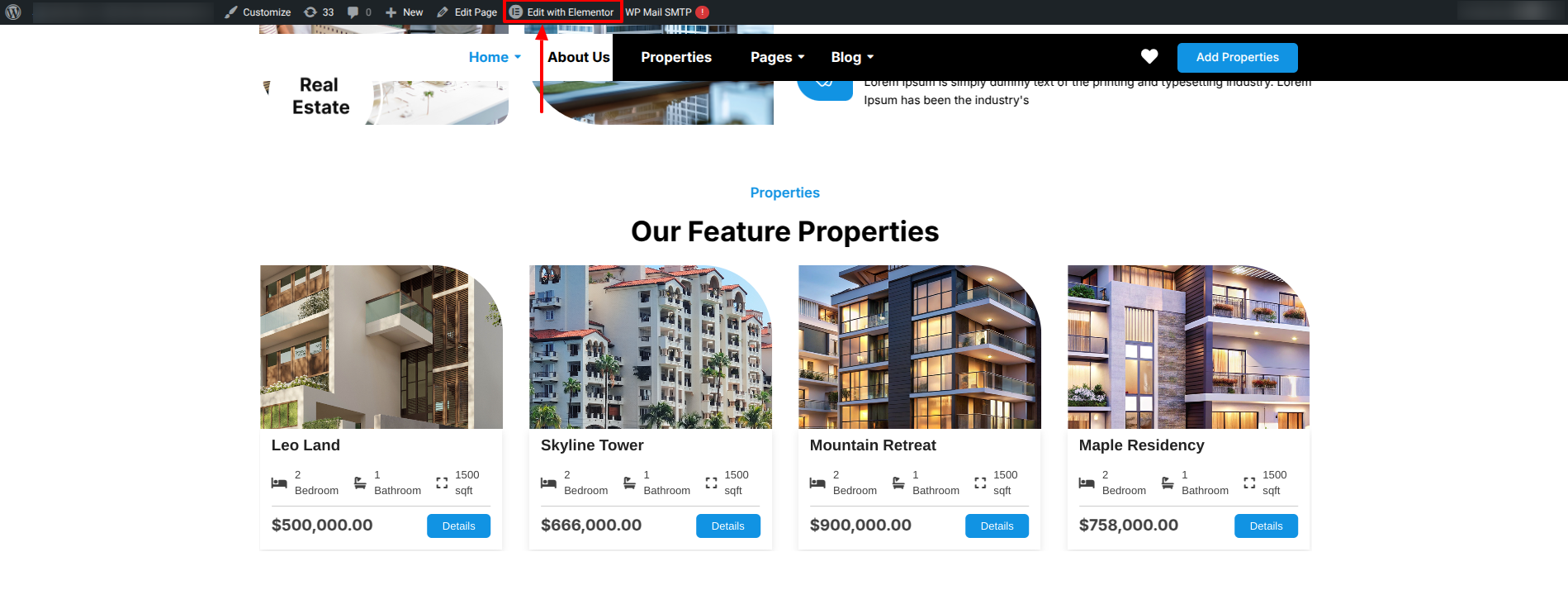
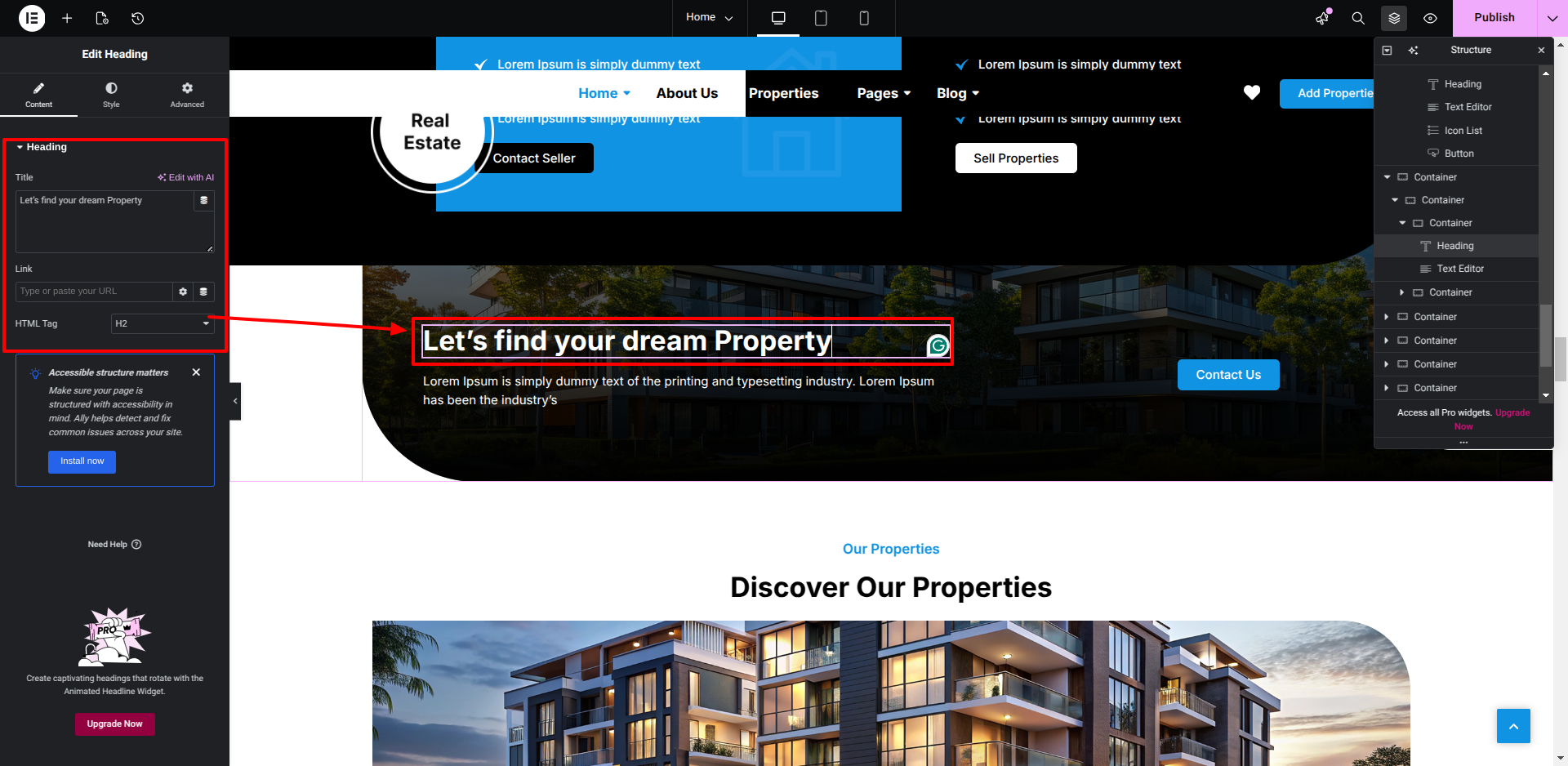
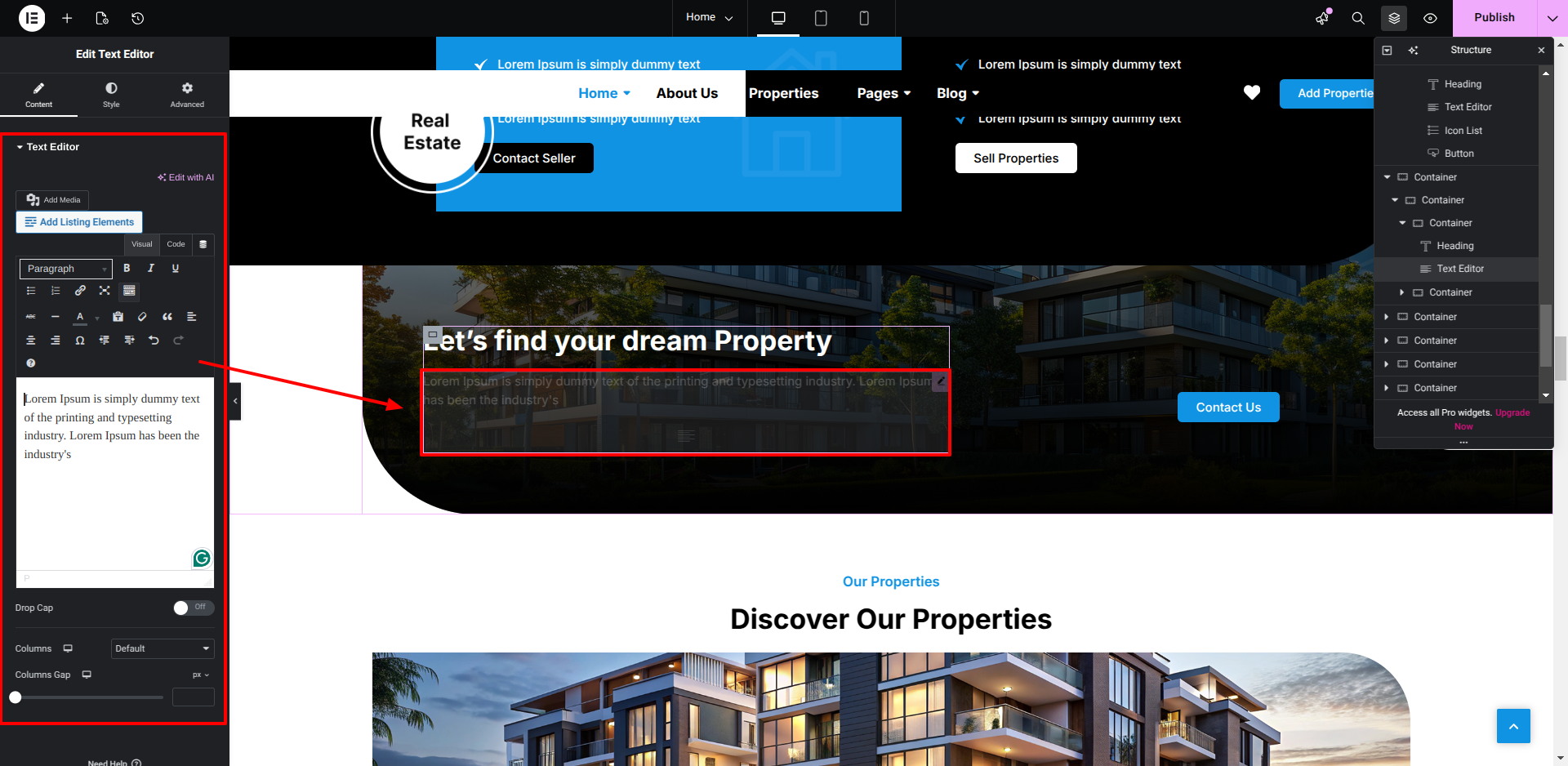
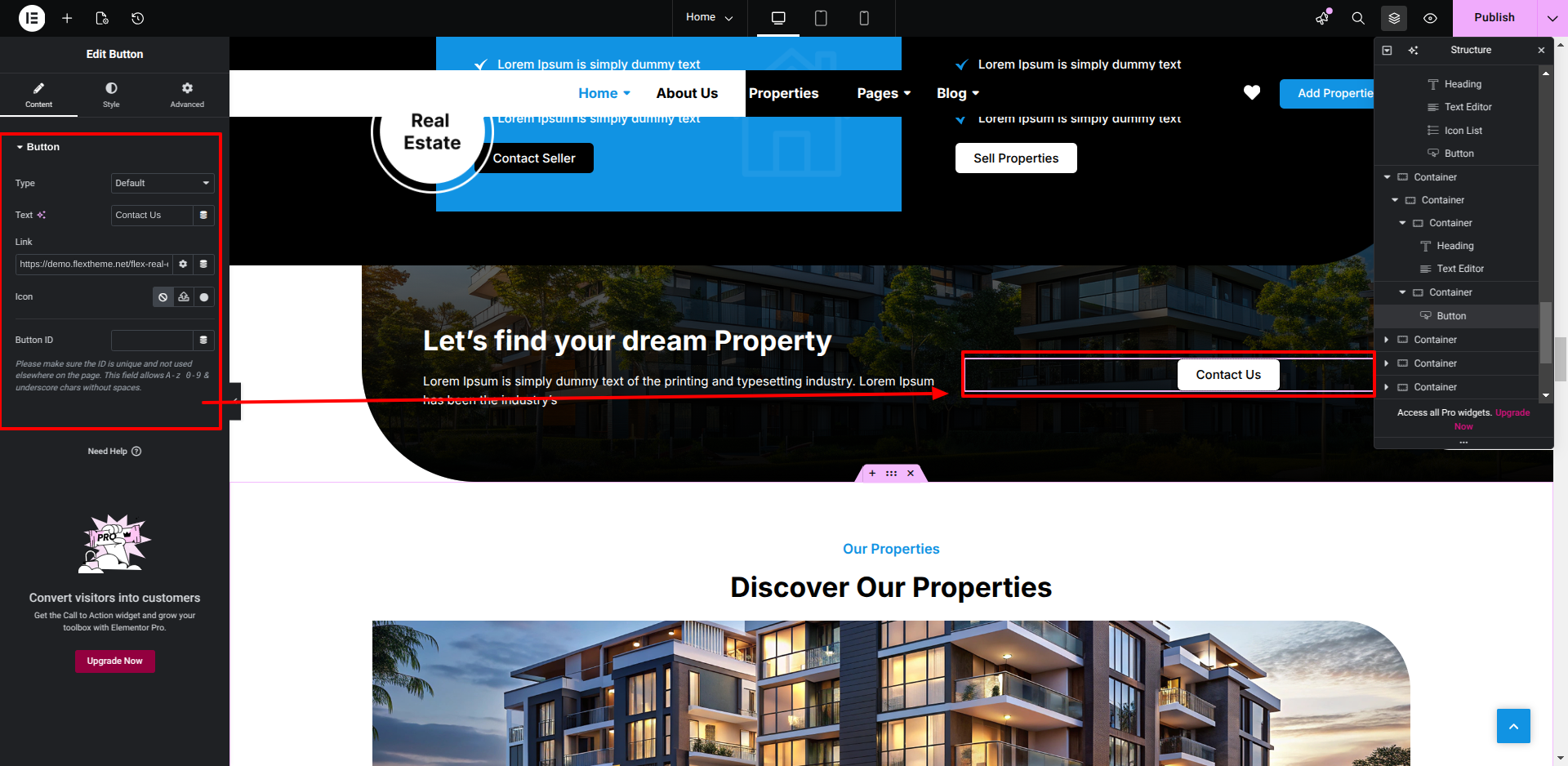
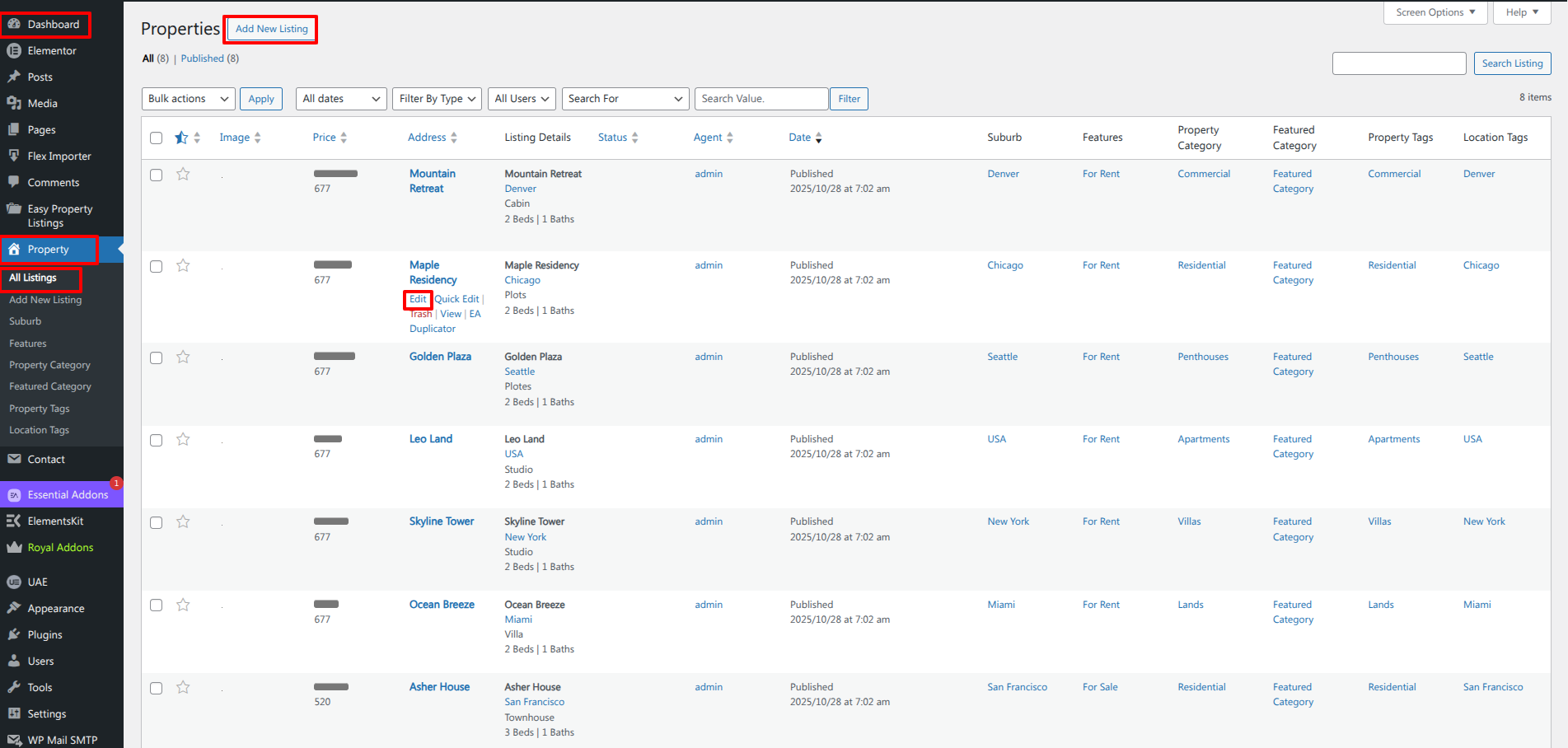
Setup Our Feature Properties​ Section


This is how you may set up travica​ Section.


Setup Inquries Section

Set up the Inquries Section according to the instructions below.


This is how you may set up Inquries Section.


Setup Contact Section


This is how you may set up Contact​ Section.


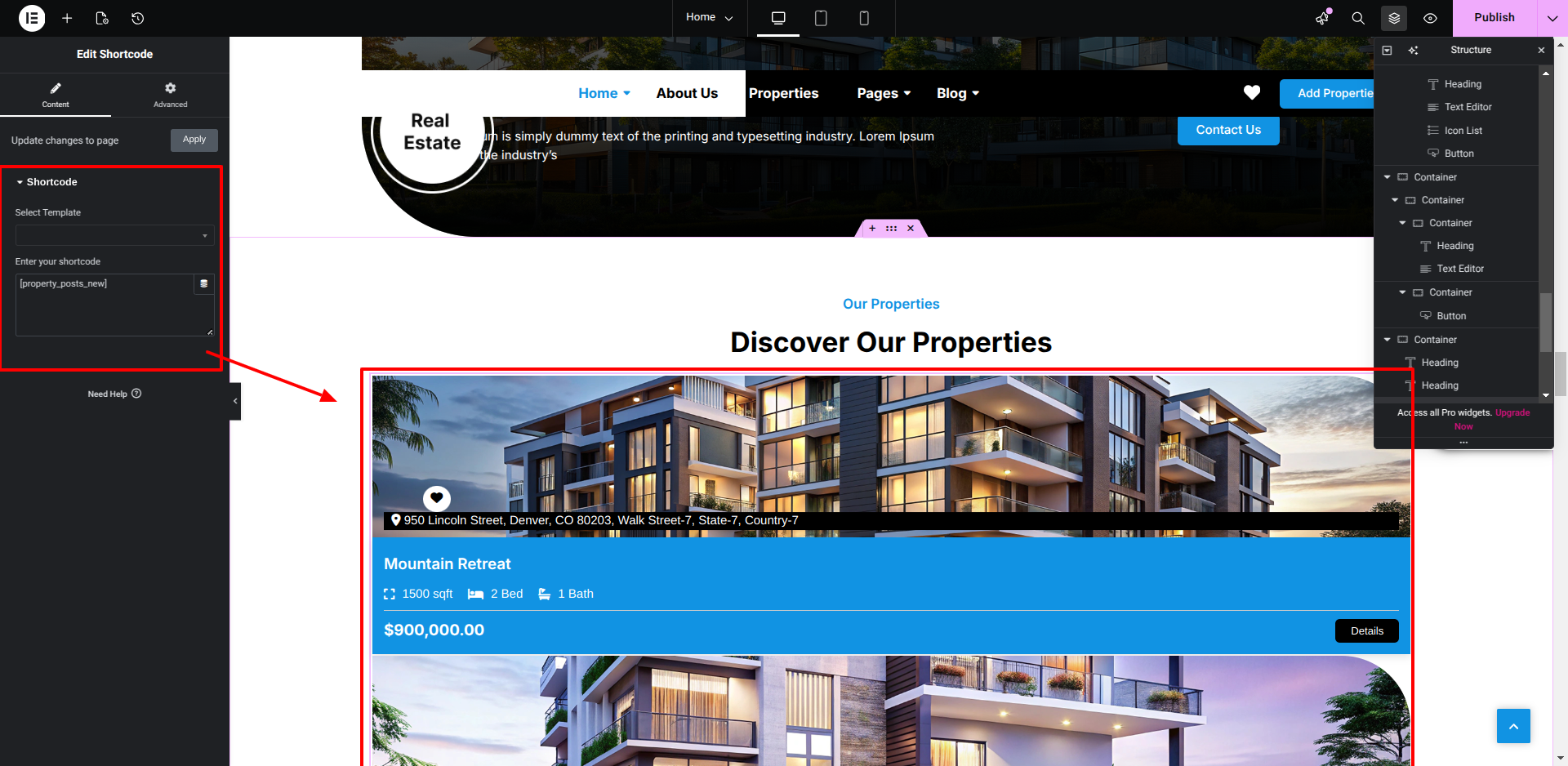
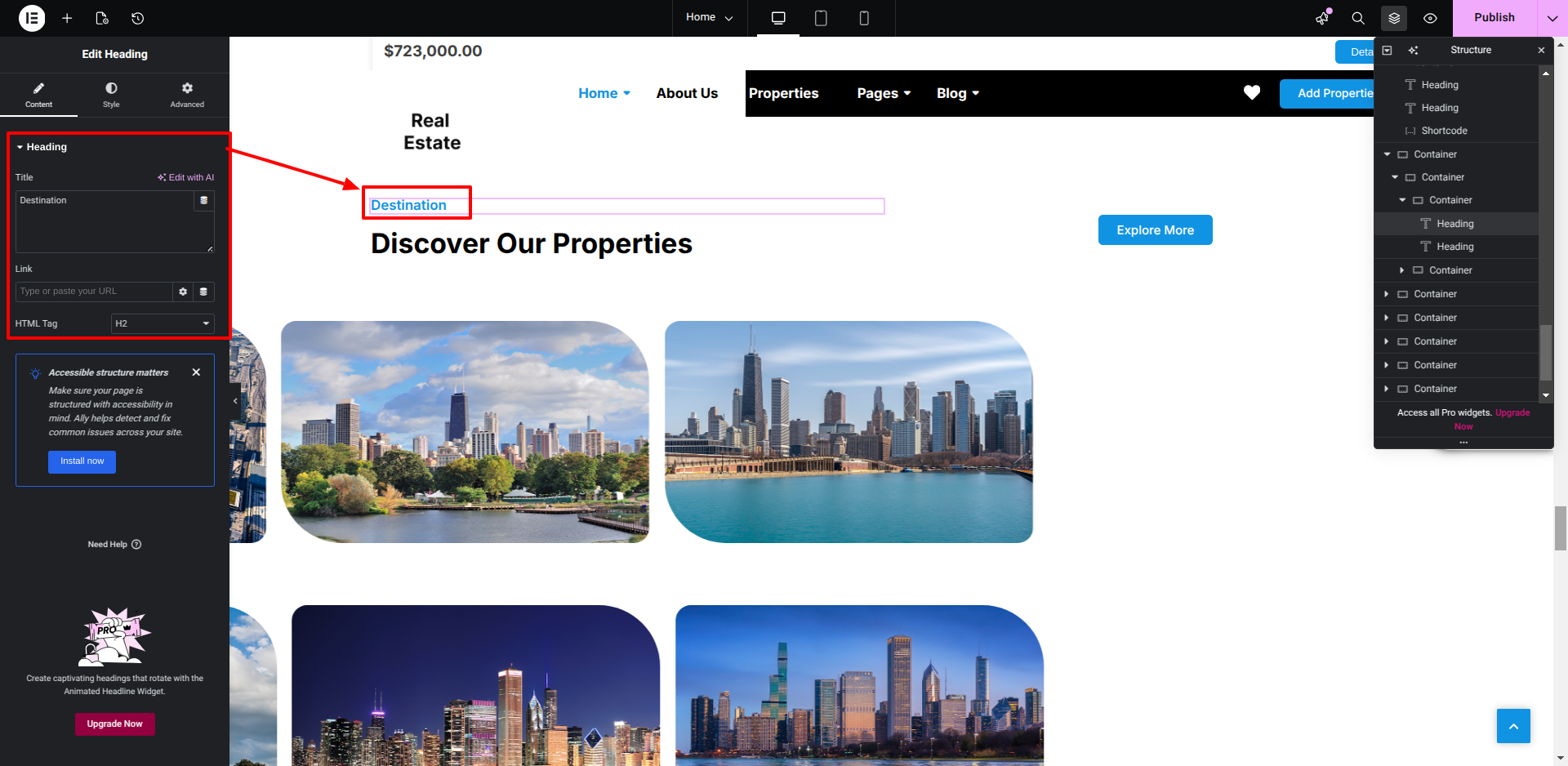
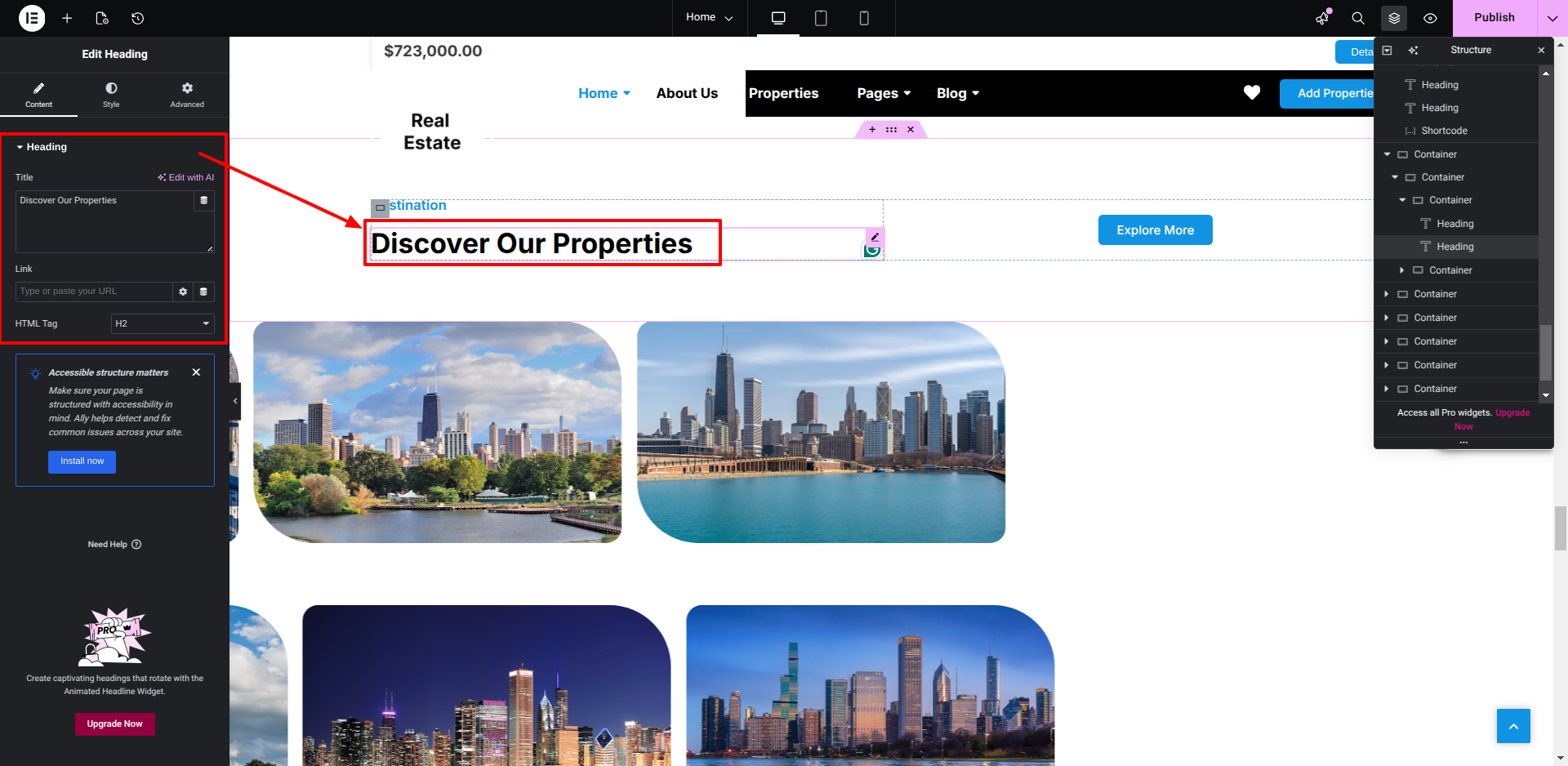
Setup Discover Our Properties​ Section

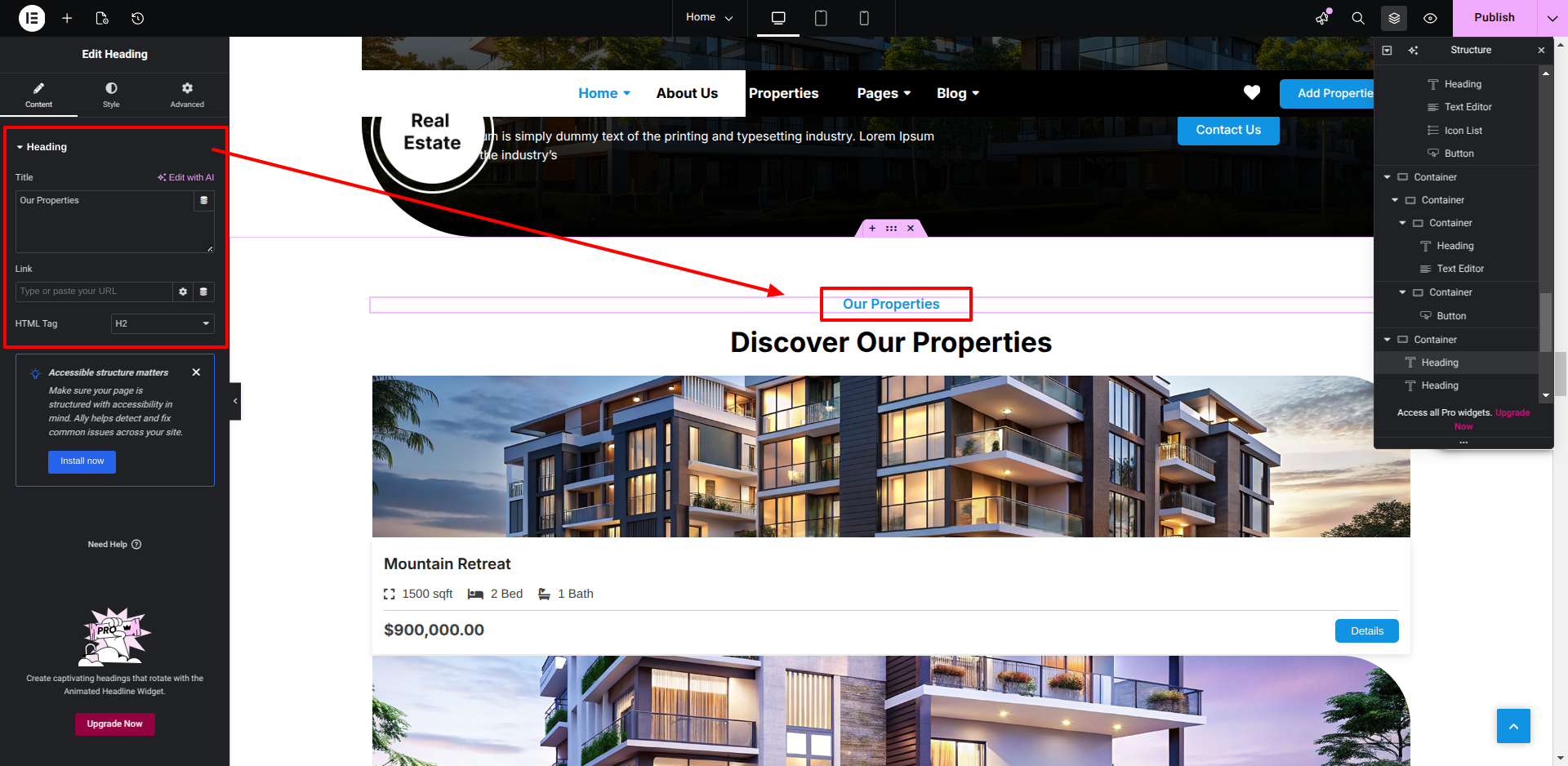
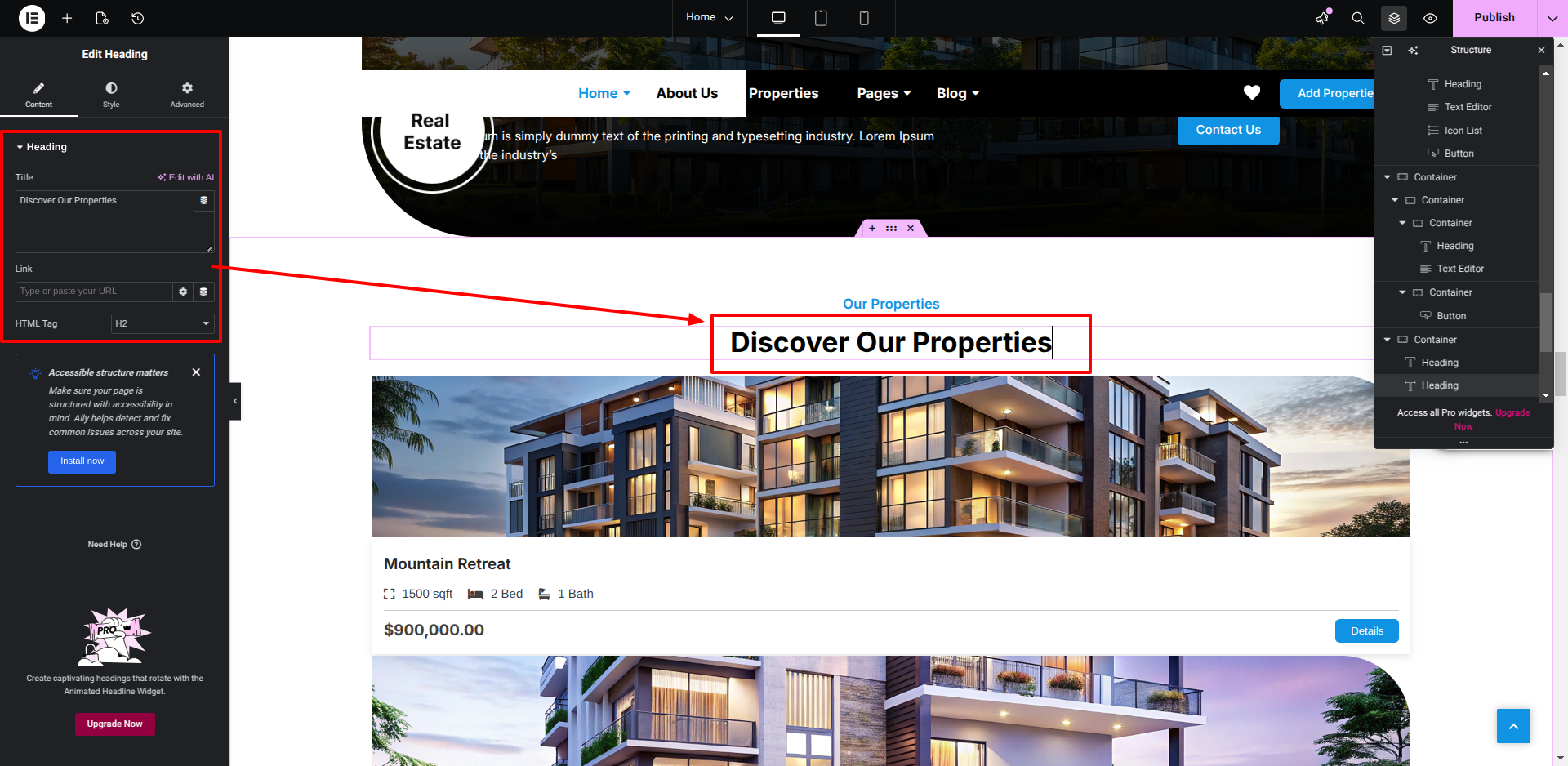
Set up the Discover Our Properties​ Section according to the instructions below.


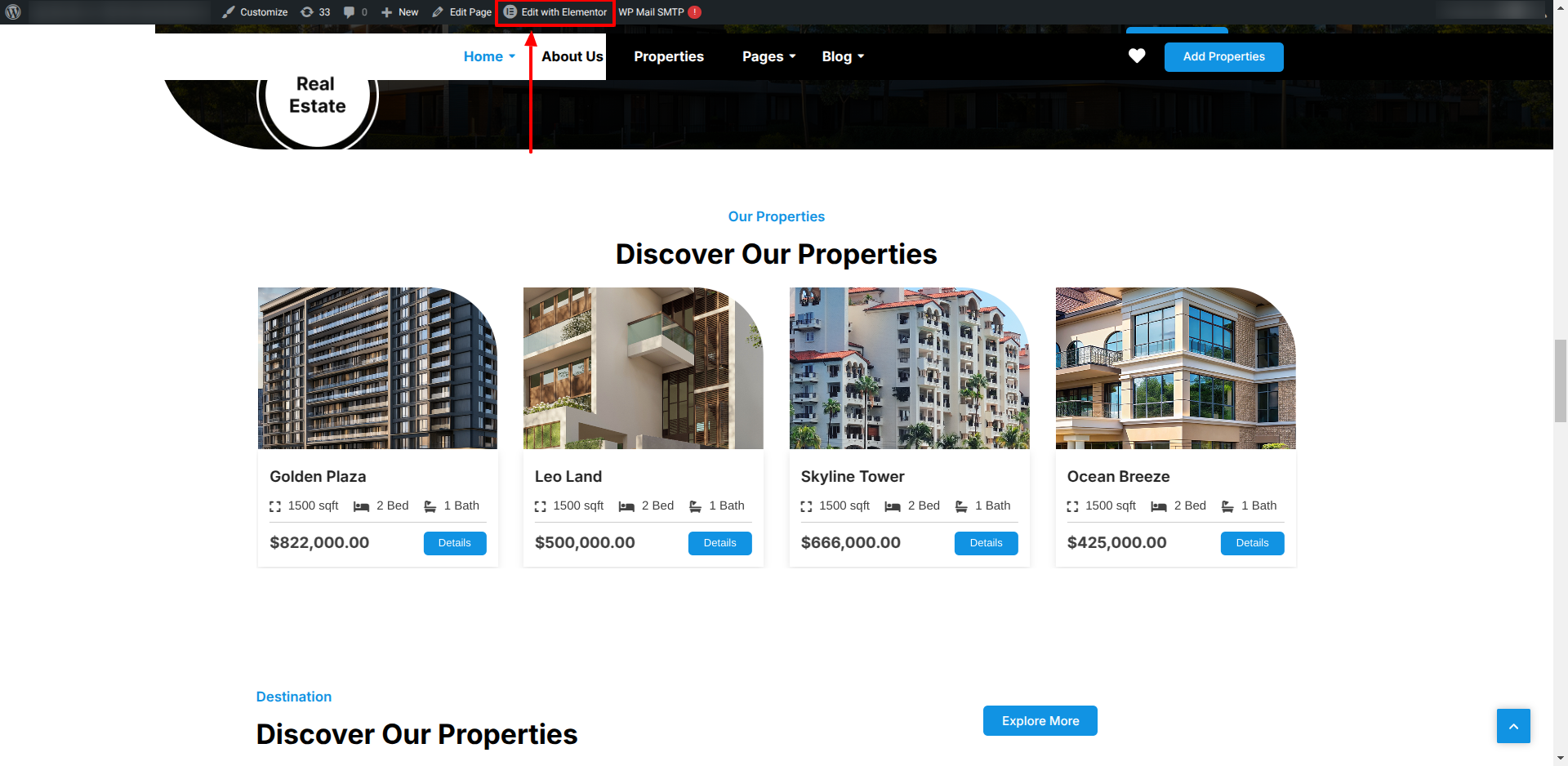
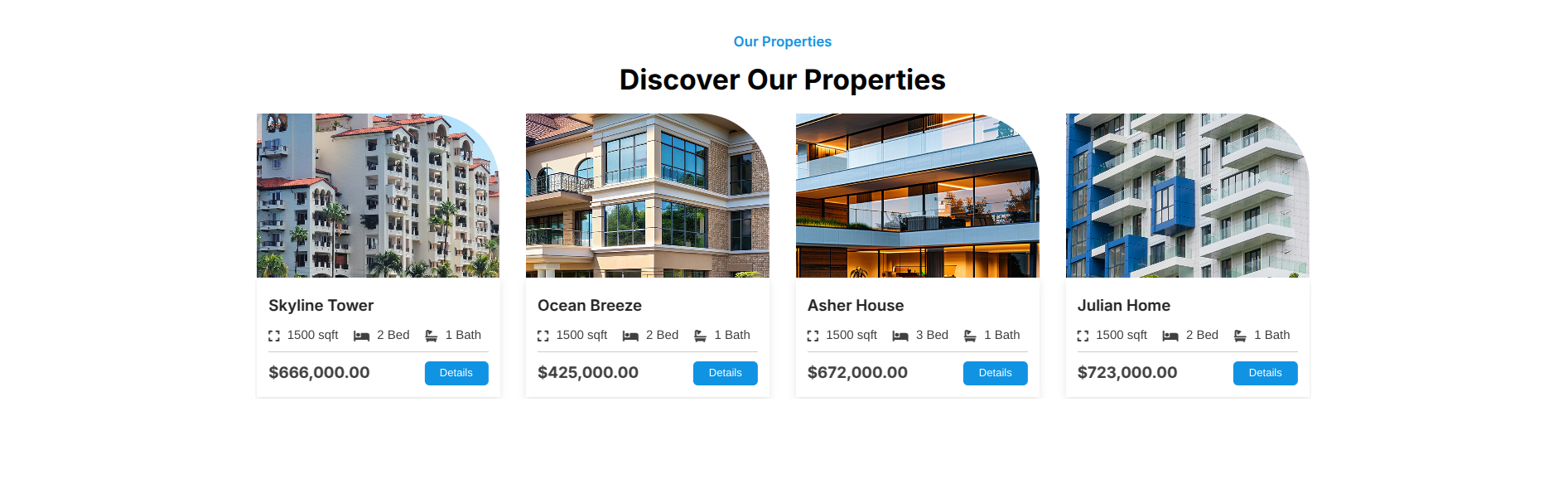
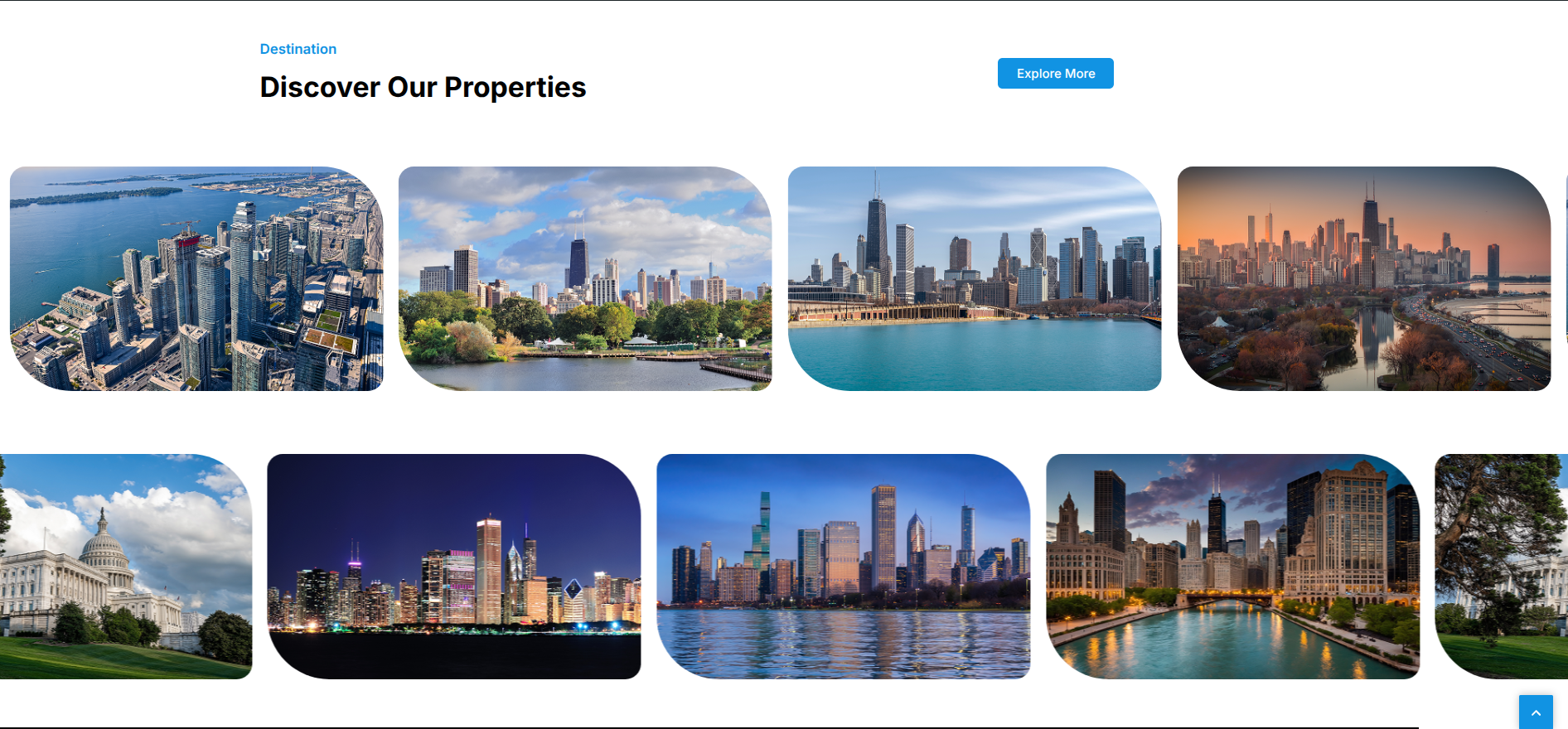
This is how you may set up Discover Our Properties Section.


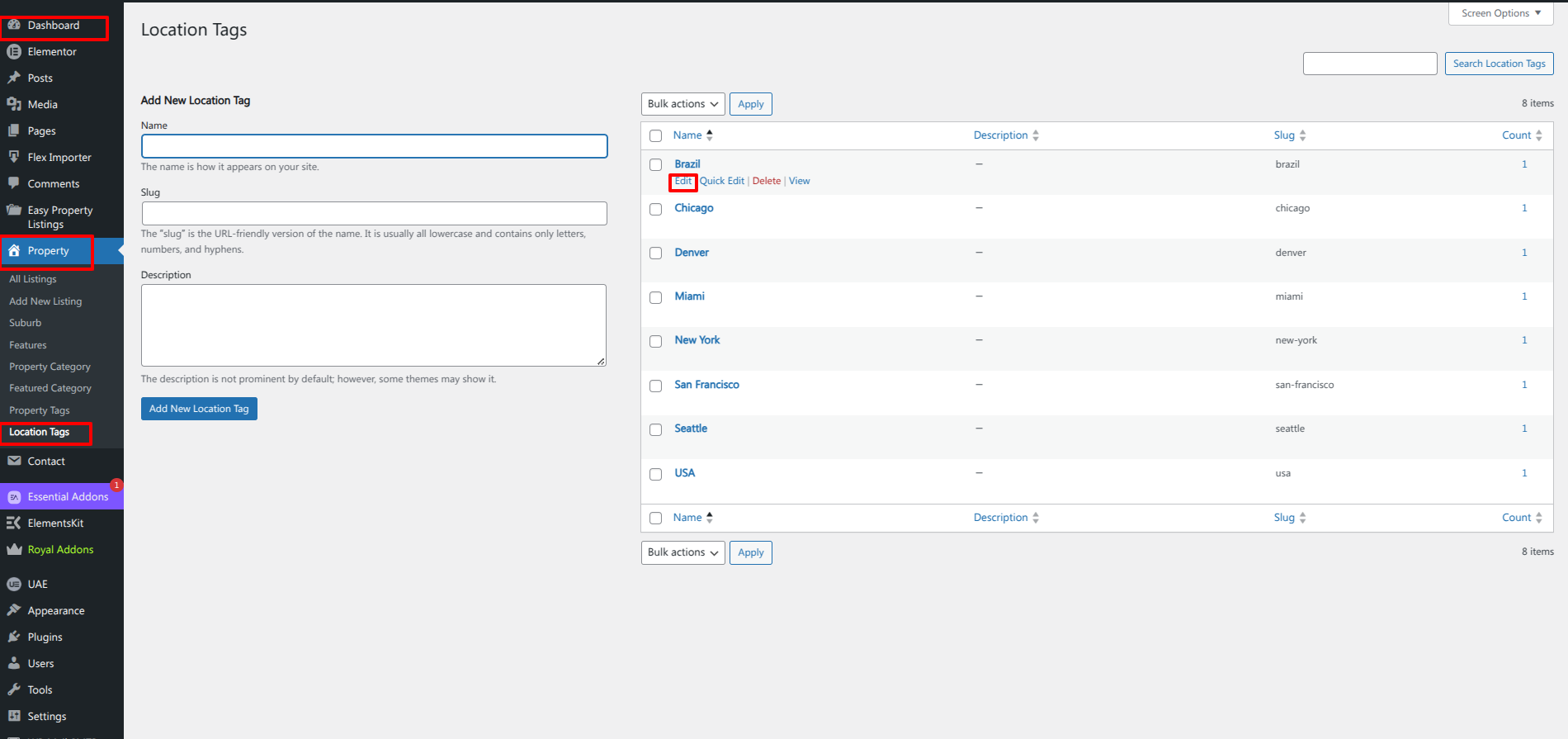
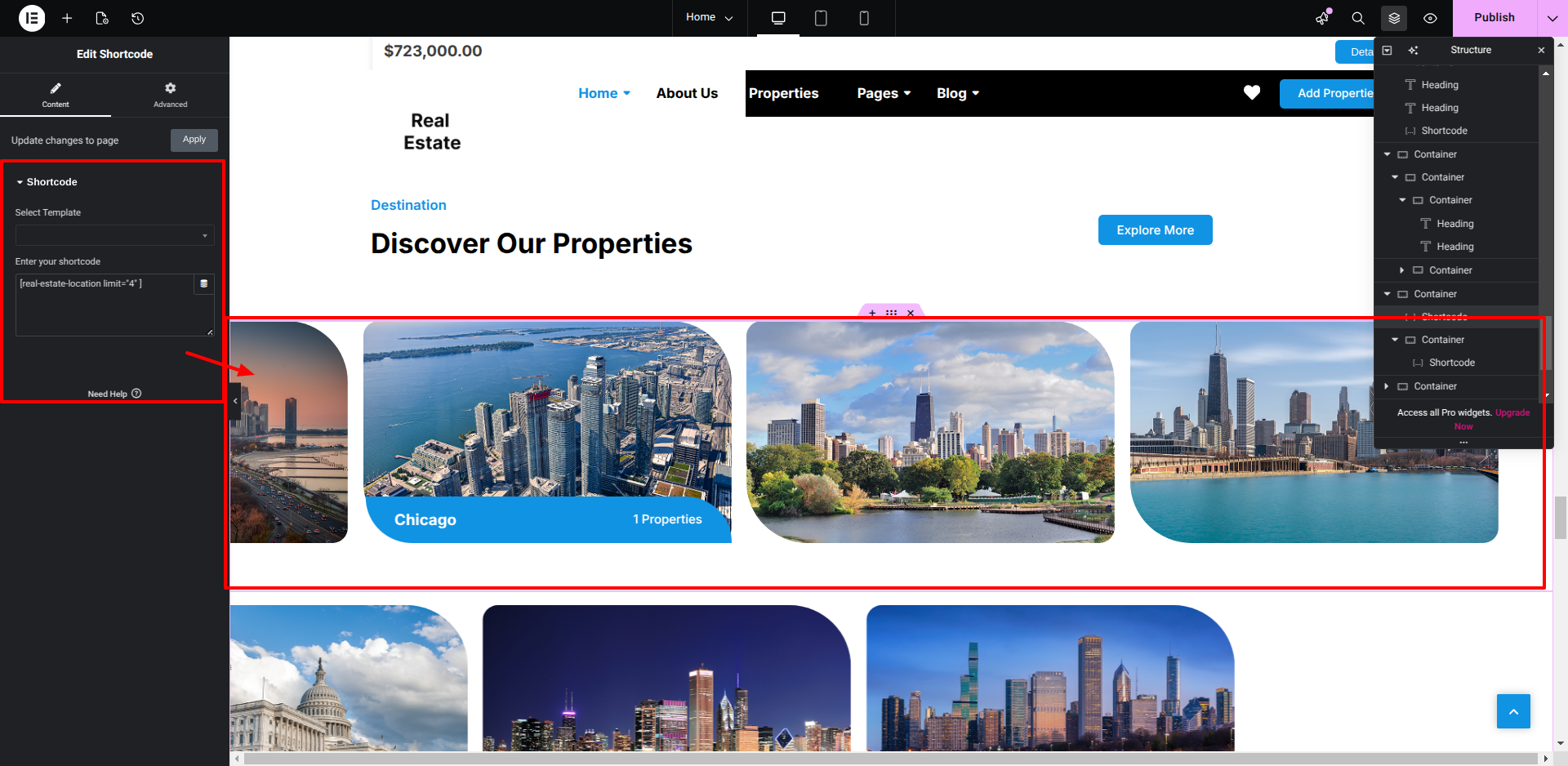
Setup Destination Section

Set up the Destination​ Section according to the instructions below.


This is how you may set up Gallery​ Section.


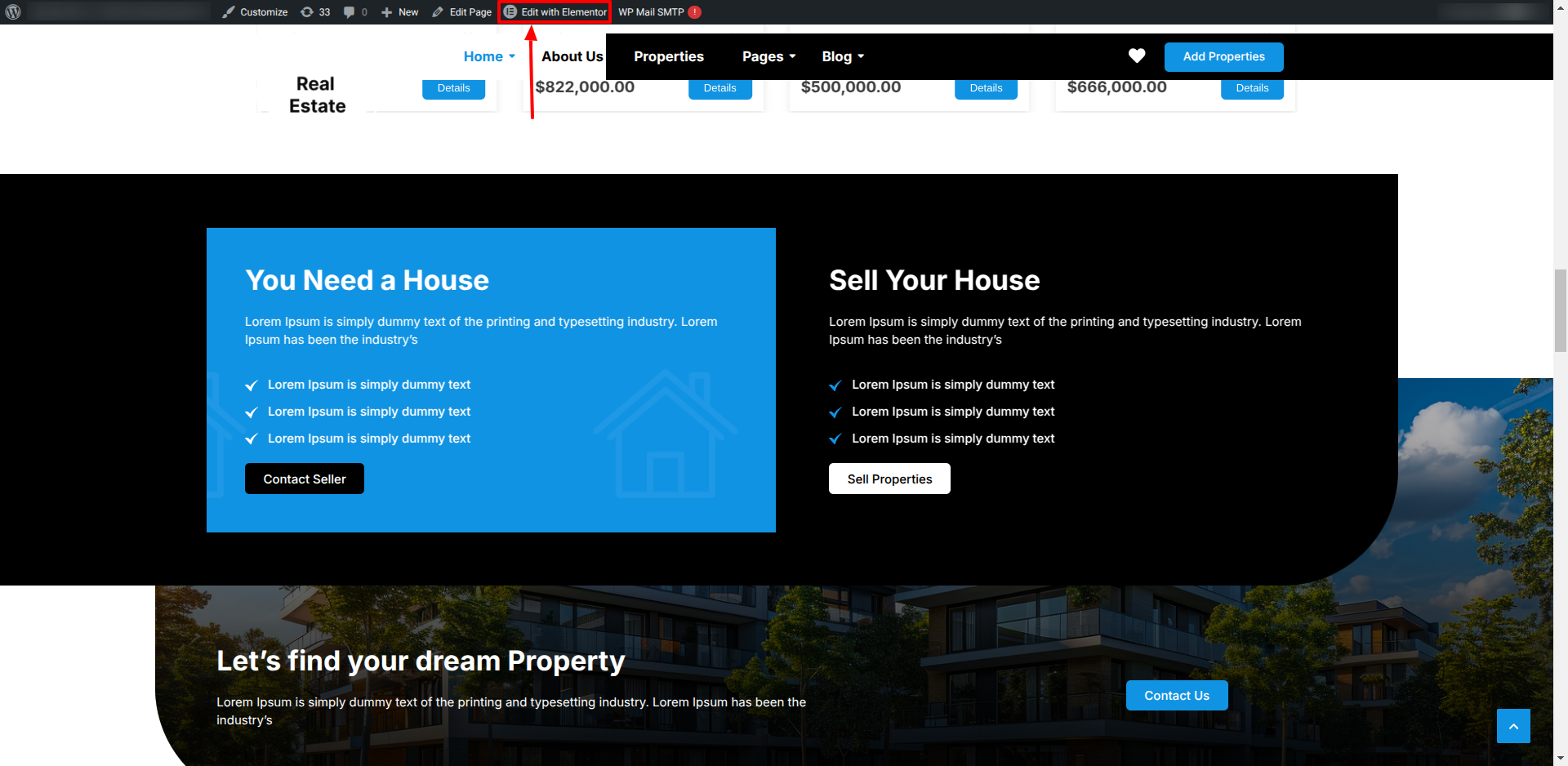
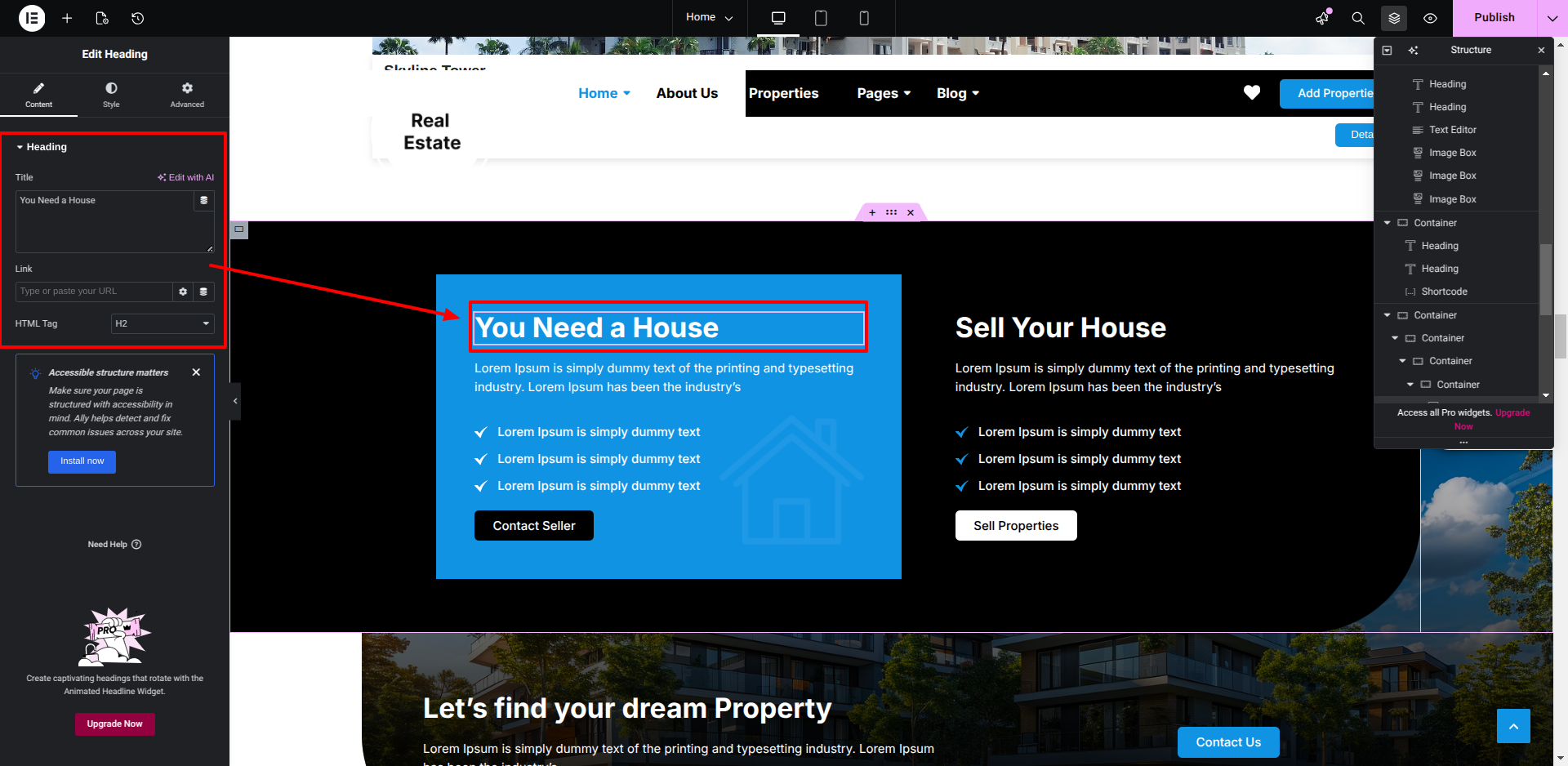
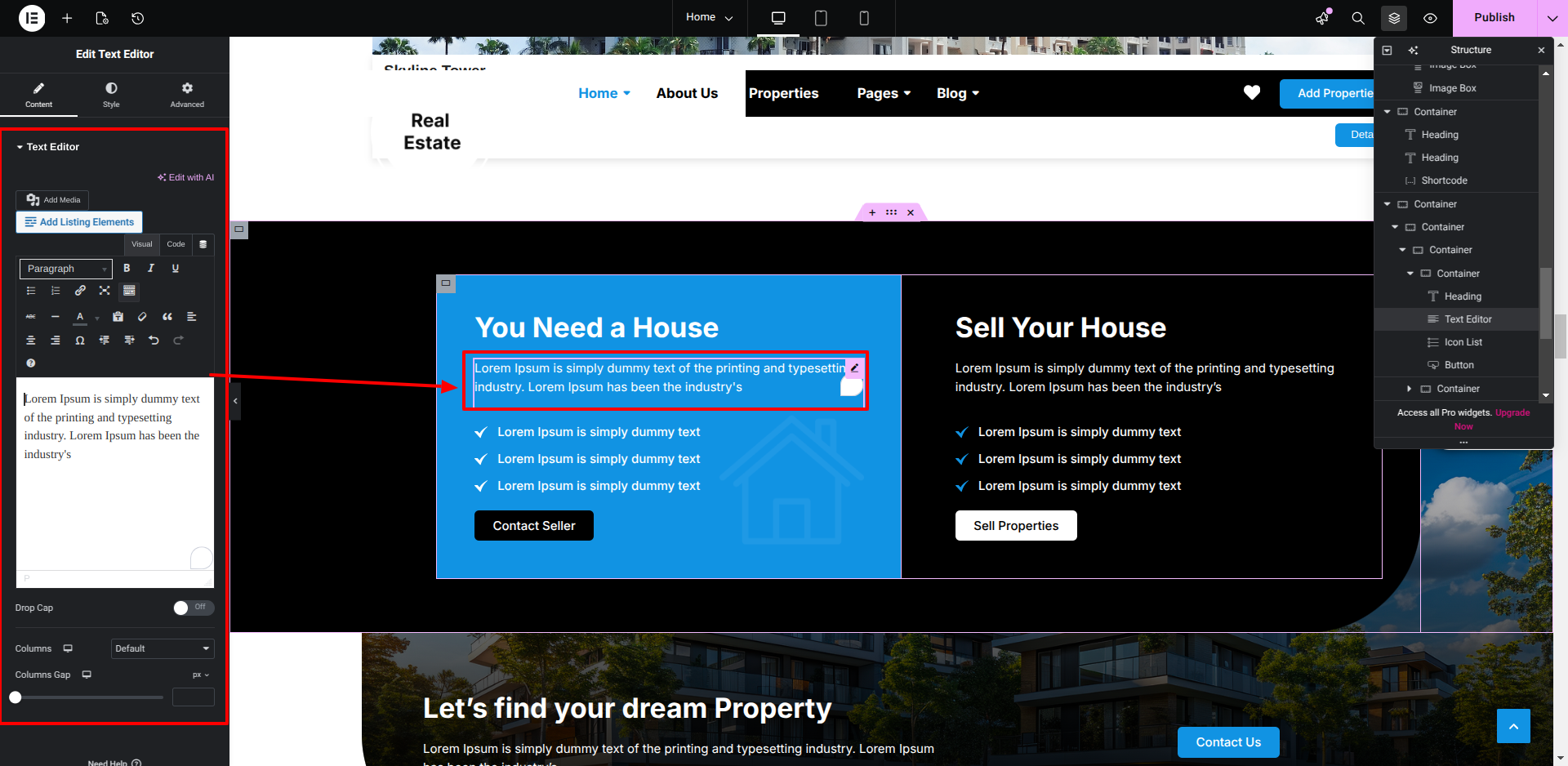
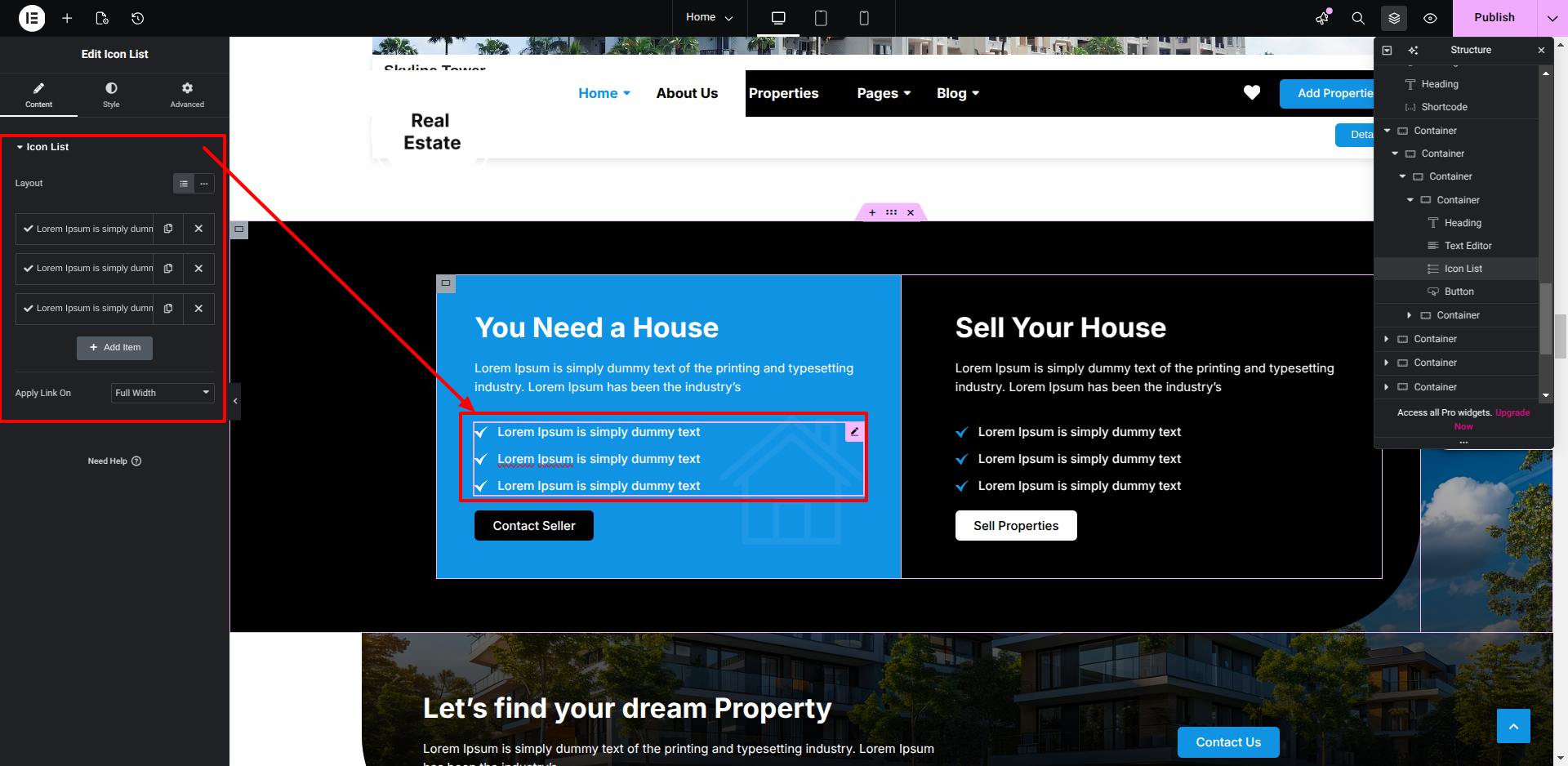
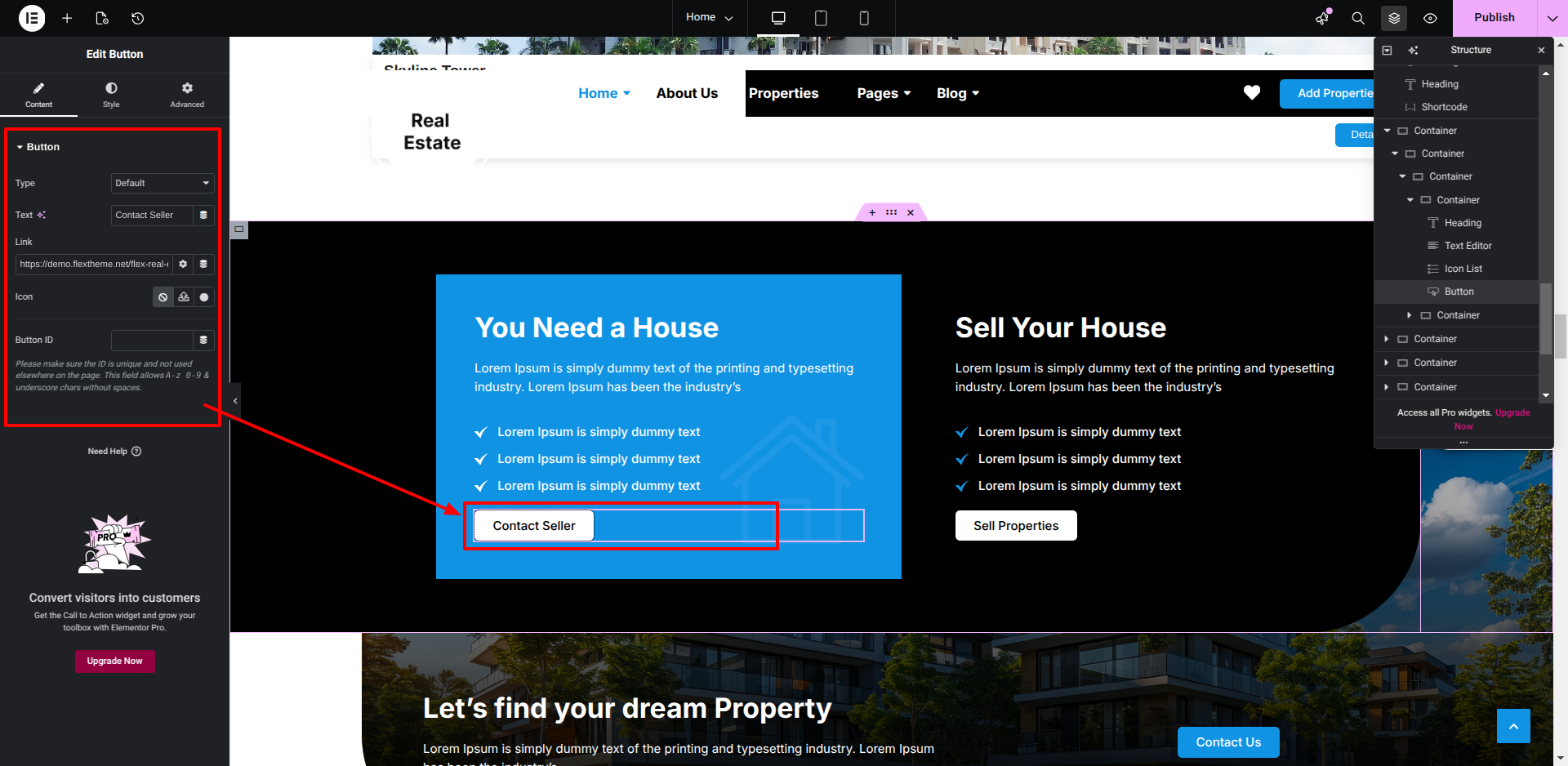
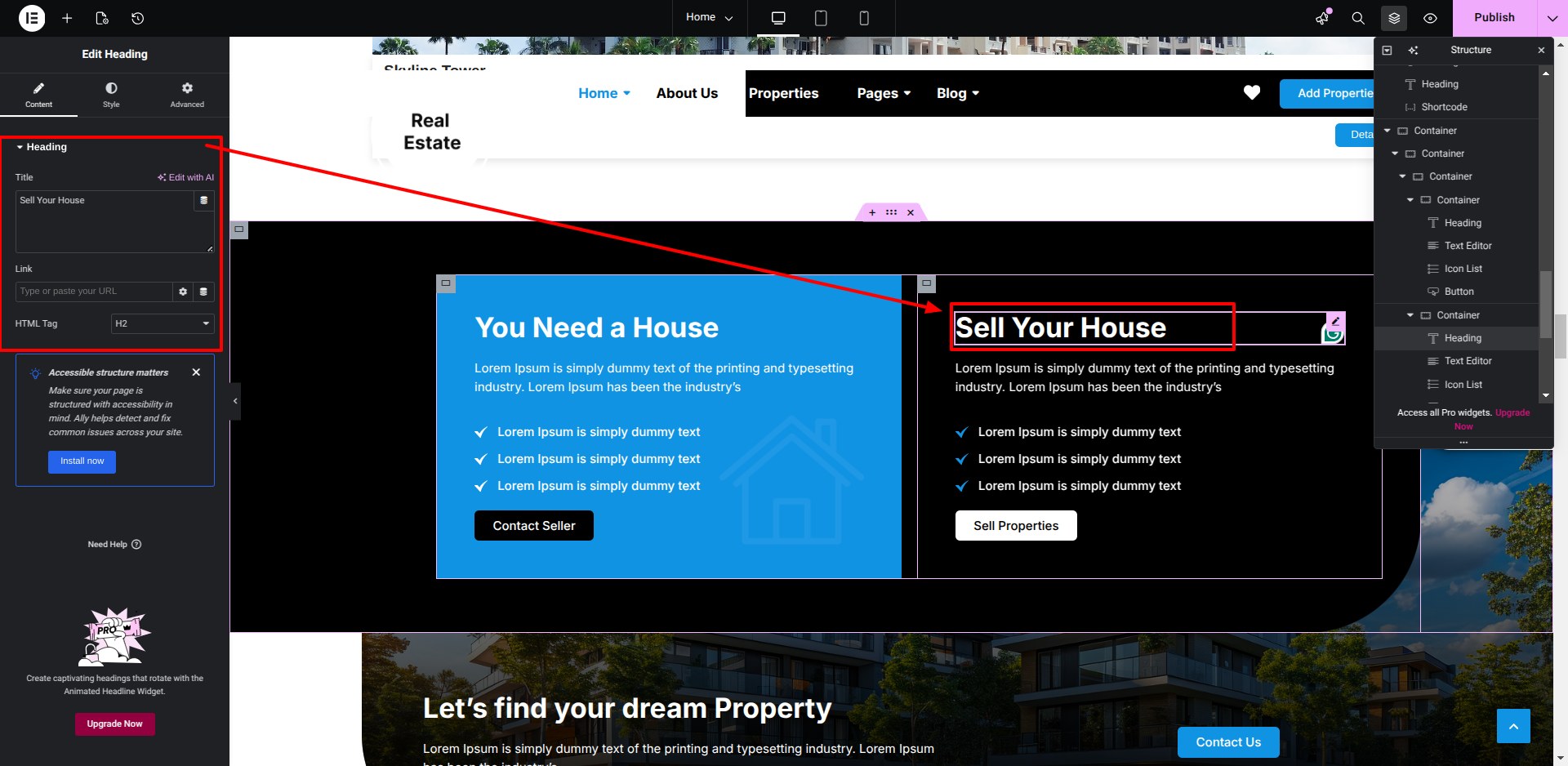
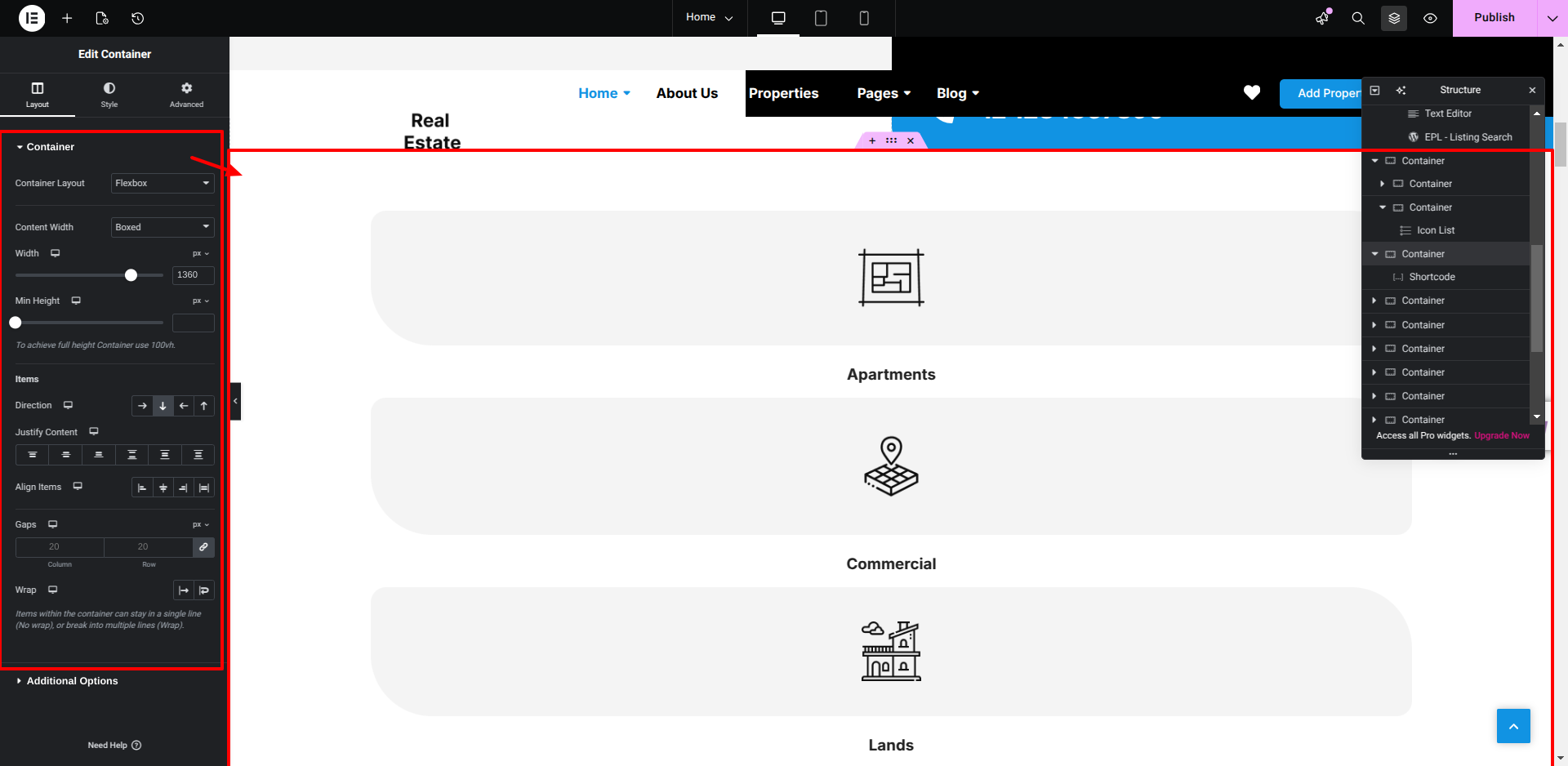
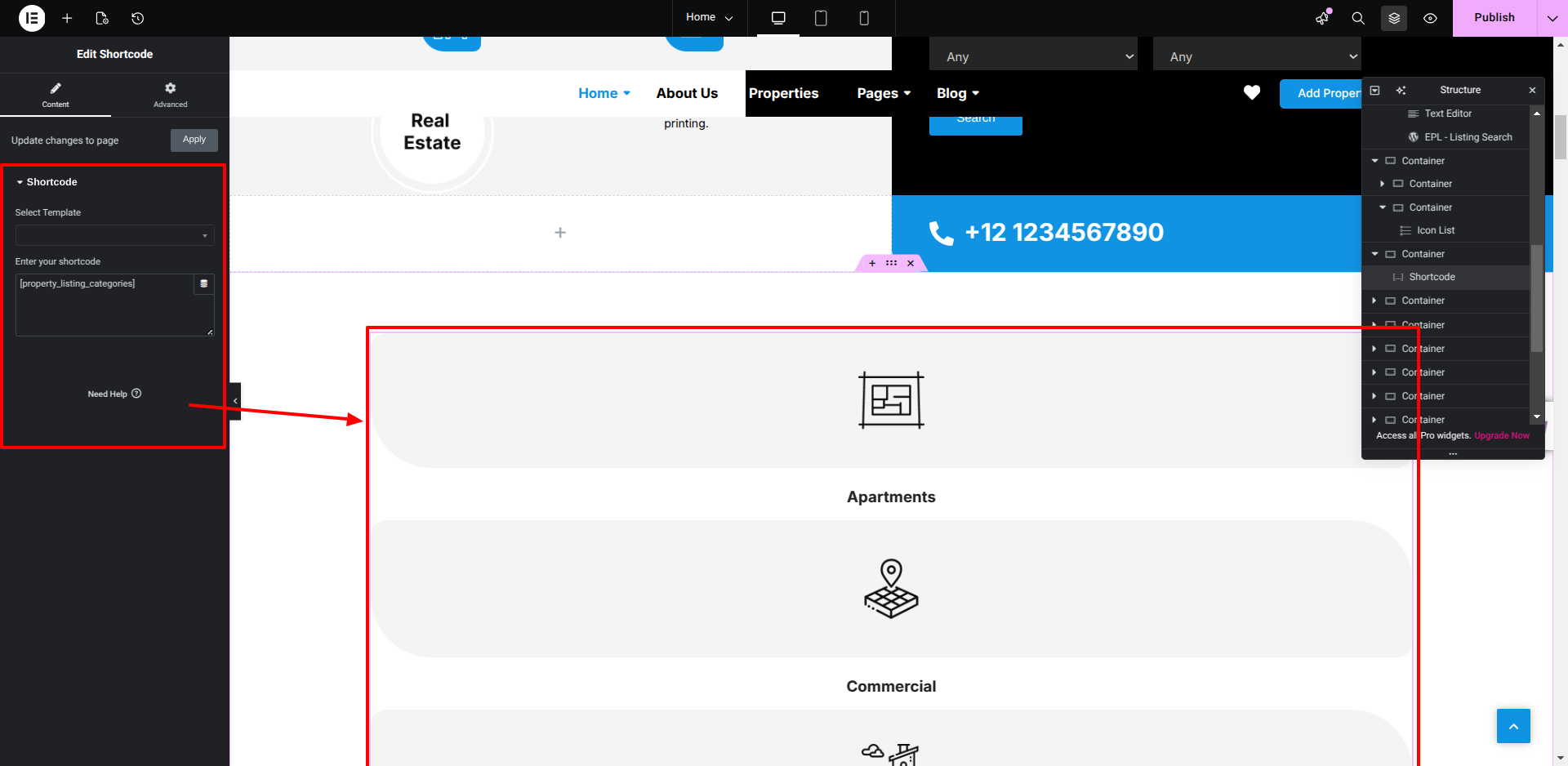
Setup Estate Section

Set up the Estate​ Section according to the instructions below.


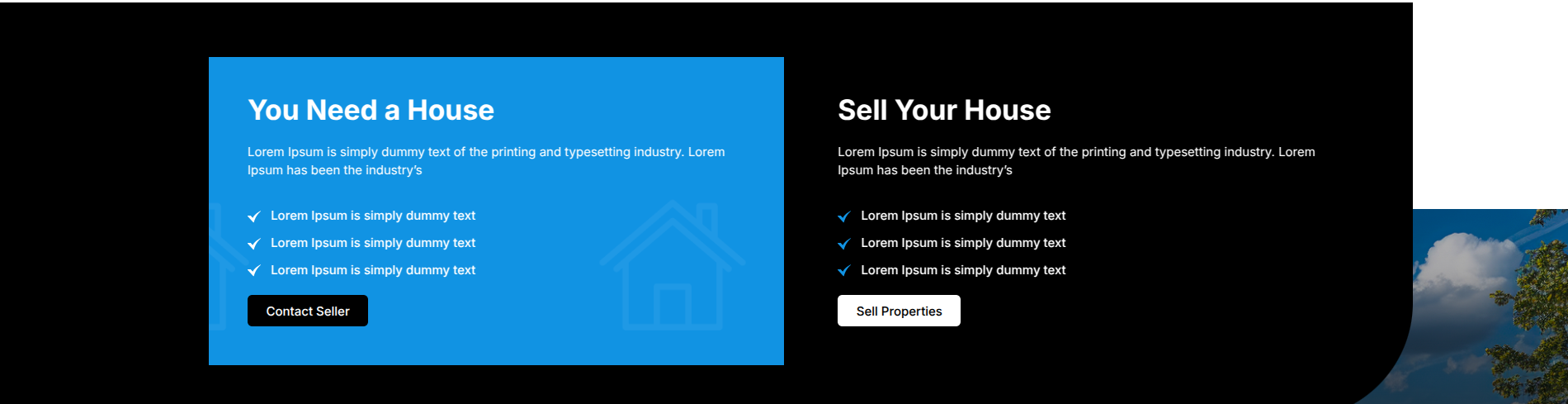
This is how you may set up Estate​ Section.


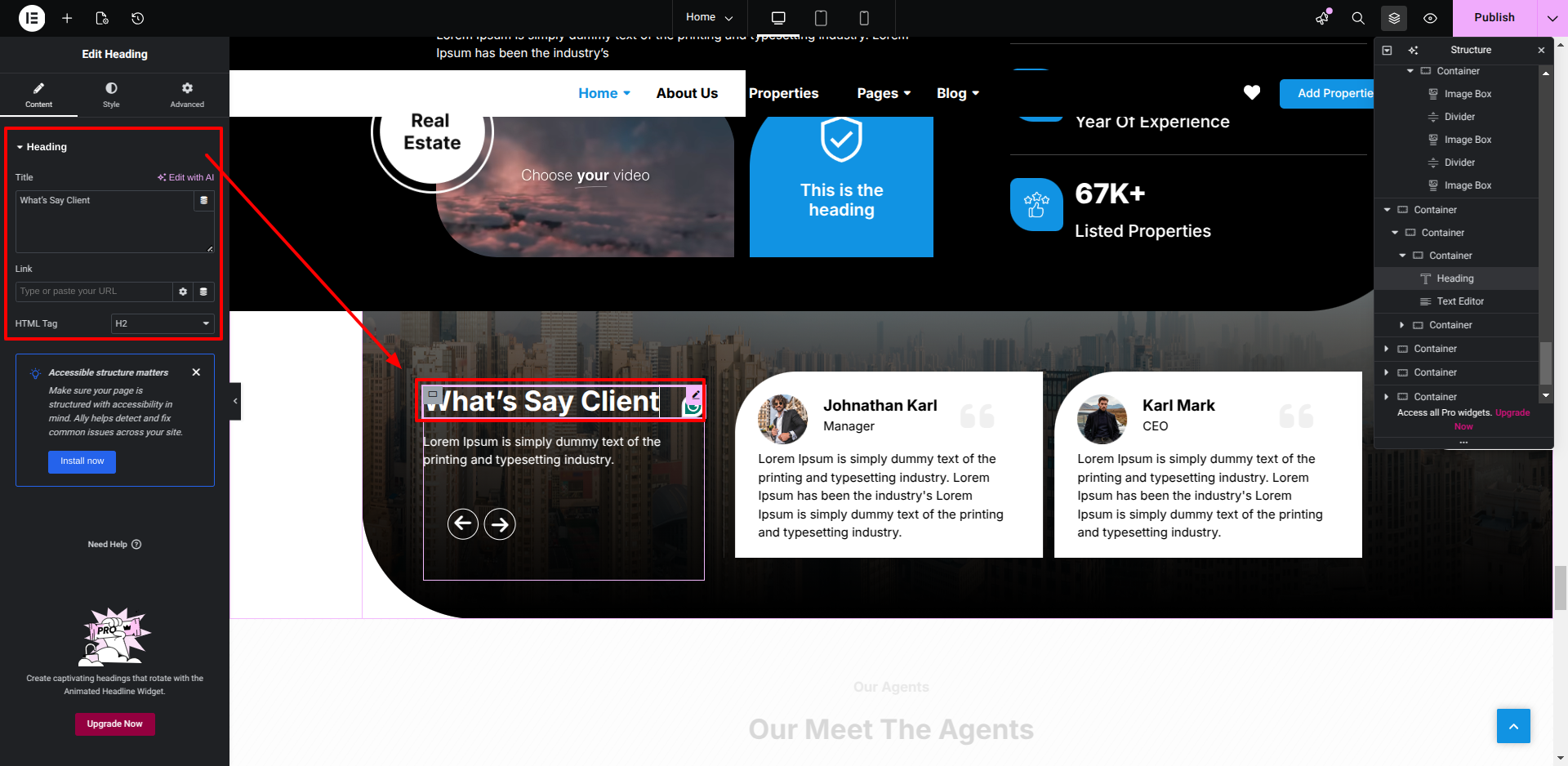
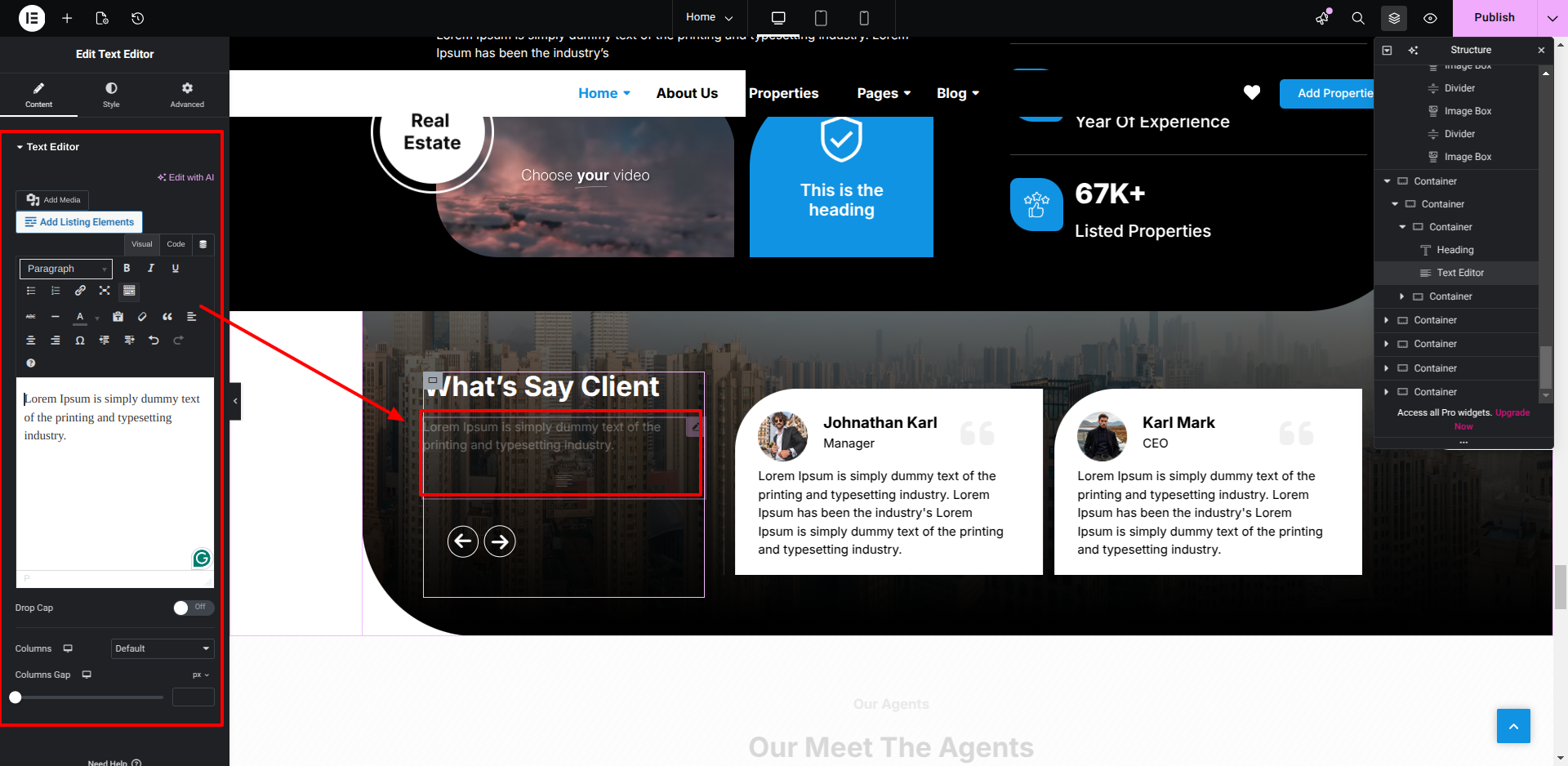
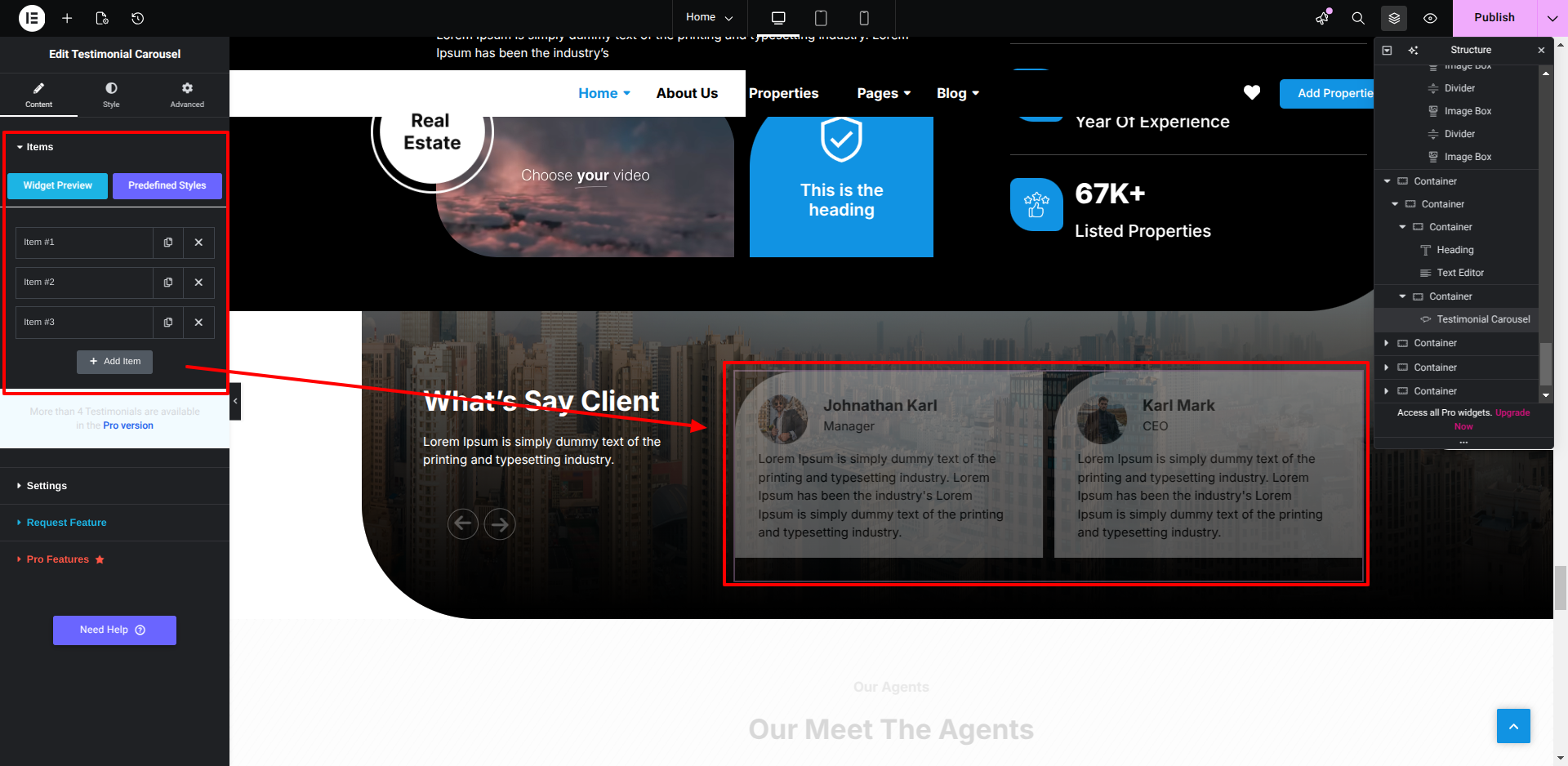
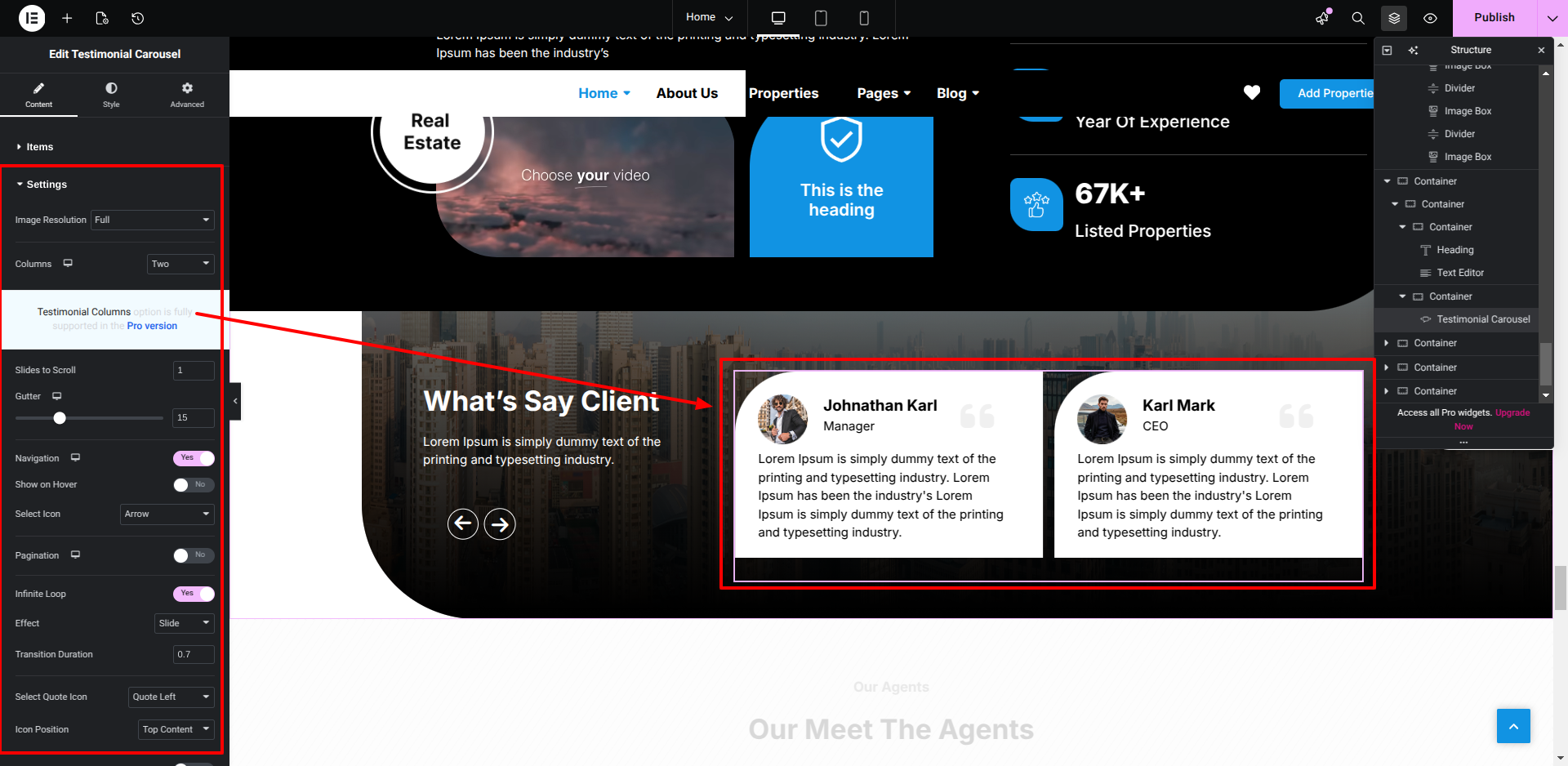
Setup Testimonials​ Section


This is how you may set up Testimonial​ Section.


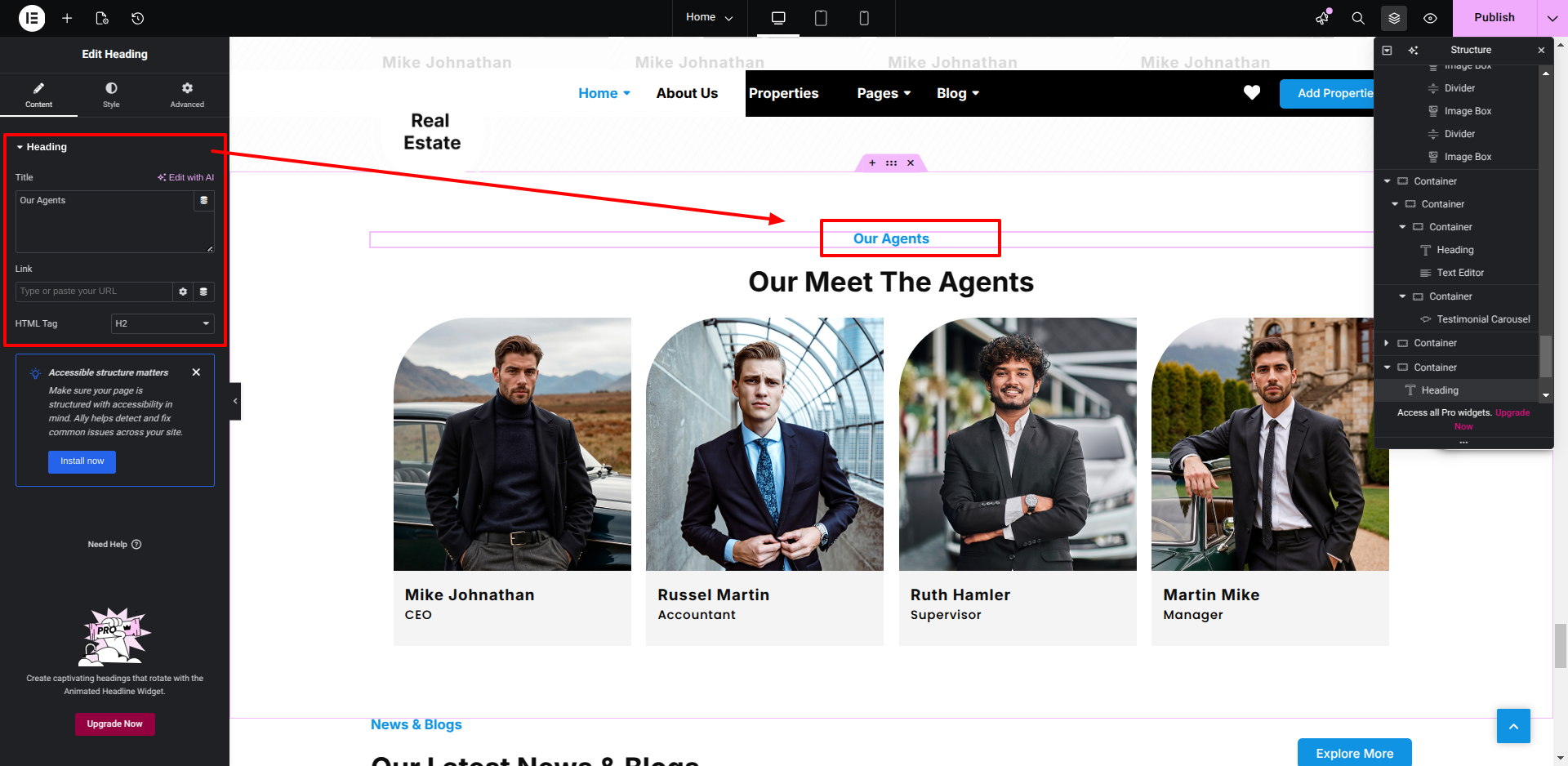
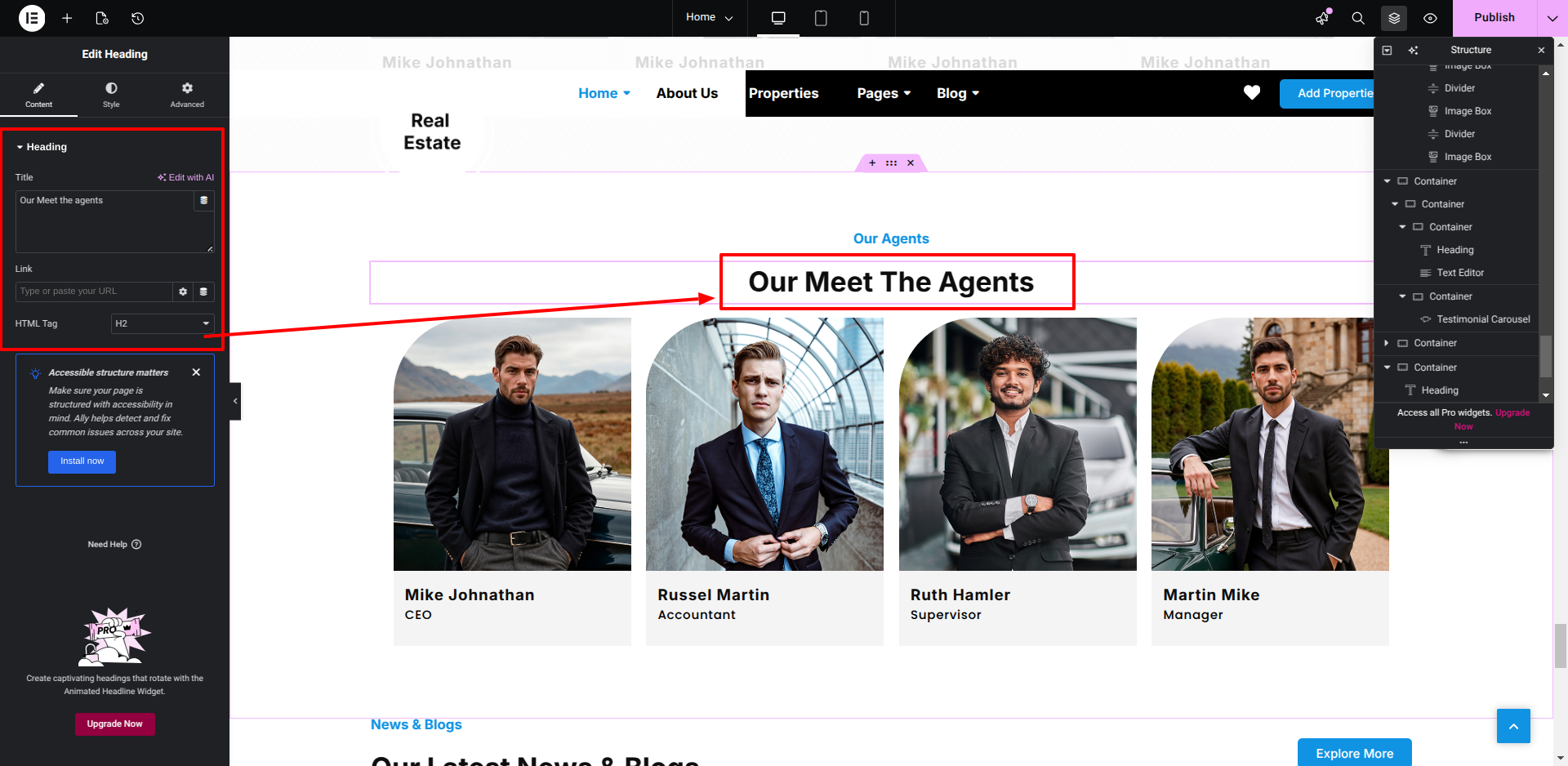
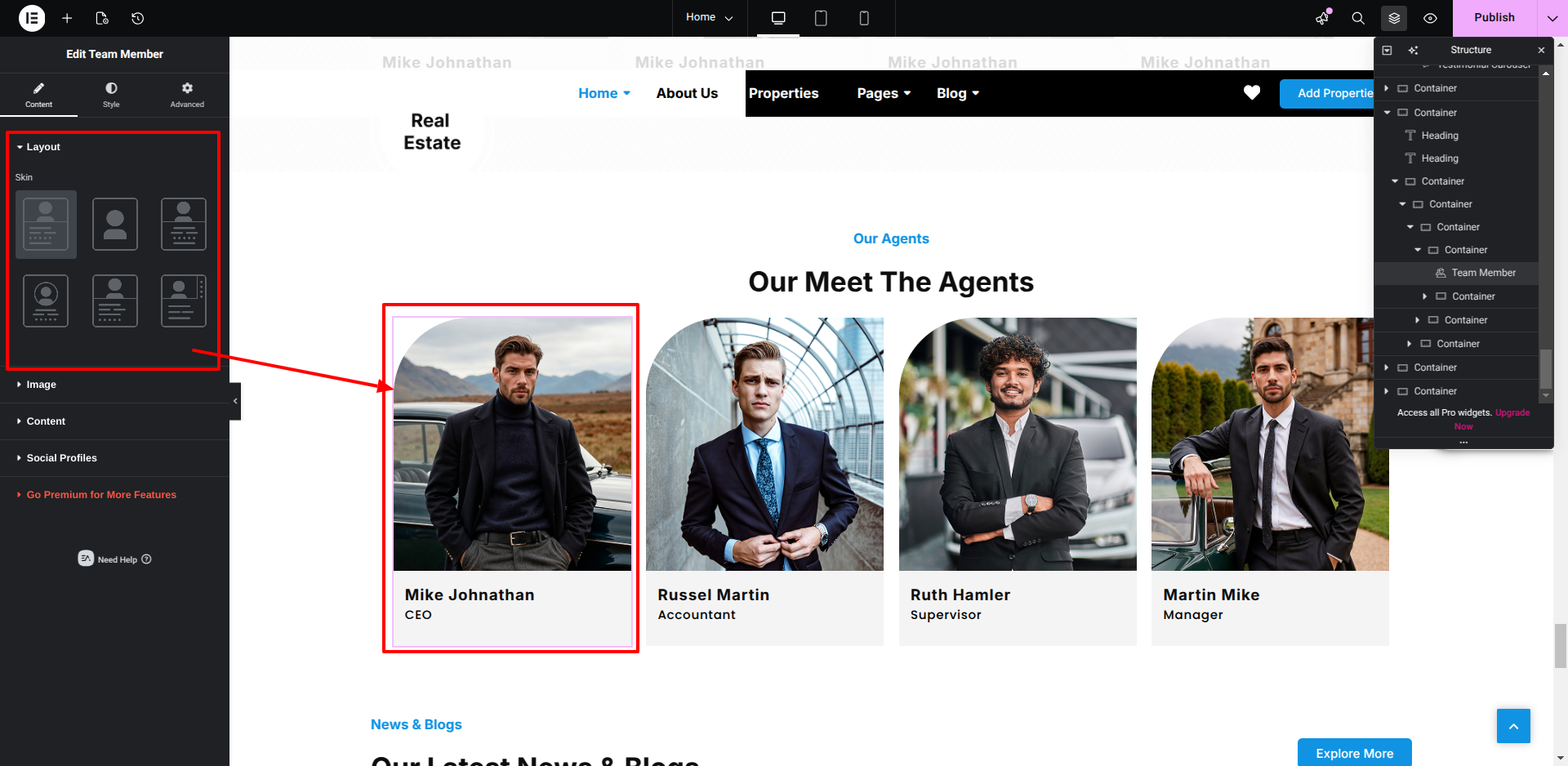
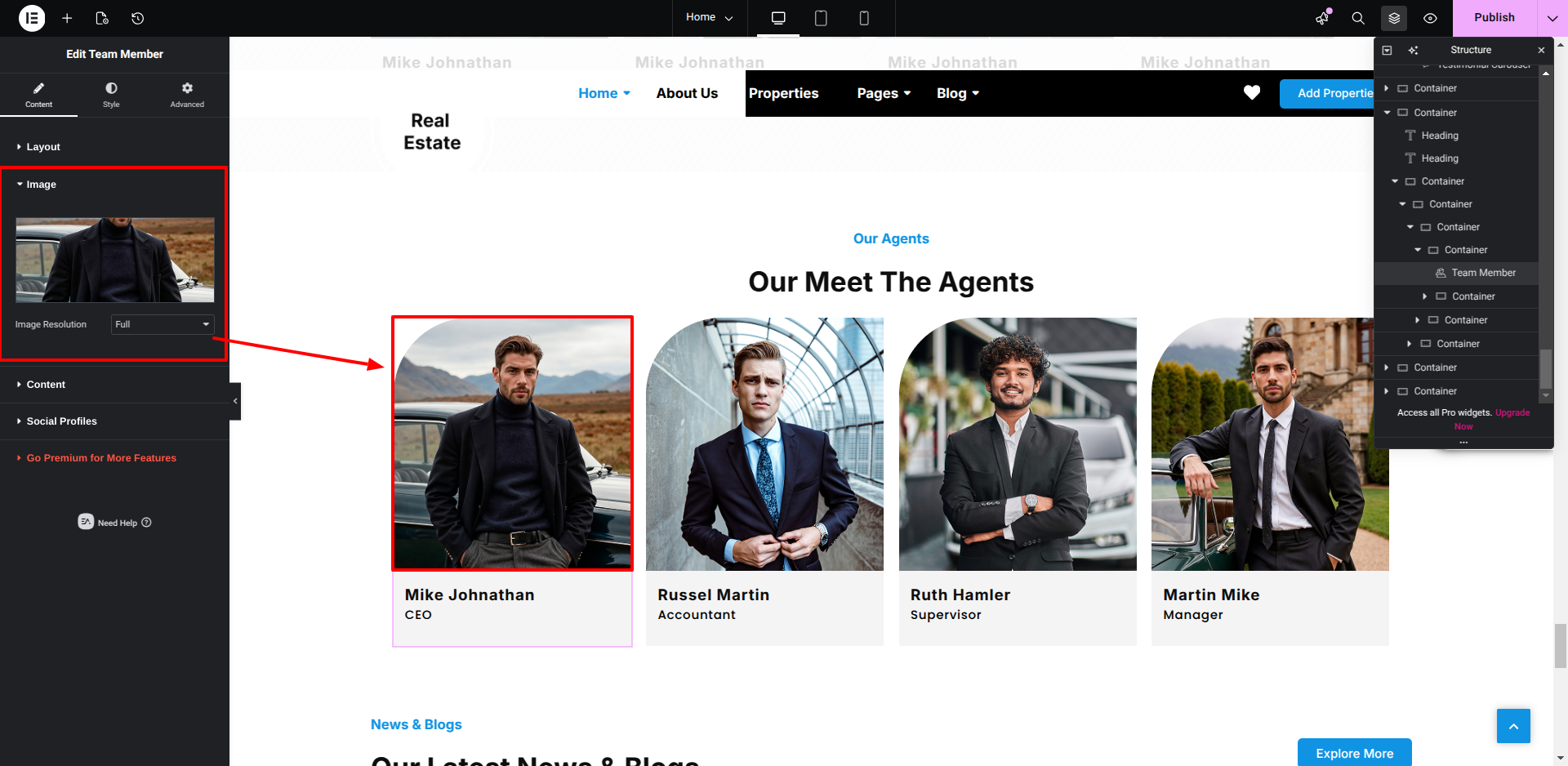
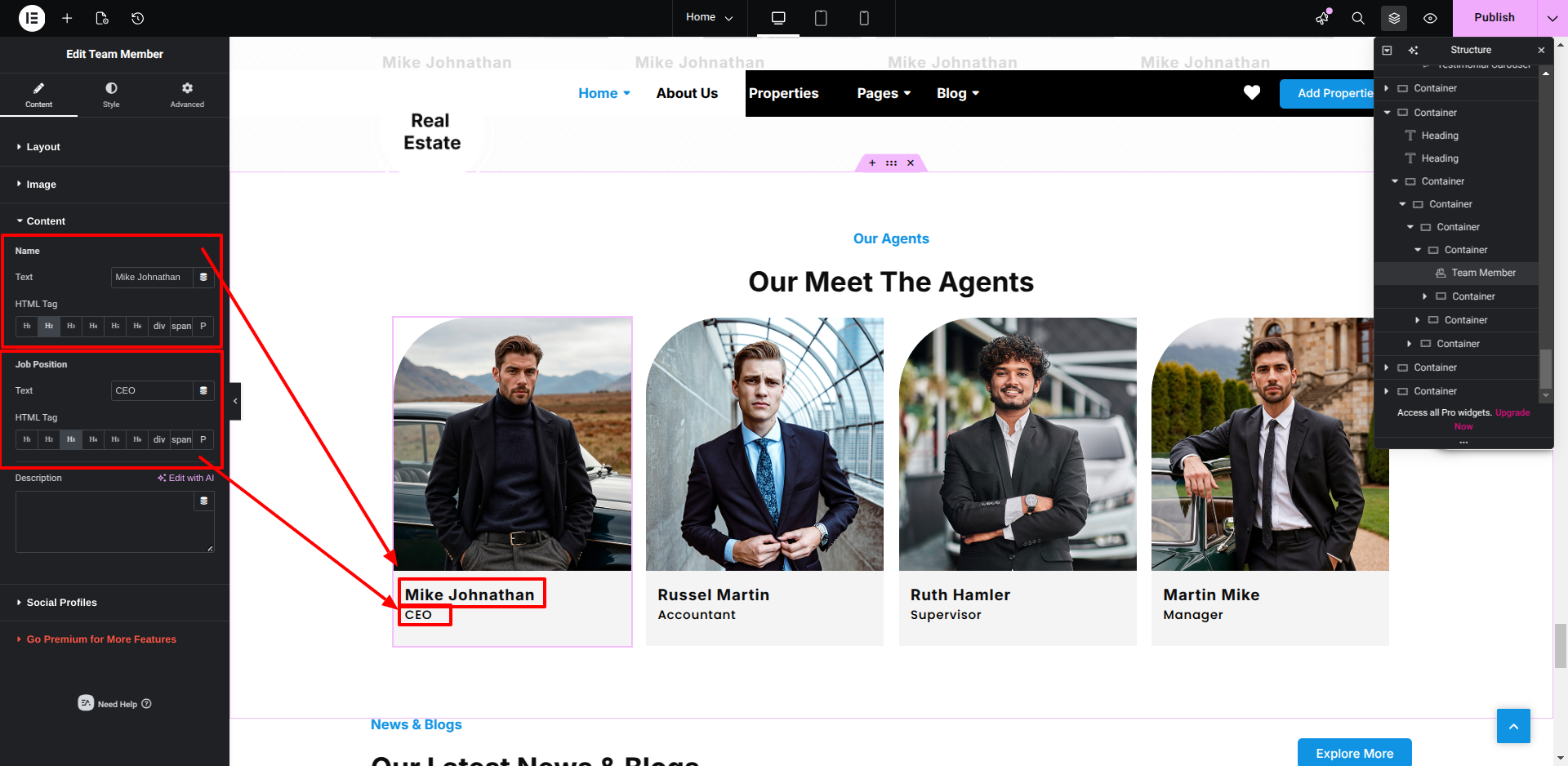
Setup Our Agents​ Section


This is how you may set up Our Agents​ Section.


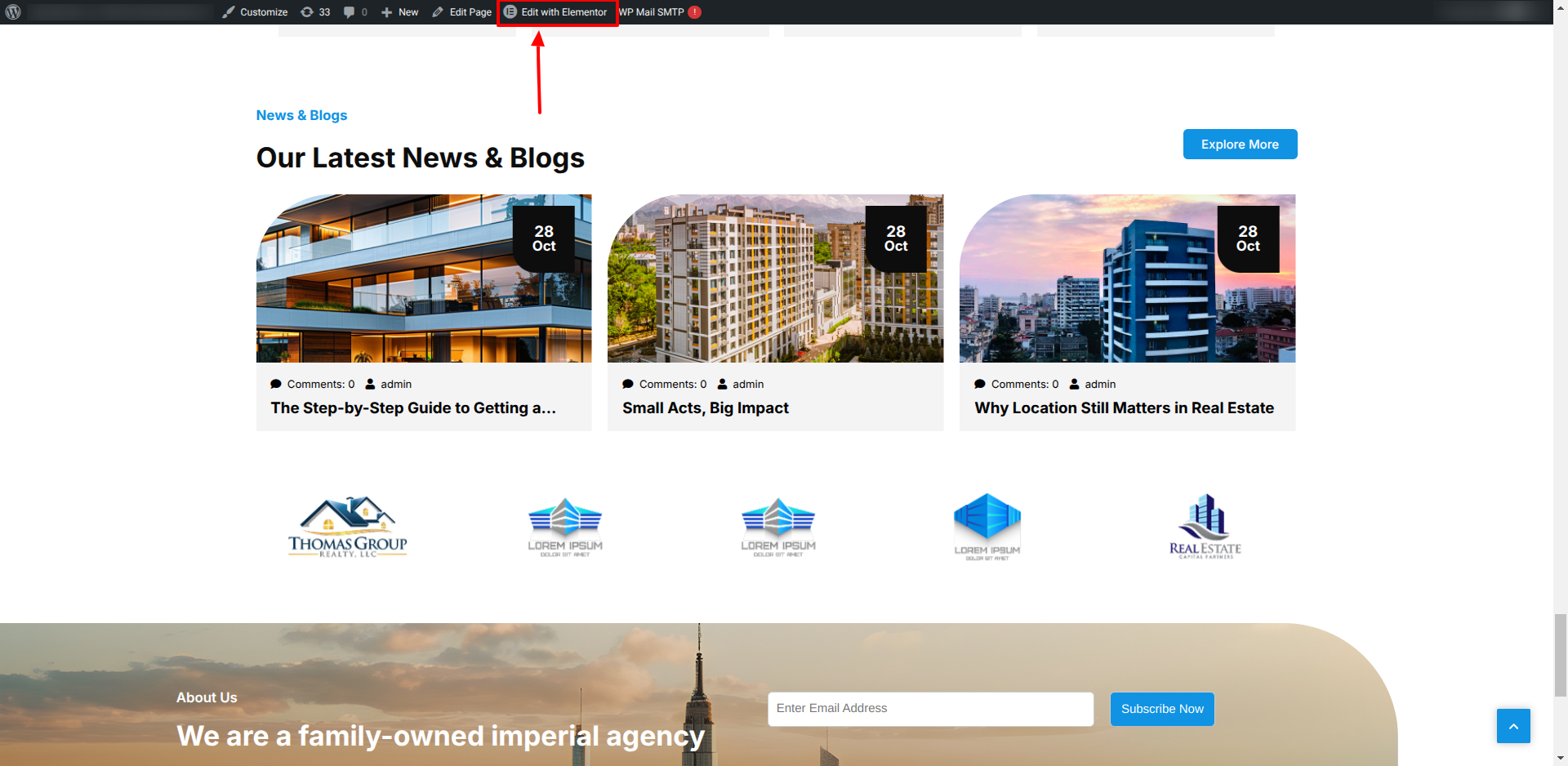
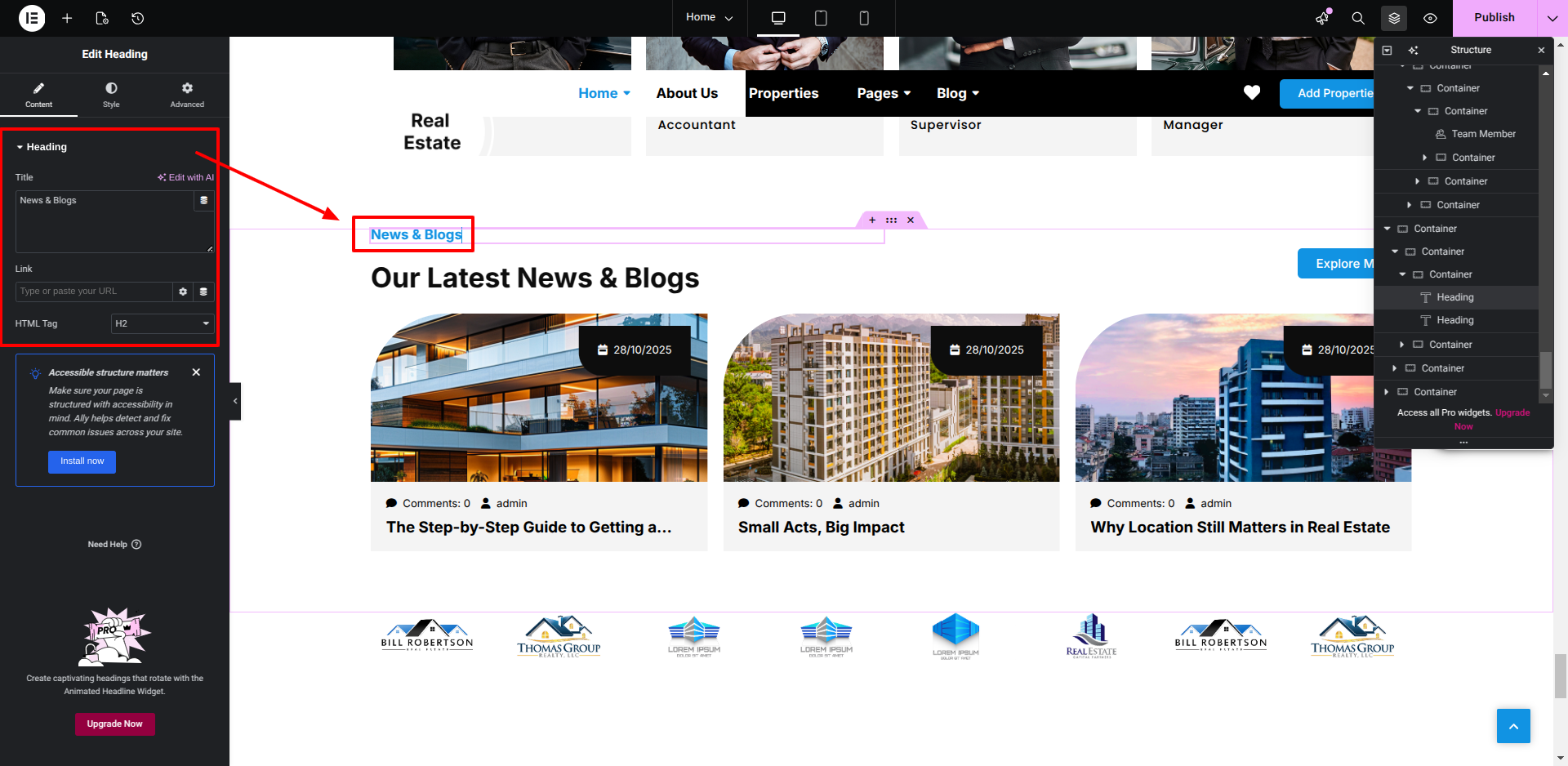
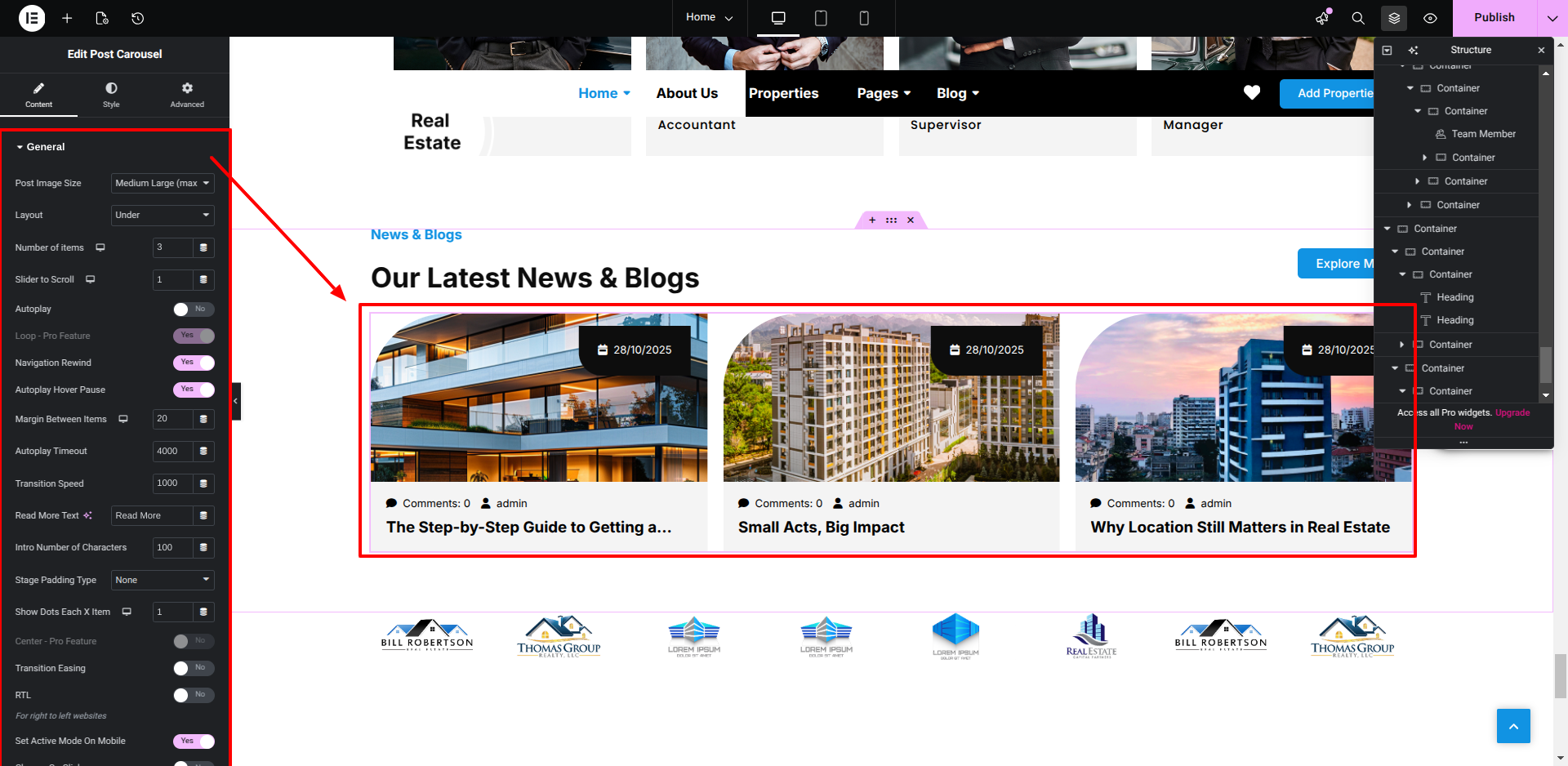
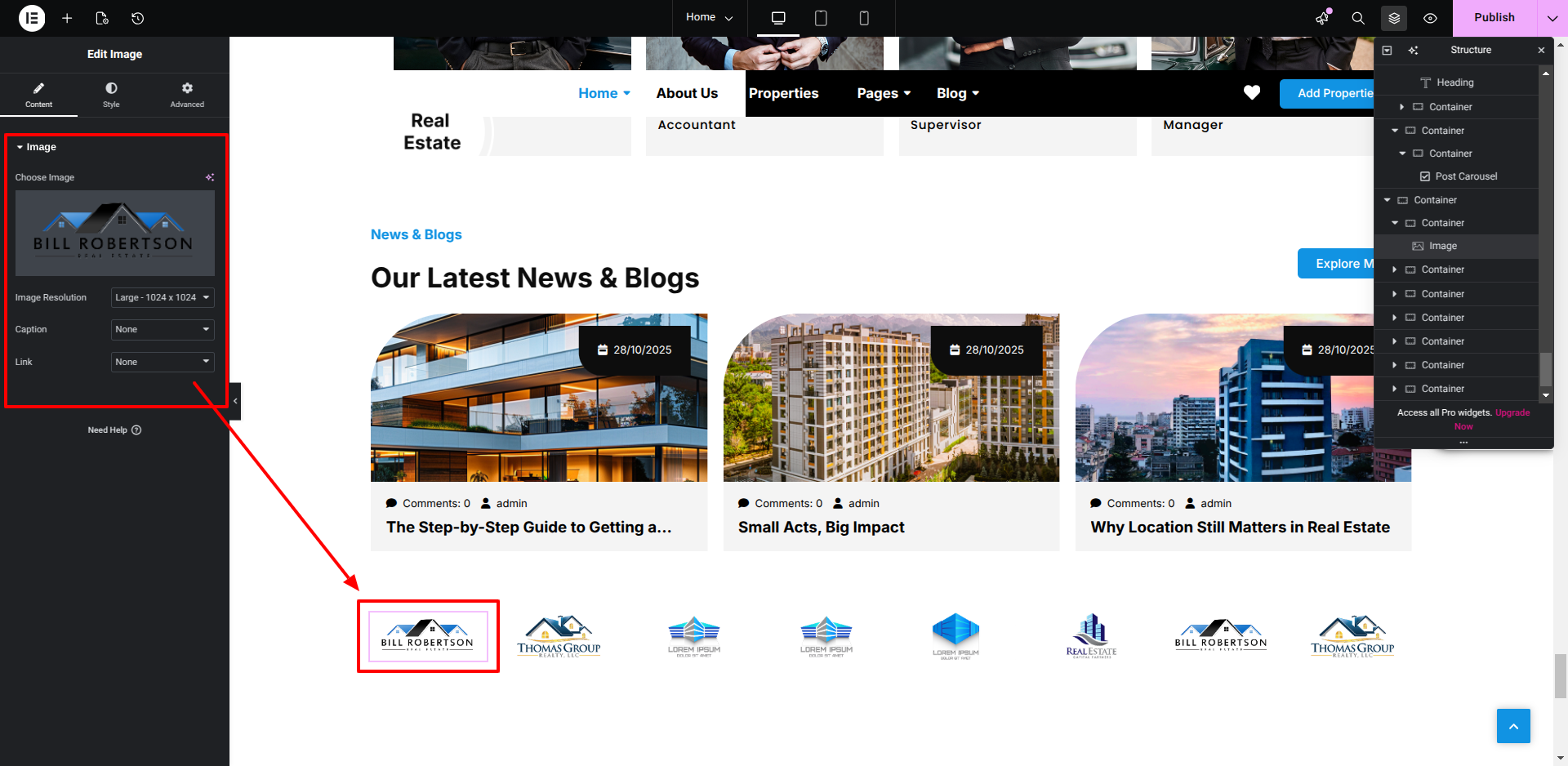
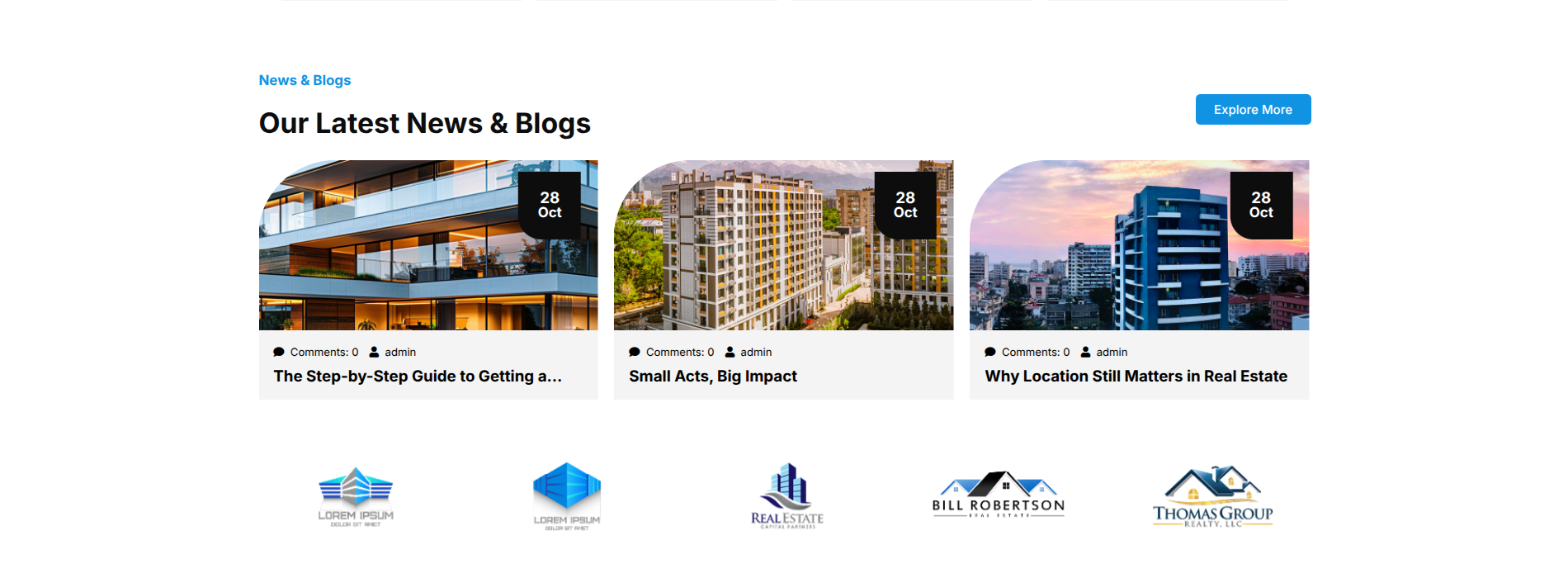
Setup Blog Section


This is how you may set up Blog​ Section.


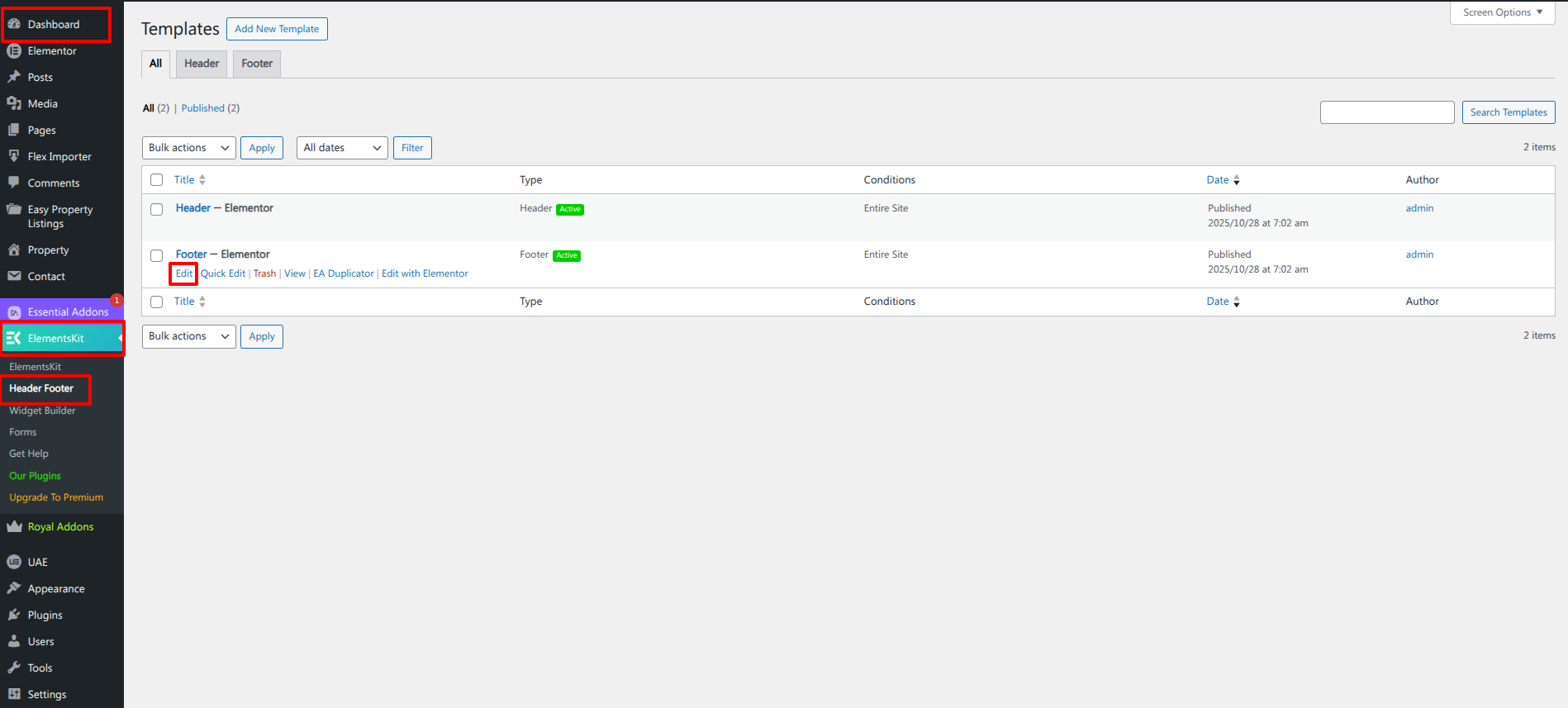
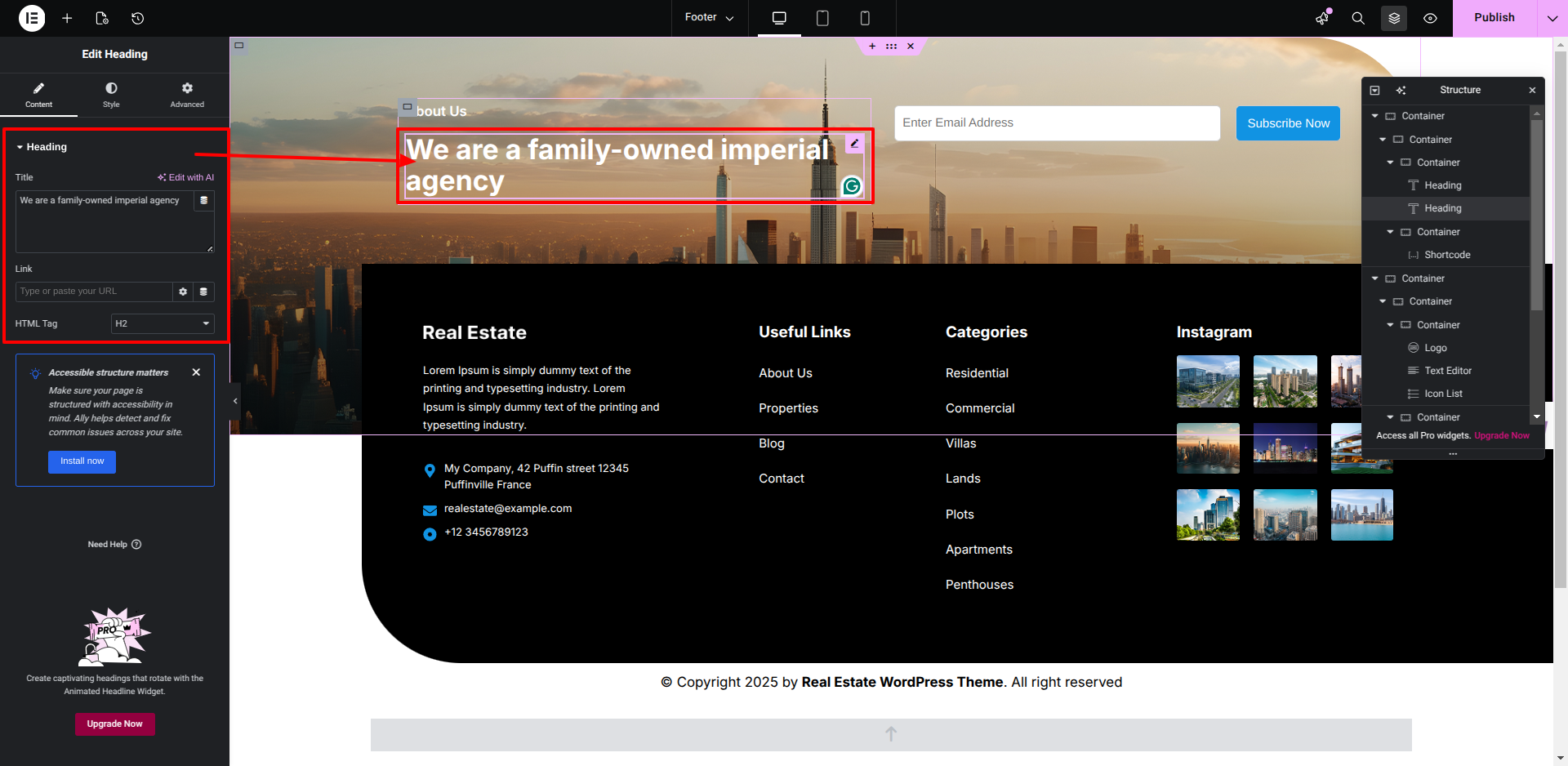
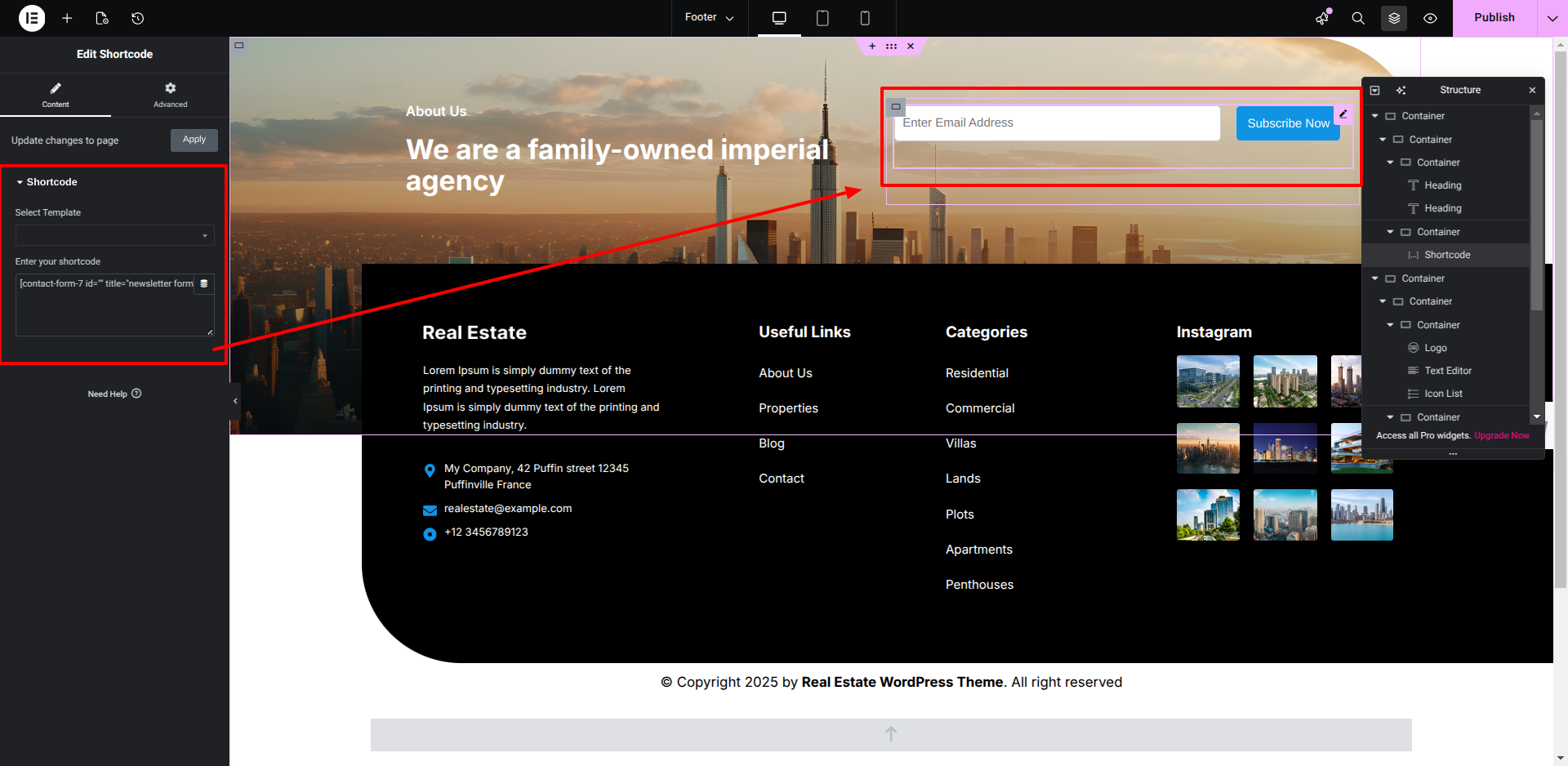
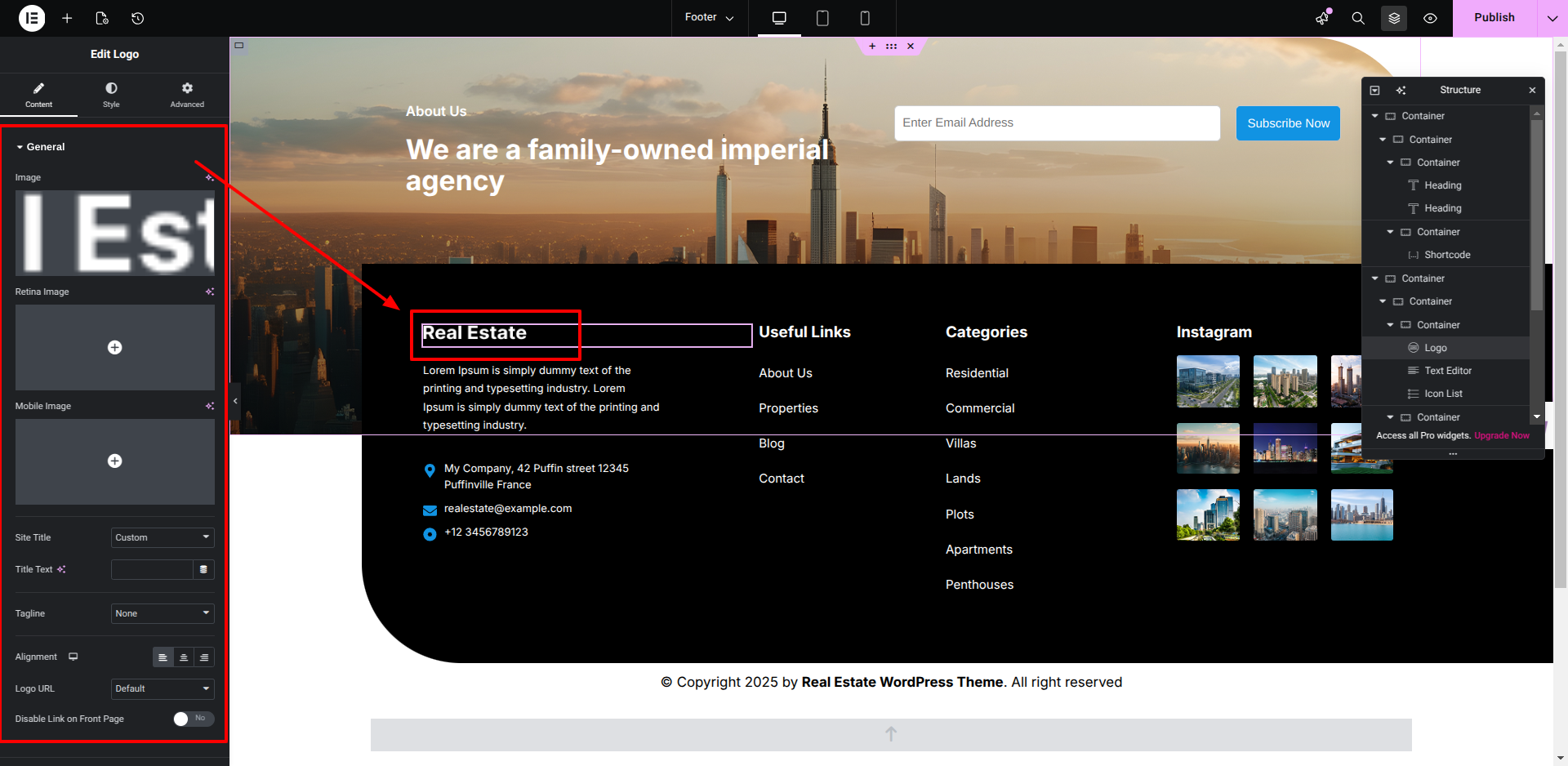
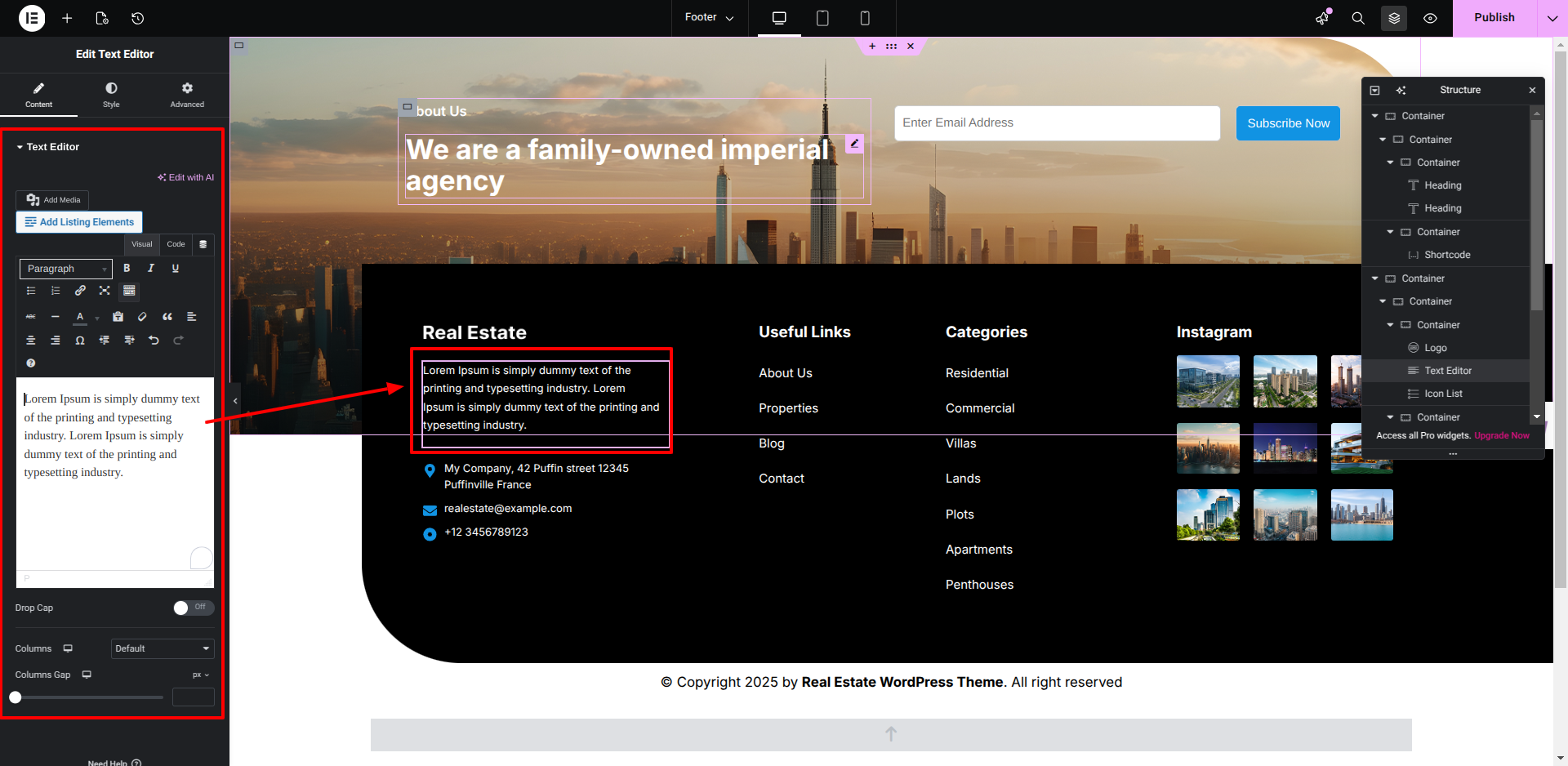
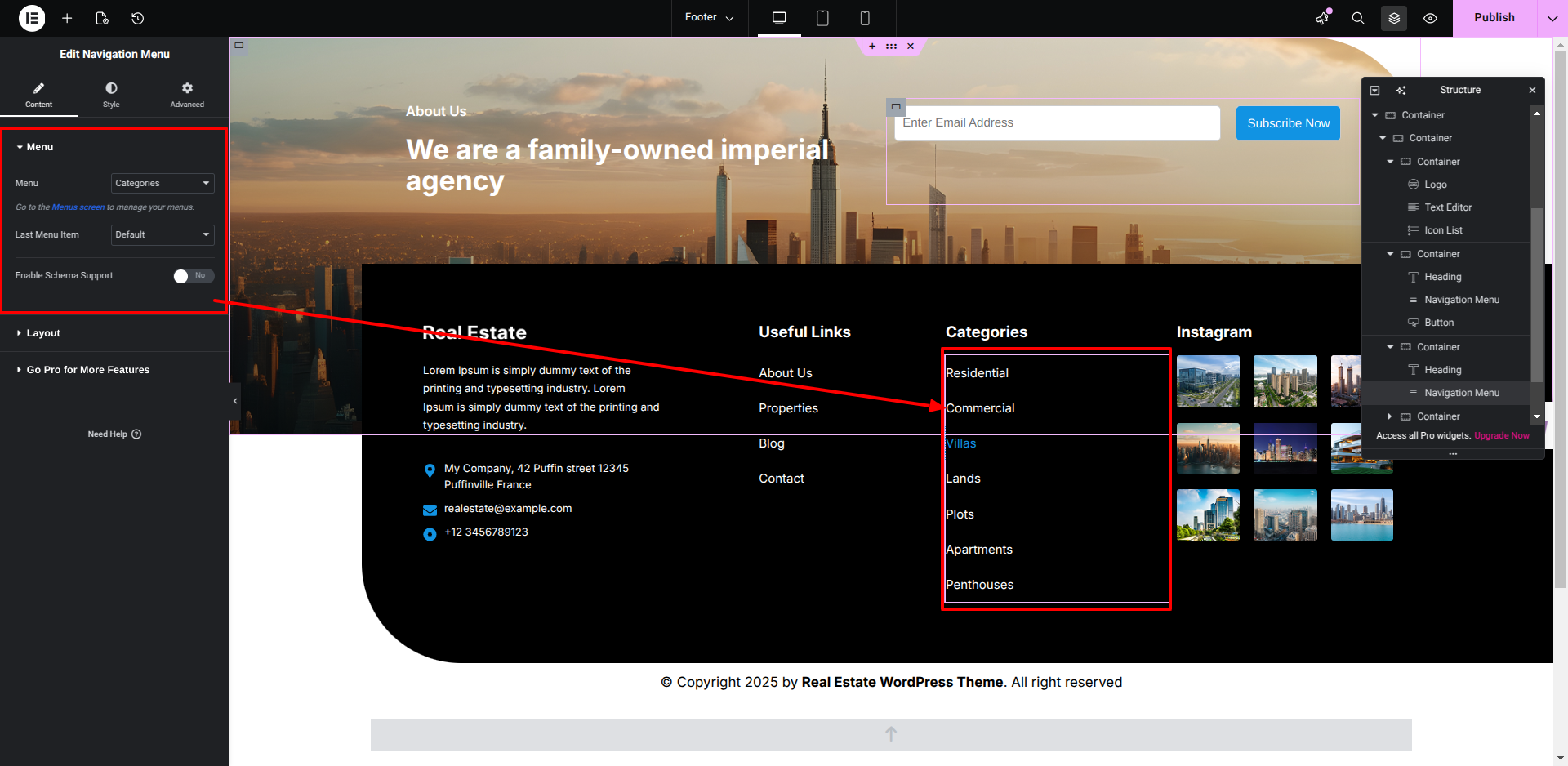
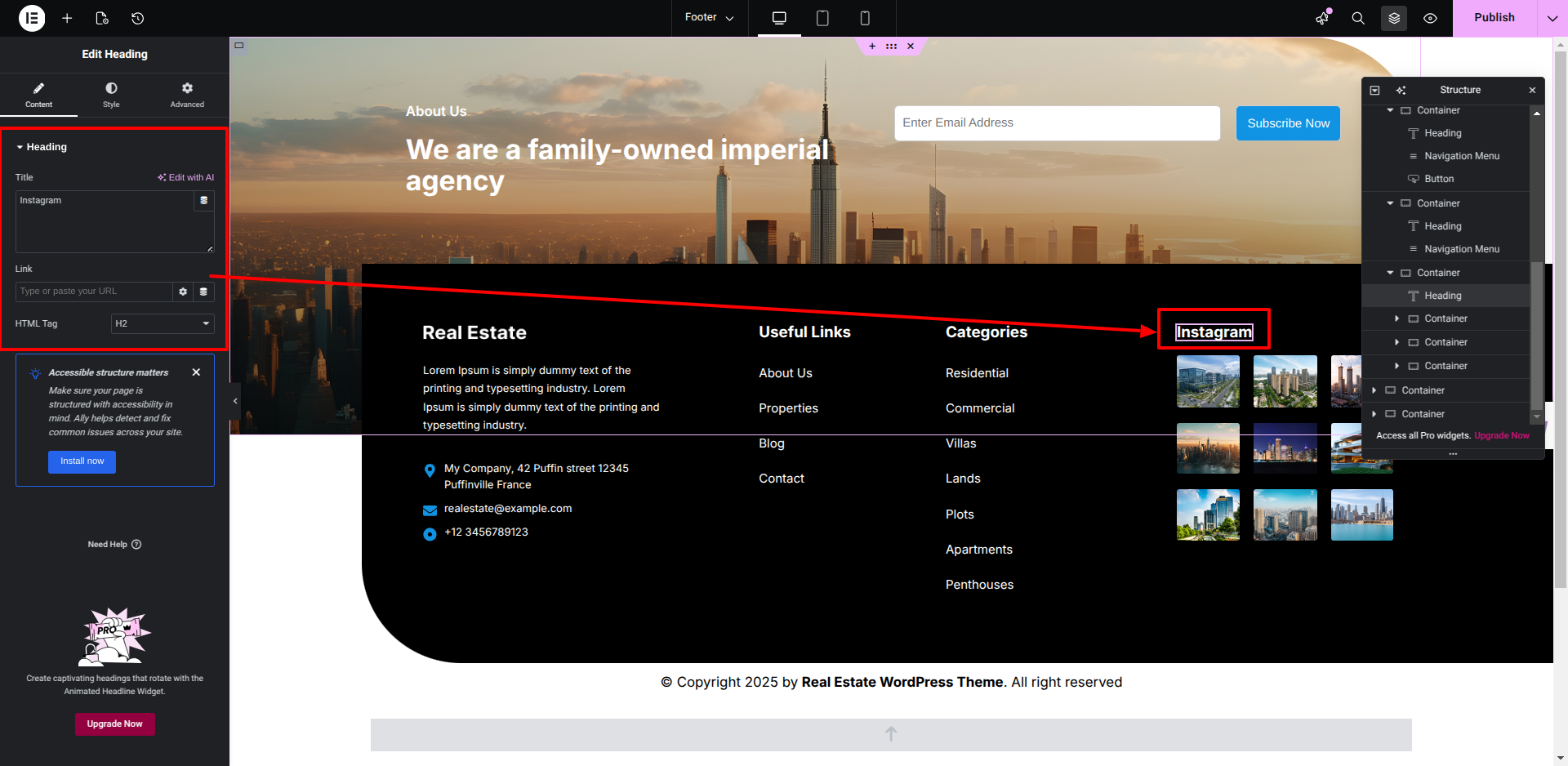
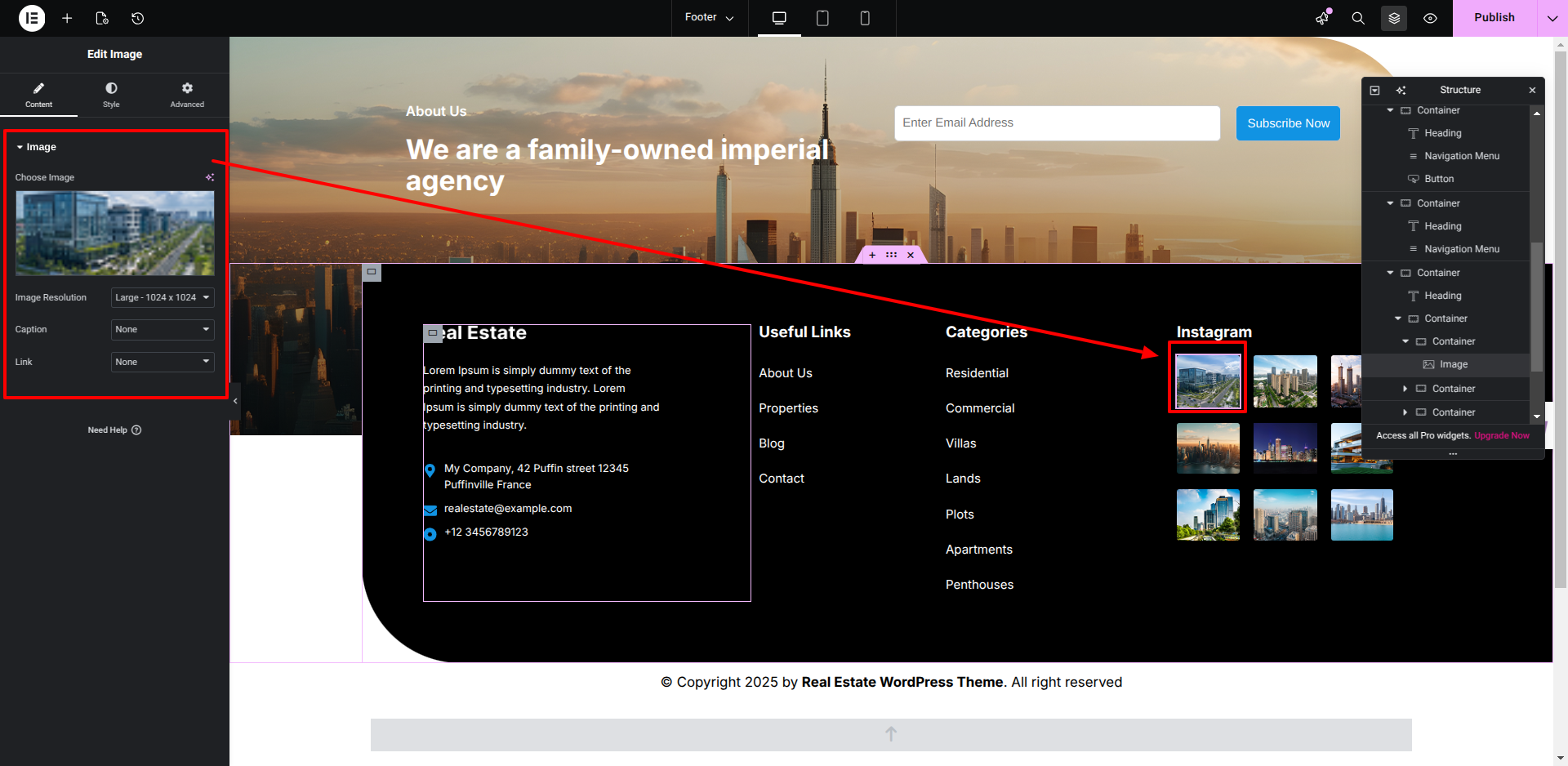
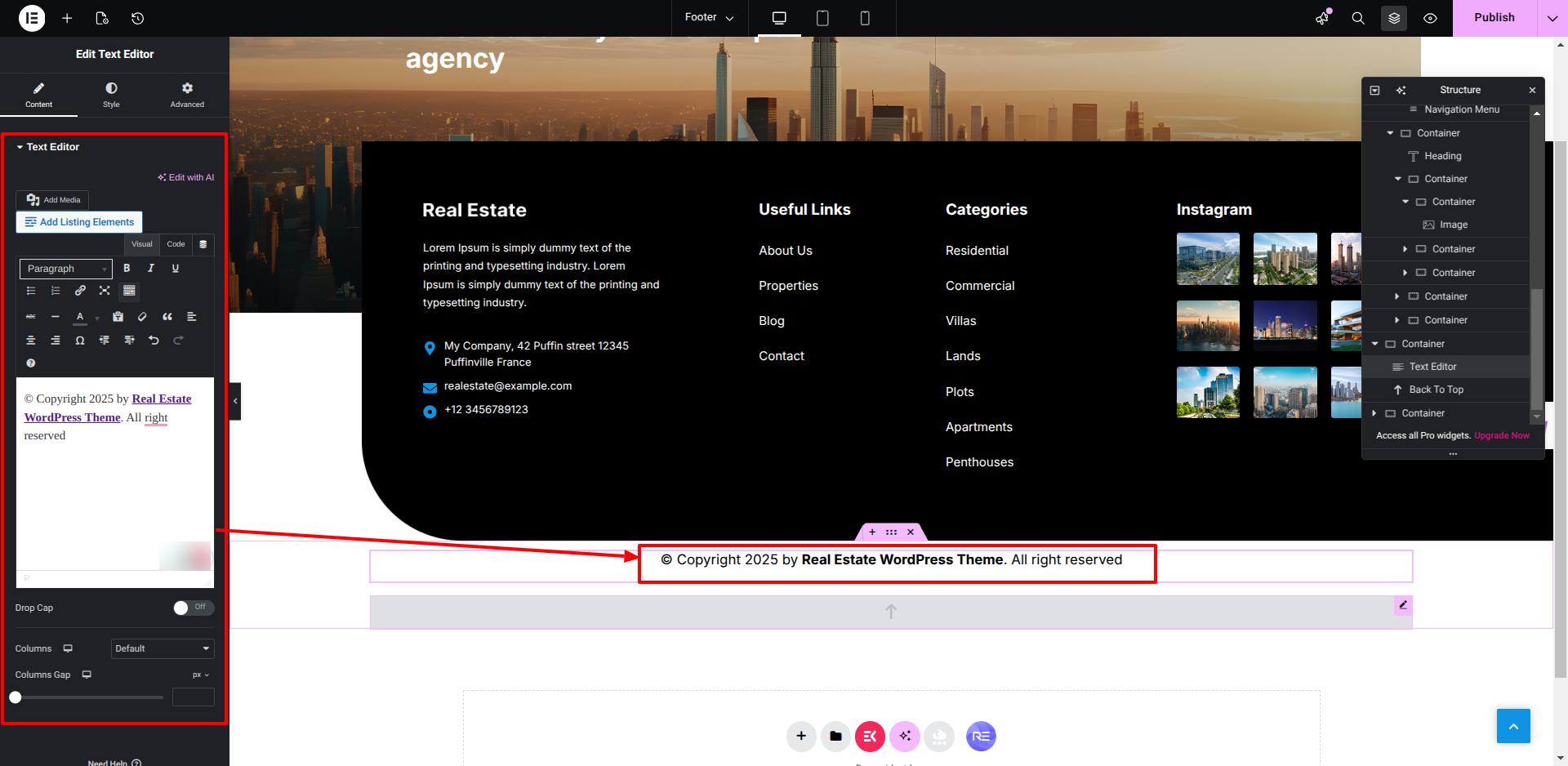
SETUP FOOTER

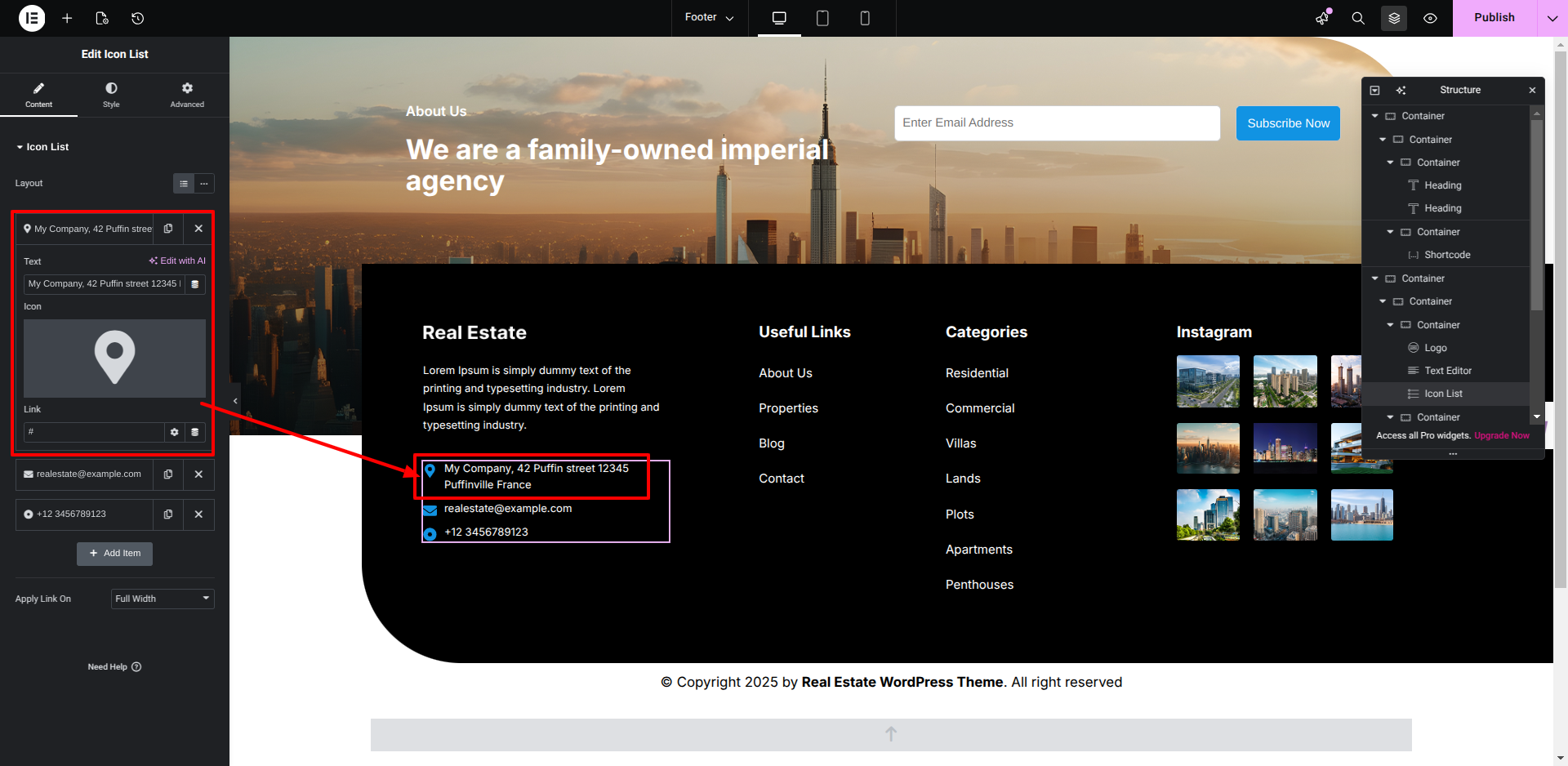
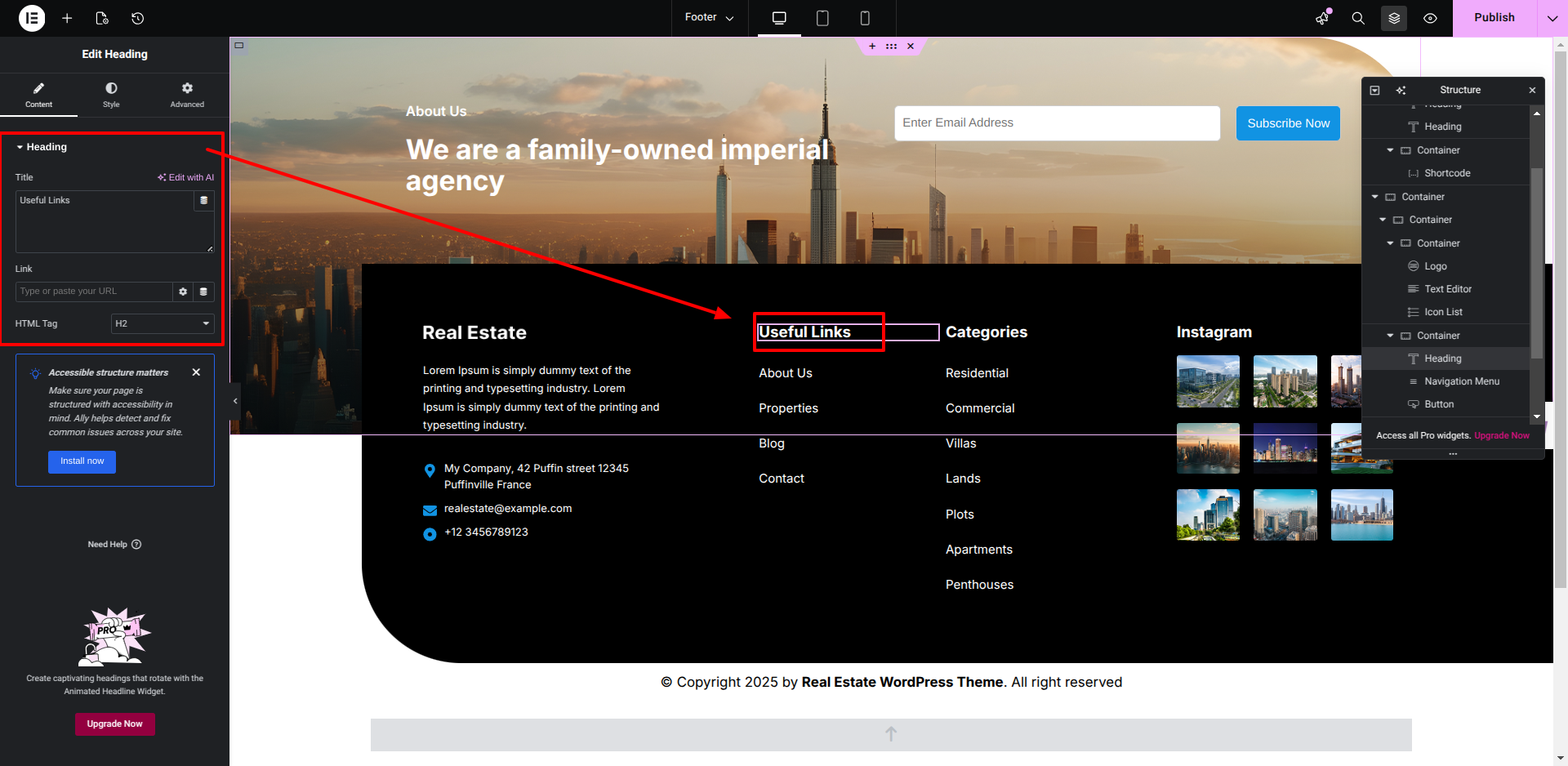
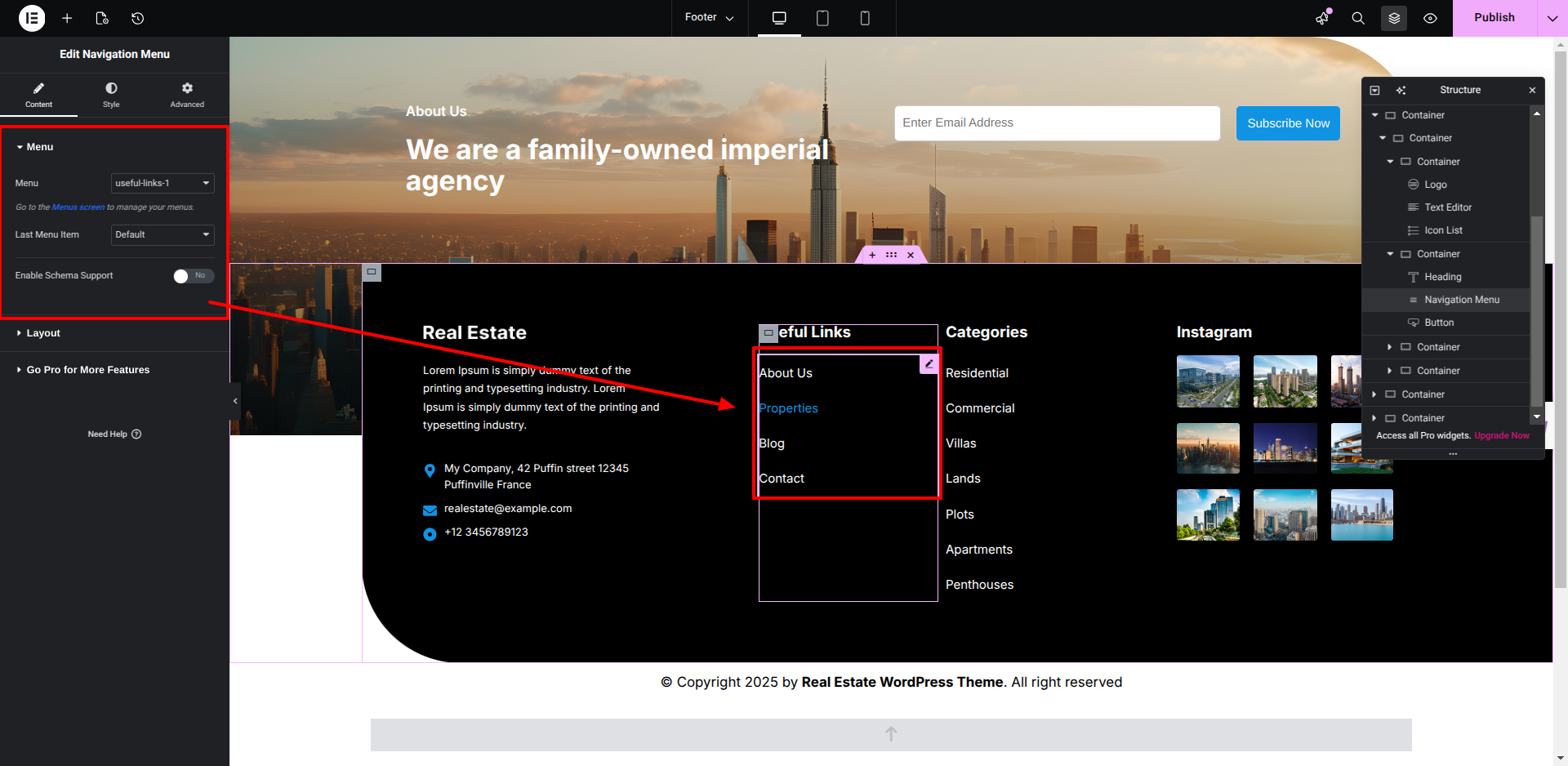
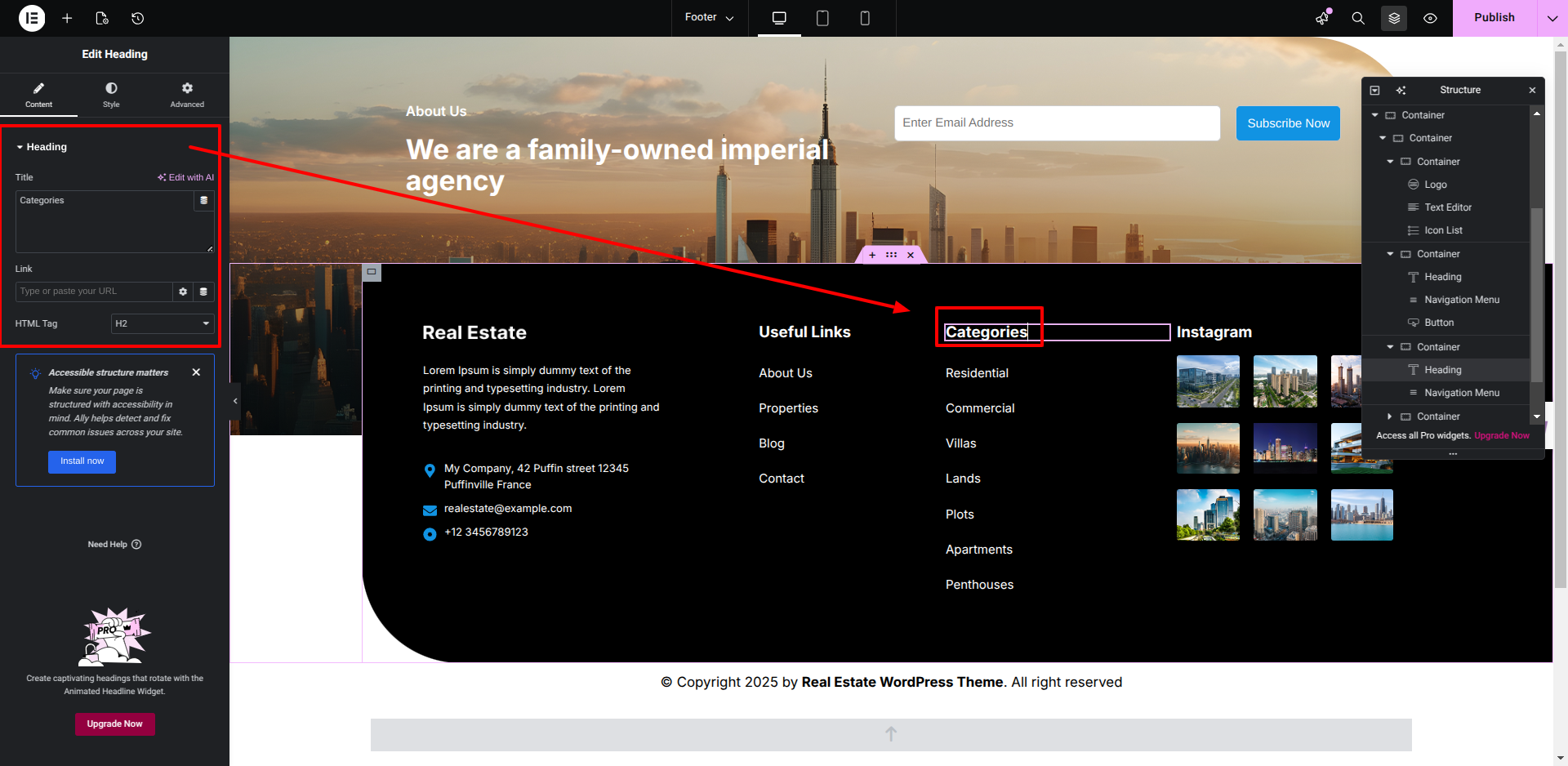
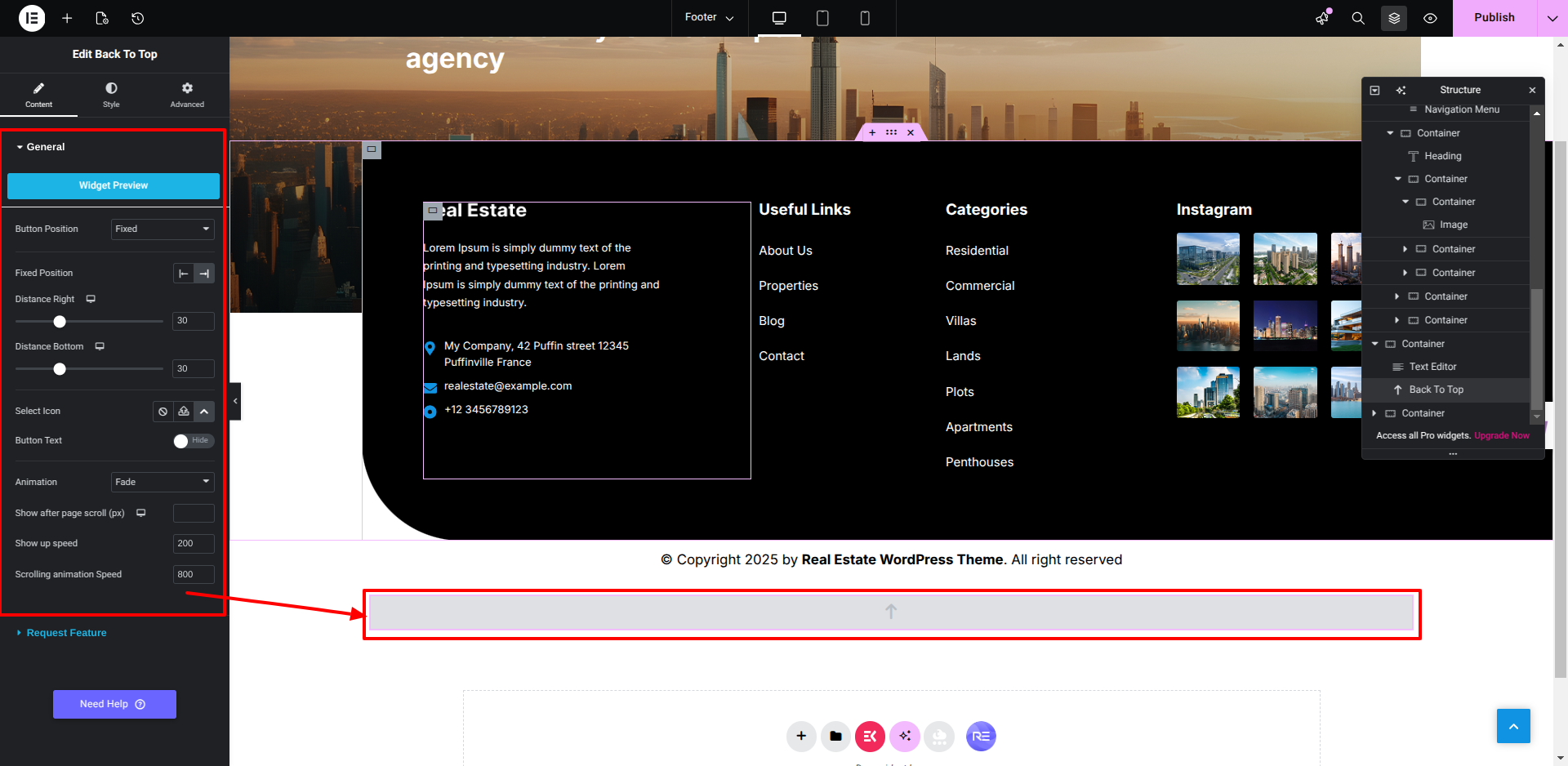
Set up the footer by following the steps mentioned below.

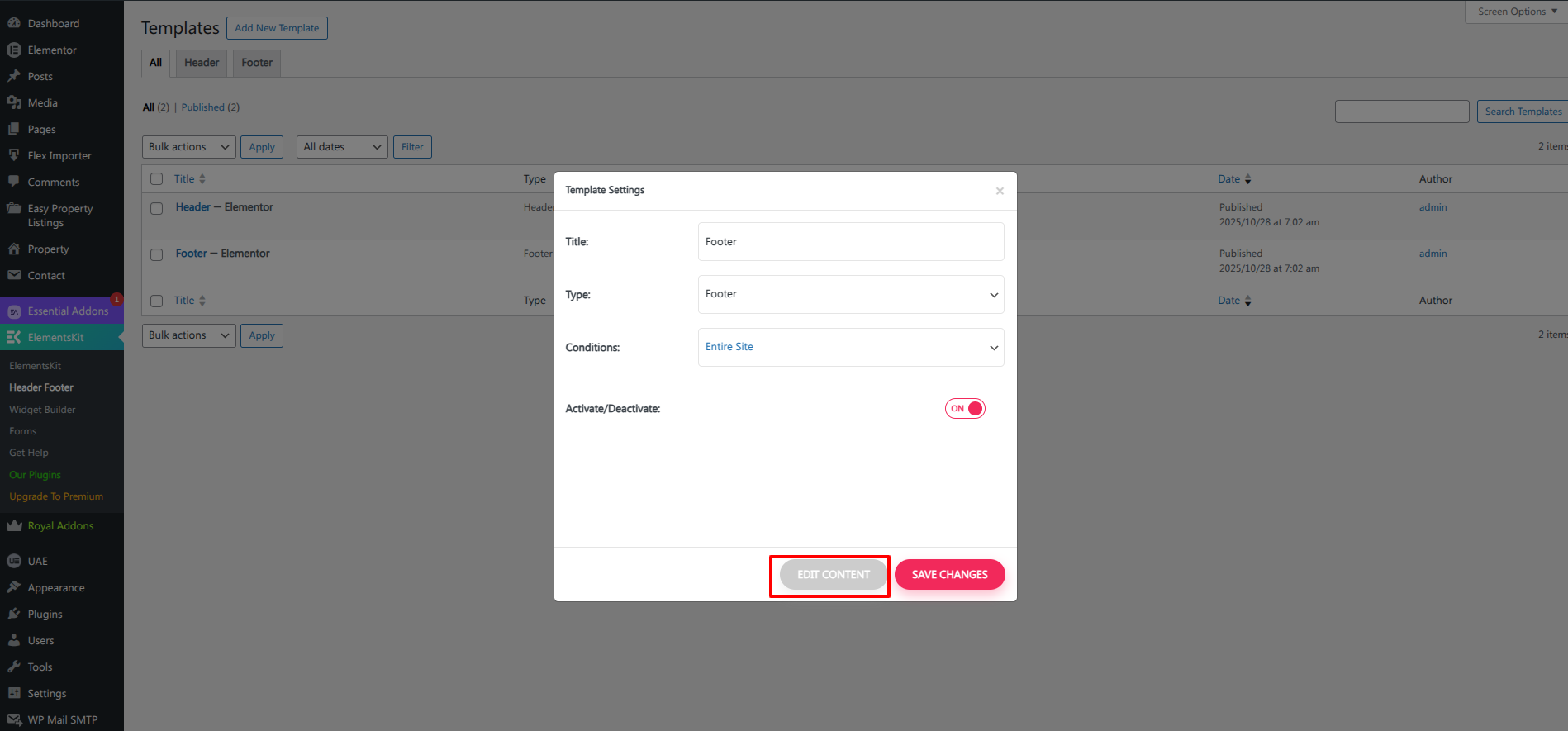
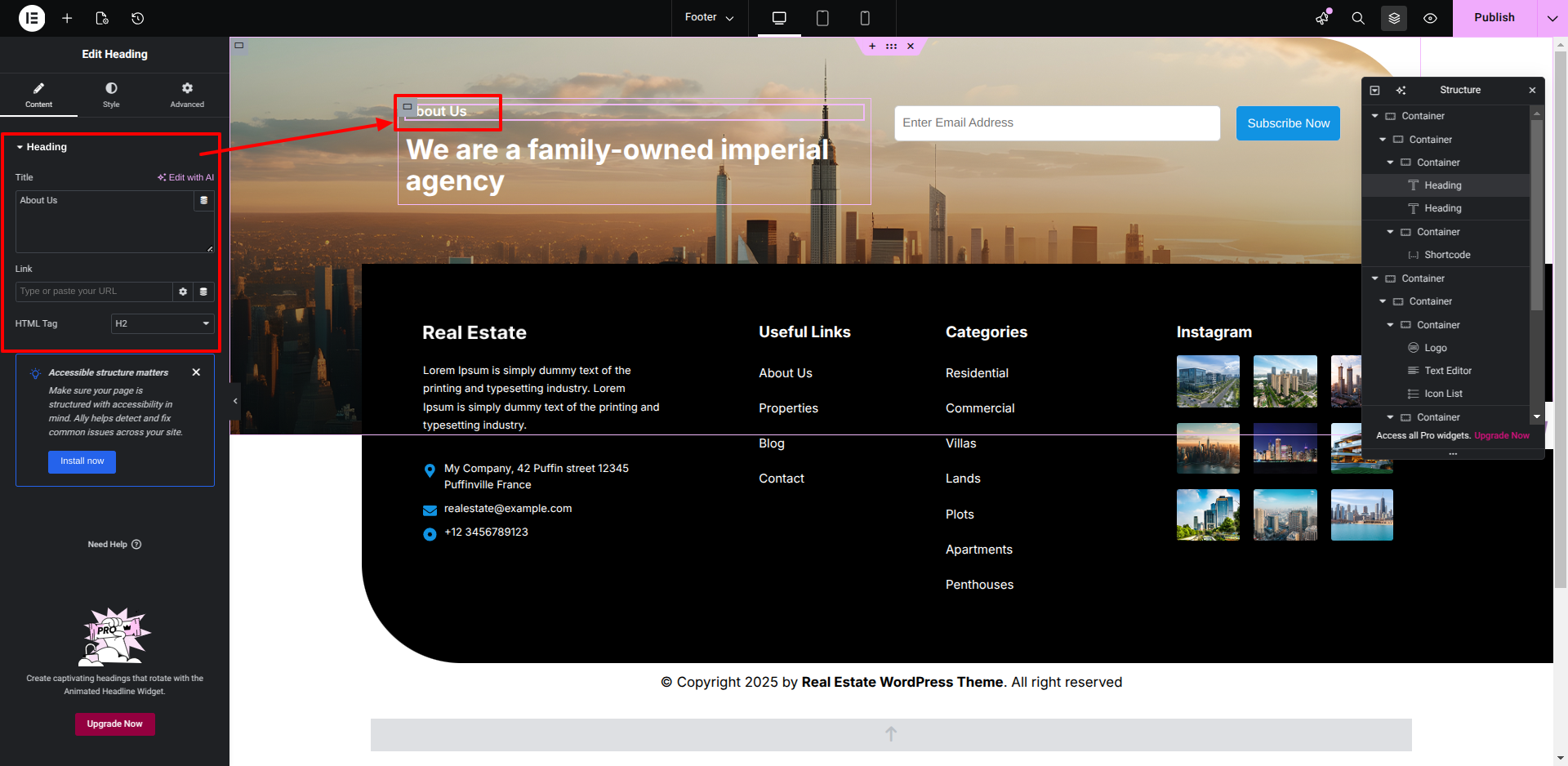
To proceed with Footer Section.

Go to the Dashboard Elementskit Footer Edit.


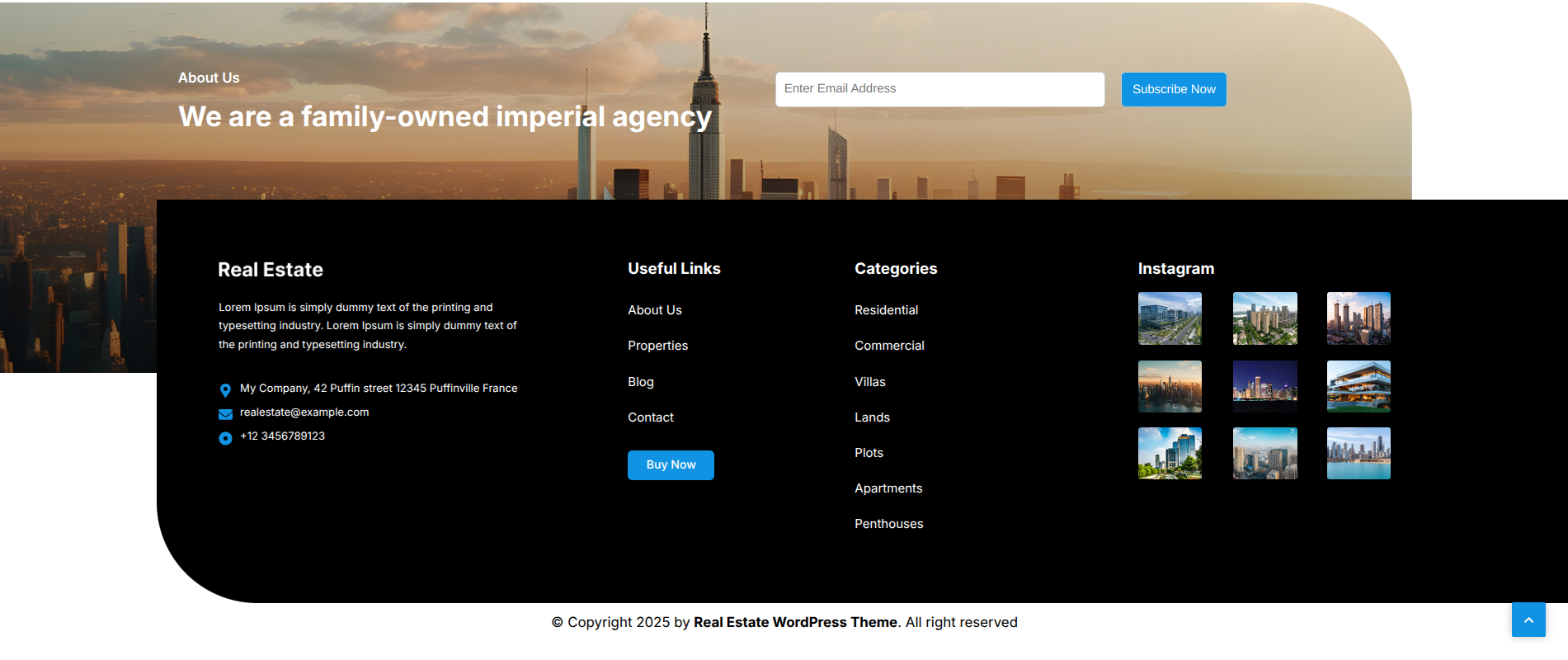
This is how you may set up and add the Footer Section.


Support

Once again, thank you so much for purchasing this theme. As I said at the beginning, I'd be glad to help you if you have any questions relating to this theme. If you have any queries, please feel free to contact us at Support Center.


Click here for support :

  • Responsive image

© 2025 All Rights Reserved by Flex Real Estate Pro WordPress Theme Documentation